Use the Count tool to count items on a drawing, or to give each item its own number. Your quantities and asset tags come straight from your markups.
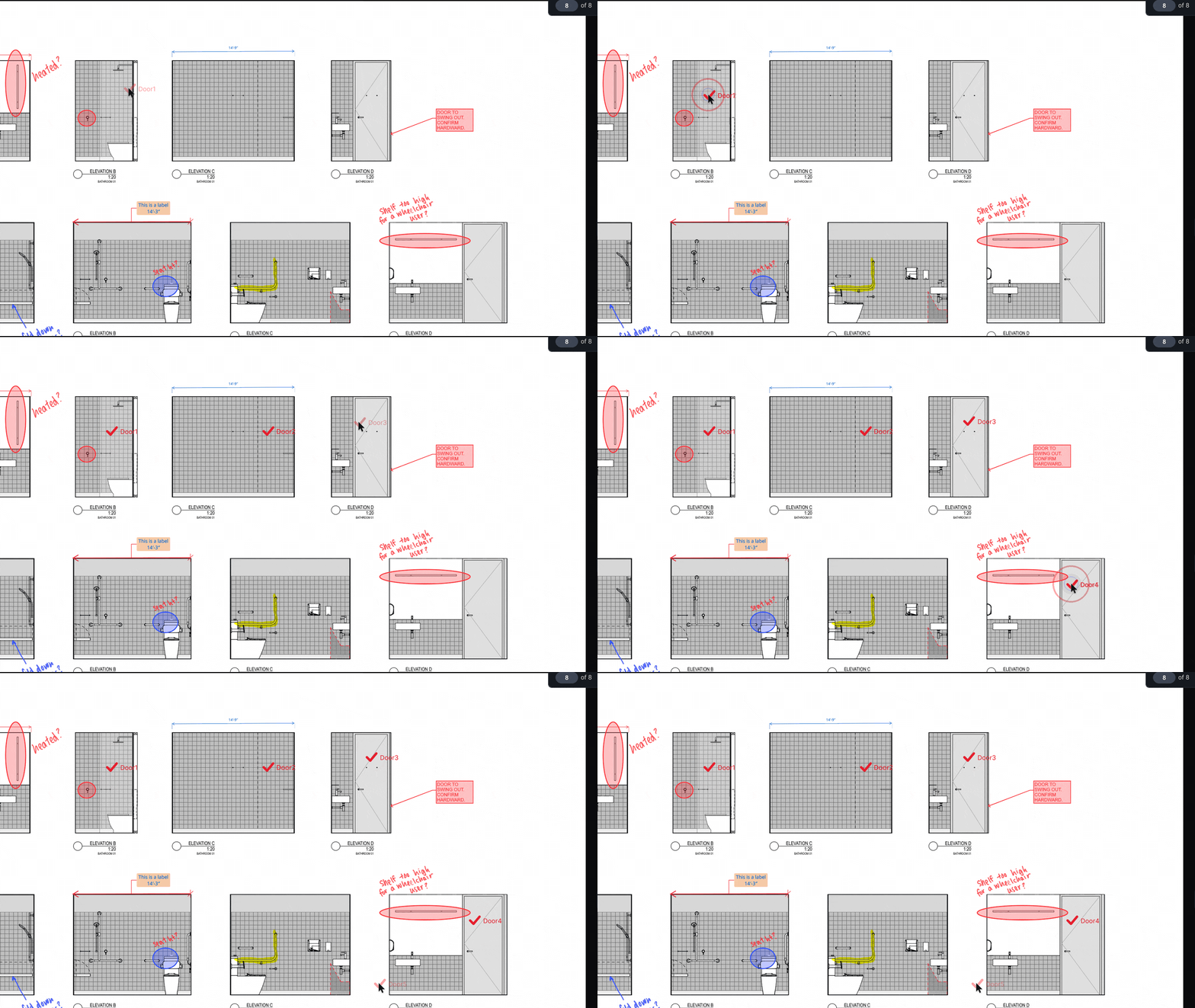 Doors numbered in Sequence mode, with a preview of the next number following the cursor.
Count mode and Sequence mode
The tool has two modes. Switch between them at any time with Count and Sequence in the tool's options bar. In Sequence mode, the options bar also shows the number the next mark will get.
| Mode |
What it places |
Use it for |
| Count |
A symbol for each item, added to a running total. |
Quantity takeoffs, such as counting light fittings or power outlets. |
| Sequence |
A symbol with a number that goes up by one each time, such as SPK-1, SPK-2. |
Asset tags and schedules, where each item needs its own number. |
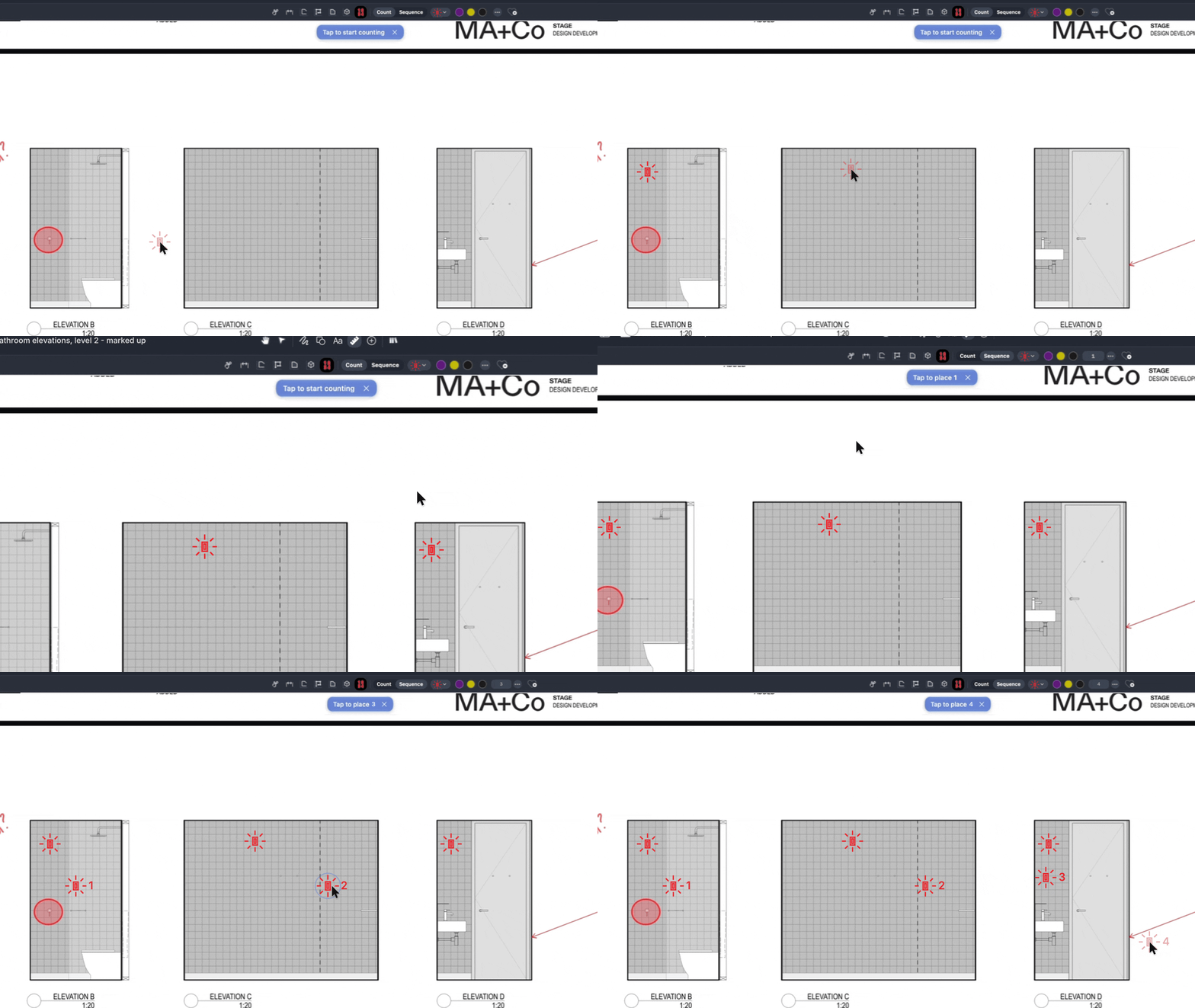 Counting wall lights in Count mode, then switching to Sequence mode to number them.
What you can set
To open all the tool's settings, select ··· in the options bar. On Windows and Web, they're on the Properties tab. On iPad, iPhone and Mac, they're on the Measurement and Appearance tabs. The preview at the top shows how your next mark will look. New settings apply to the marks you place next. Marks already on the page don't change unless you edit them.
| Setting |
What it does |
Mode |
| Subject |
Shown at the top of the panel. Use subjects to group and sort your markups in Annotation history. Select the subject icon next to it to change it. |
Both |
| Label |
Short text placed with each mark, such as AV, so you can tell what's being counted. |
Both |
| Style |
Number with 1, 2, 3, with capital letters (A, B, C) or with lower-case letters (a, b, c). |
Sequence |
| Sequence |
Three boxes: an optional Prefix, the value the next mark will use, and an optional Suffix. For example, SPK- + 1 + -L gives SPK-1-L. |
Sequence |
| Symbol |
A checkmark, circle, square, diamond, triangle or cross. The last button lets you use a symbol from your Markup Library. |
Both |
| No symbol |
The first button under Symbol (labelled None on iPad, iPhone and Mac). Places just the label and number, for example when the item is already drawn on the plan. |
Sequence |
| Color |
Markup colours. Select ··· for more. |
Both |
| Opacity |
How see-through the marks are. Drag the slider or choose a value from the dropdown. |
Both |
| Scale |
The size of the symbol and its captions. Drag the slider or choose a value from the dropdown. |
Both |
| Captions |
Show or hide the Label and, in Sequence mode, the Number, and choose whether they sit to the left of, above, below or to the right of the symbol, so they don't cover the drawing. |
Both |
How sequence numbers work
- Numbers count 1, 2, 3 with no leading zeros.
- Letters run A, B, C through to Z, then AA, AB and so on.
- To pick up where you left off or skip a range, change the value in Sequence. You can skip ahead, but you can't go back to a value that's already been placed.
- A sequence starts again on each page. To keep numbering on another page, use Continue (see Continue, split or resequence a group below).
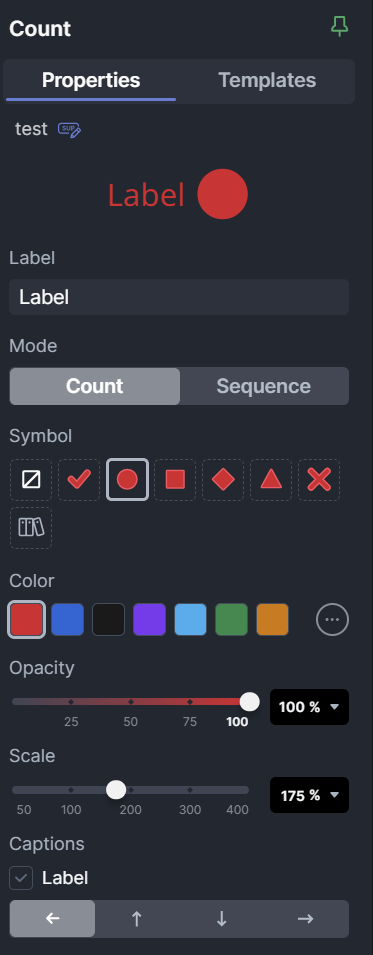 The Count tool's settings in Count mode (Windows).
Templates
Save a Count setup as a template so you can reuse it. Templates are on the Templates tab of the Count tool.
-
Personal templates are your own.
- Templates shared by your organisation are under your organisation's name on Windows and Web, and on the Organization tab on iPad, iPhone and Mac. Only organisation admins can save organisation templates.
- Templates are grouped by tag. Templates without a tag are under Untagged.
- To find a template, search by keyword or tag, or sort the list.
- After you apply a template, you can still change any setting. Your changes never affect the saved template.
Organisation admins can also create, edit, duplicate and delete organisation templates, and upload custom symbols, in the Admin Portal. Uploaded symbols appear in the tool's symbol list for everyone in the organisation.
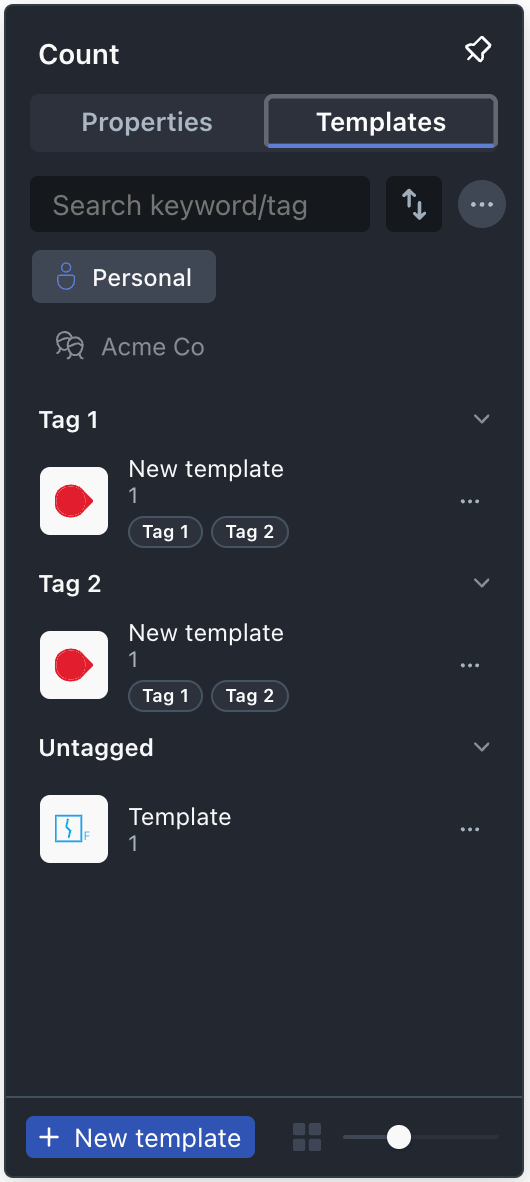 The Templates tab, with personal and organisation templates grouped by tag.
Use the Count tool
Common questions
Where can I see the total for each item?
Counts and sequences appear in Annotation history alongside your other markups. Marks with the same setup are grouped together, and each group shows its symbol, subject, label, a COUNT or SEQUENCE badge and the total. On iPad, iPhone and Mac, a mark's Count menu also shows its group's total.
- Count groups are collapsed. Sequence groups are expanded to show each number, such as SPK-1-L.
- You can group and subtotal by subject.
- Select a row to jump to that mark on the page. Select a group to highlight all of its marks.
 Count and Sequence groups in Annotation history.
I deleted a mark and now there's a gap in my numbers
Drawboard PDF never renumbers marks on its own, because the numbers may already be on a schedule or on site.
-
Undo removes the last mark and moves the counter back, so the next mark reuses that value.
- Deleting the most recent numbered mark also moves the counter back.
- Deleting a mark from the middle of a sequence leaves a gap.
To close gaps, use Resequence (see Continue, split or resequence a group above) and enter the value to start from. The group is renumbered without gaps, keeping the same style. Resequencing changes numbers that may already appear on schedules or on site, so check with your team first. The total updates whenever you undo or delete a mark.
Why can't I set the sequence back to a lower number?
You can skip ahead, but you can't go back to a value that's already been placed. To reuse the last number, undo or delete the most recent mark.
Can I carry on a sequence on another page?
Yes. Choose Continue for a mark from that sequence (right-click it on Windows and Web, or use its Count menu on iPad, iPhone and Mac), then place marks on the new page. They join the same group and keep counting up.
I changed the colour, but my marks didn't change
New settings apply to the marks you place next. To change marks already on the page, select one of them: changing the symbol, colour, mode, prefix or suffix updates every mark in its group.
Can I number items that are already drawn on the plan?
Yes. In Sequence mode, choose the first button under Symbol (None on iPad, iPhone and Mac) to place just the label and number.
Will my counts show up in other PDF apps?
Each mark's subject and label are saved in standard PDF fields, so other PDF viewers can still read them.
Why can't I save an organisation template?
Only organisation admins can save organisation templates. You can still save your own templates on the Templates tab.
How do I go back to the original settings?
The tool remembers the settings you last used. To go back to the original setup (Count mode, checkmark symbol, numbering from 1), select Reset to defaults in the tool's settings.
Why can't I find the Count tool?
The Count tool needs a Pro Plus or Pro Unlimited plan. See Plans and features compared. If you have the right plan and still can't see it, update Drawboard PDF to the latest version.
Related articles