Managing Your Organization in the Admin Portal | Drawboard PDF
As a commercial customer, you have access to the Drawboard Admin Portal, your central hub for managing licenses, members, templates, and more. This article walks you through everything available to you.
Log in at admin.drawboard.com using your admin account.
Our team completes the initial setup for your organization before you can log in for the first time. If you haven't been onboarded yet, reach out to your account manager.
Details
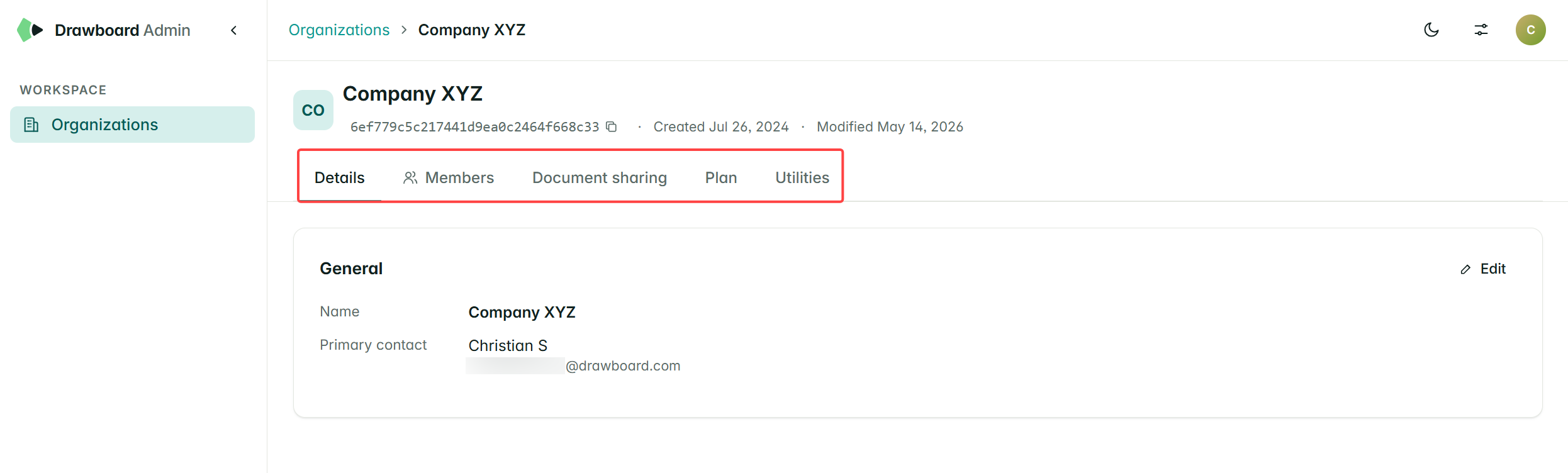
The Details section shows your organization's core information:
-
Organization Name: your company name as registered with Drawboard
-
Organization ID: useful to have on hand when contacting support
- Created & Modified dates
-
Primary Contact: the main point of contact for your organization's Drawboard account
Members & Roles
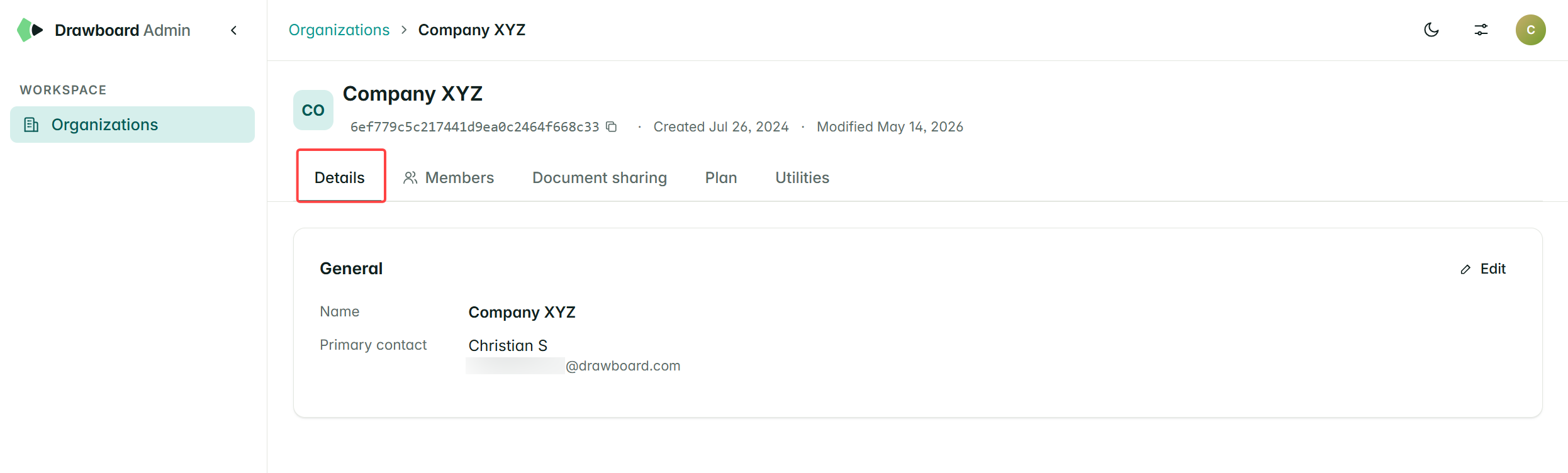
Organizations support three roles: Account Owner, Admin, and Member. The first person added is automatically the Account Owner, but you can have multiple Owners and Admins.
| Permission |
Account Owner |
Admin |
Member |
| Access Admin Portal |
✓ |
✓ |
|
| Assign licenses |
✓ |
✓ |
|
| Manage user roles |
✓ |
✓ |
|
| Add members to organization |
✓ |
✓ |
|
| Add seats to plan |
✓ |
✓ |
|
| Promote user to Account Owner |
✓ |
|
|
| View & manage billing |
✓ |
|
|
| Access Drawboard PDF apps |
✓ |
✓ |
✓ |
Managing members
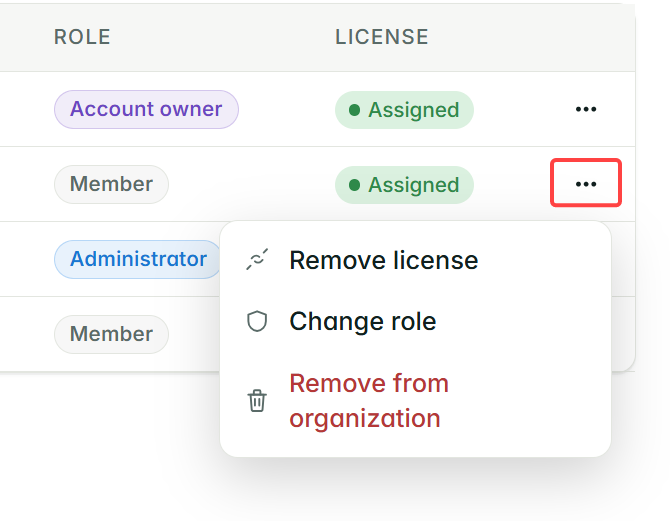
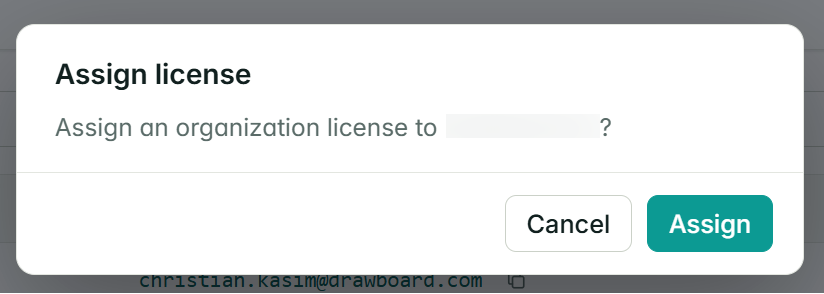
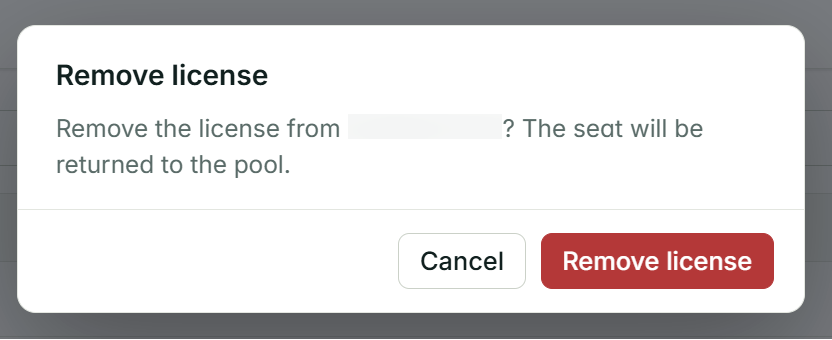
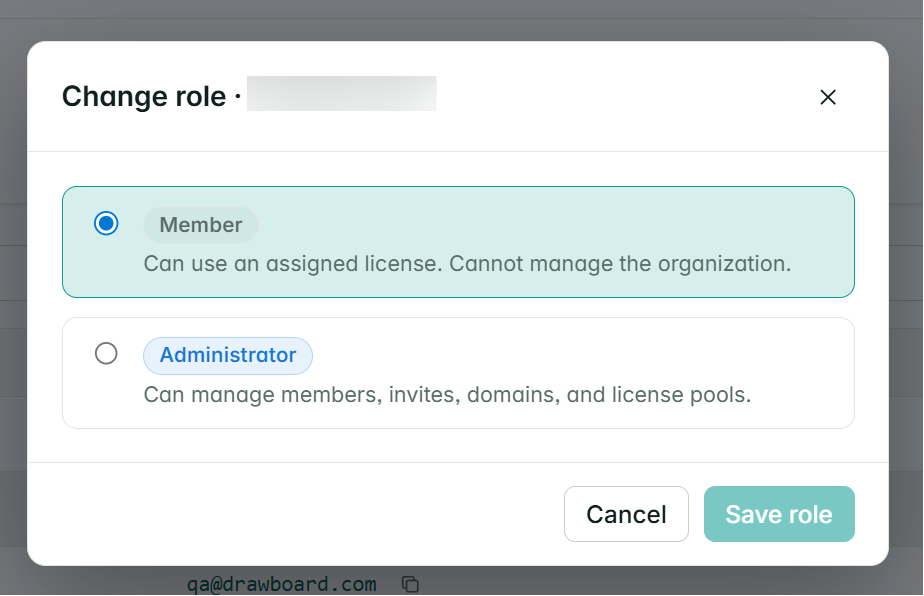
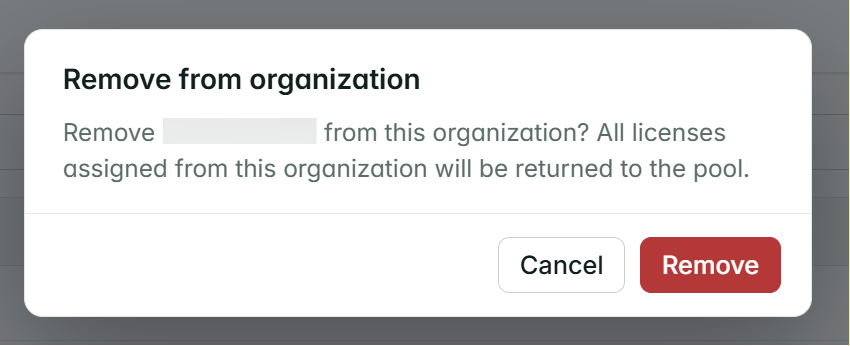
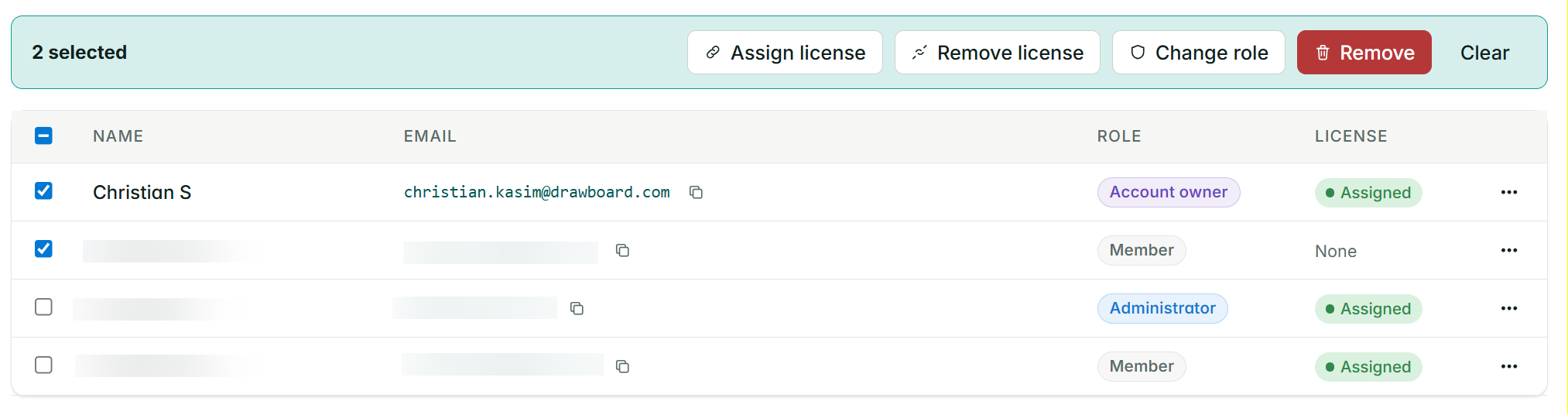
Click the ellipsis (⋯) next to any member's row to access per-member actions. Each action includes a confirmation step to prevent accidental changes.
-
Assign / Remove license: toggle the license for that user. Removing returns the seat to your pool; assigning takes one from your plan.
-
Change role: promote or demote a member between Admin and Member.
-
Remove from organization: removes the user and automatically returns any assigned license to the pool.
You can also perform bulk actions by selecting the checkbox next to multiple members, then applying an action to all of them at once.
Inviting Users
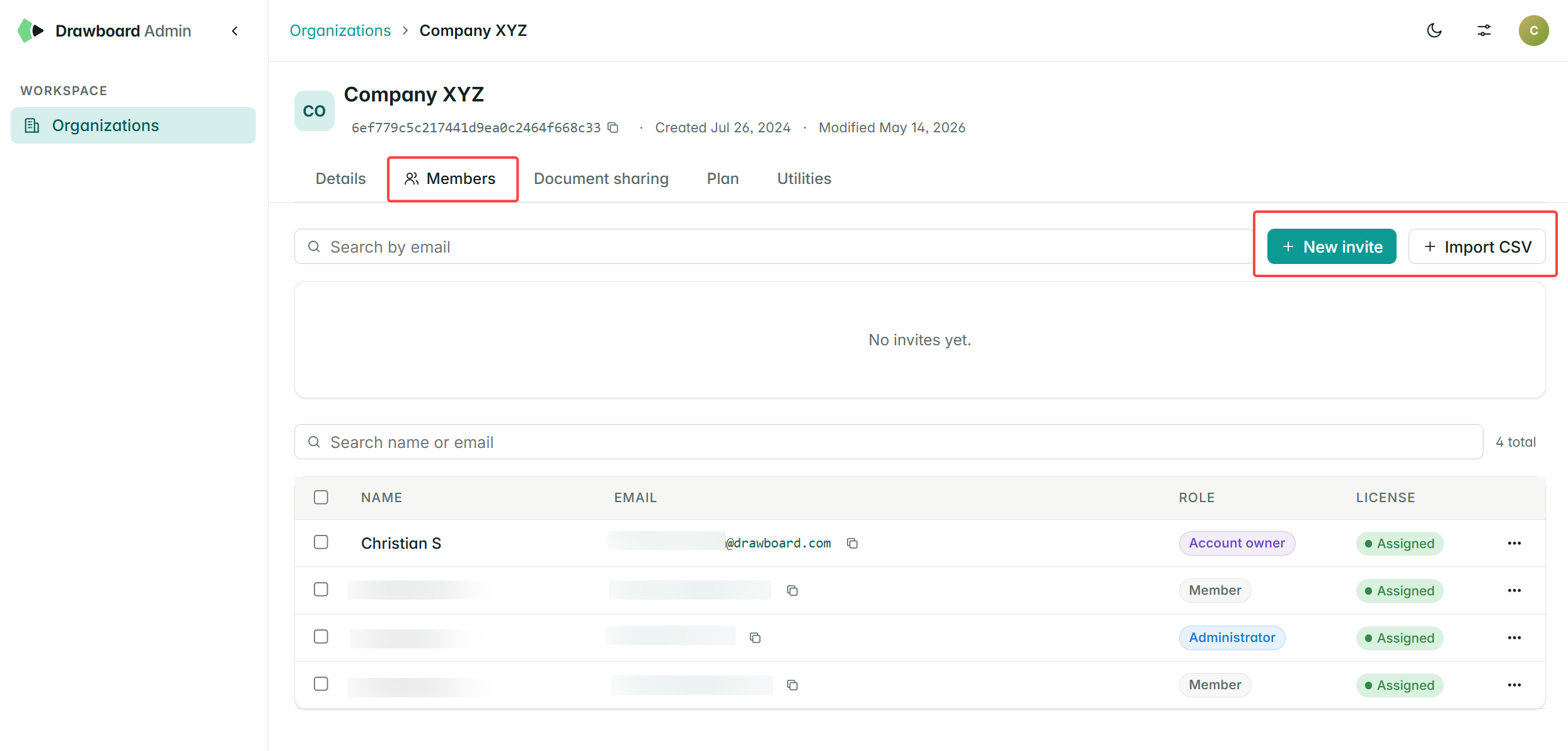
As an Account Owner or Admin, you can invite anyone to join your organization, even if they don't have a Drawboard account yet. There are two ways to do this:
Option 1: Invite
Click + New Invite from the dashboard to invite members one at a time (or a few at once using comma-separated email addresses). Set their role during the invite and you can always change it later. Then, click + Send invites on the invite modal to send the invites. If the person doesn't have a Drawboard account, they'll be prompted to create one when they accept.
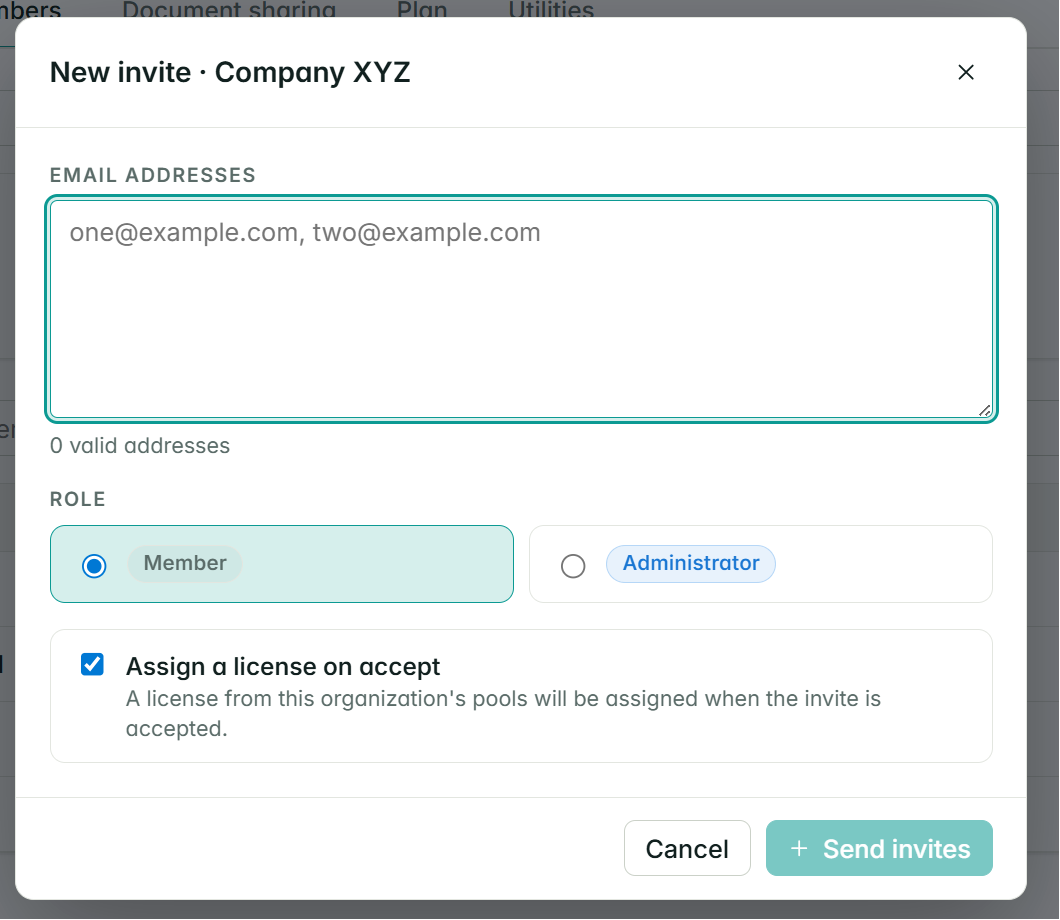
Heads up: Pending invites occupy a seat in your plan by default. To avoid this, uncheck "Assign a license" when sending the invite. Once a user accepts, they'll move from the Invites section to Members automatically.
Option 2: Bulk import via CSV
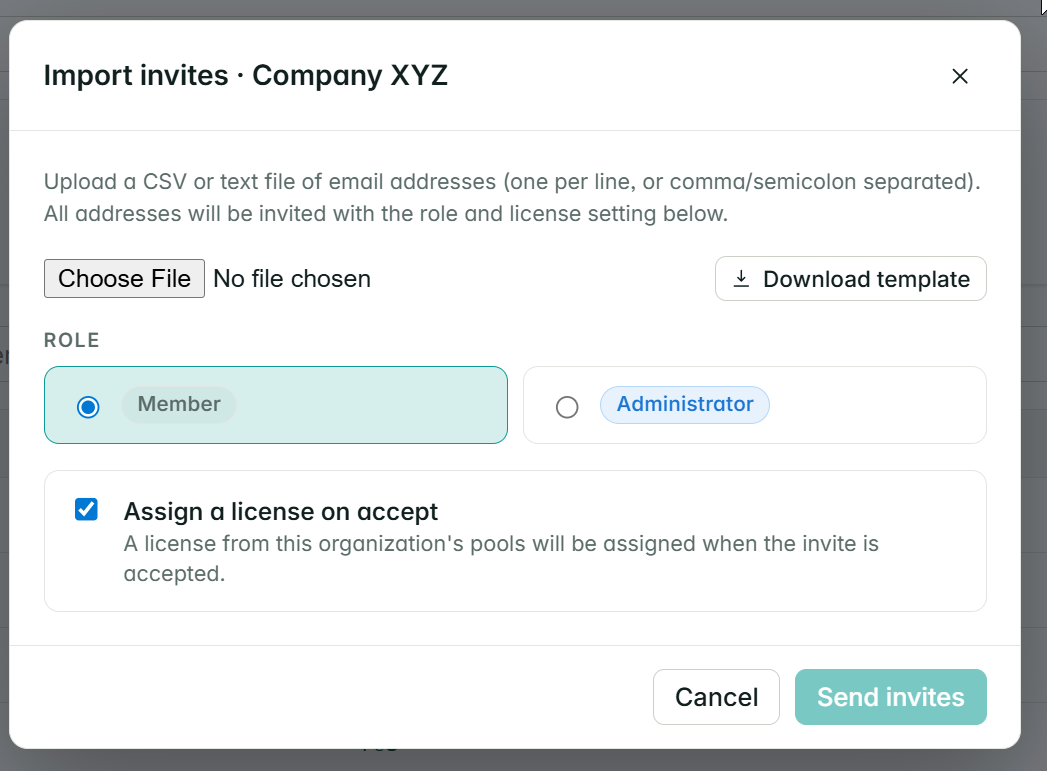
Use the Import CSV button to add multiple users at once:
- Download the CSV template from the portal.
- Fill in email addresses and roles. Any row with an empty role will default to Member.
- Upload the completed CSV back into the portal.
- Select a role to apply to all imported users.
- Check "Assign a license on accept" if you want licenses automatically assigned when users join. Leave unchecked to assign manually later.
- Click Send Invites.
Pending invites will appear in the Invites area until each user accepts.
Document Sharing
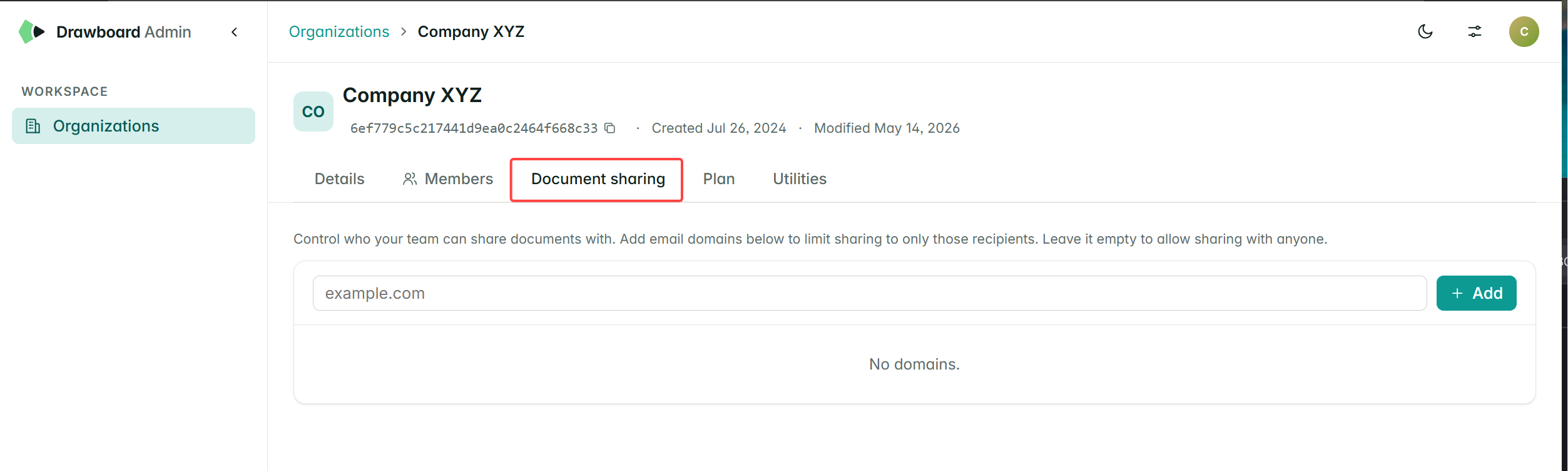
Control who your team can share documents with. Add specific email domains to restrict sharing to only those recipients. Leave this field empty to allow sharing with anyone.
Plan
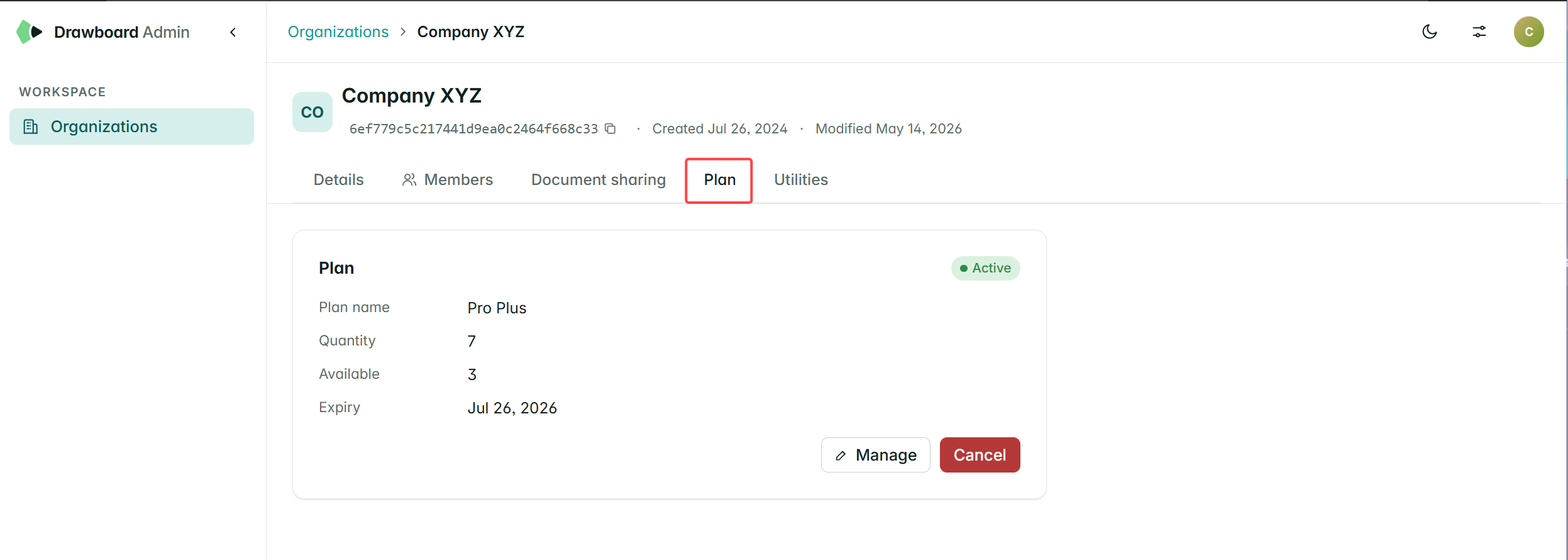
The Plan section gives you a clear view of your subscription:
- Plan name
- Total seats purchased and seats remaining
- Expiry date
- Status: Active or Cancelled
Adding seats
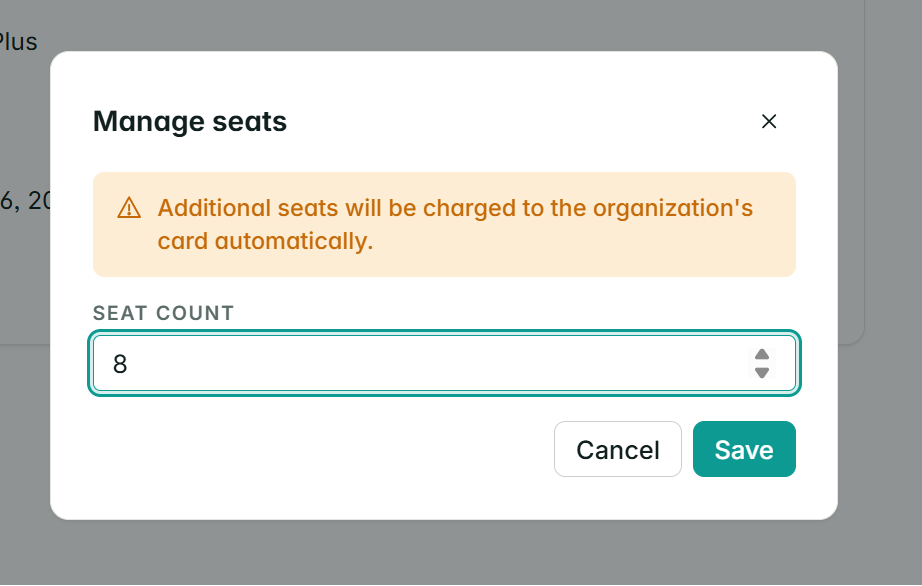
Admins can add seats directly from this page. If you're on card billing, the charge is prorated automatically and seats are added straight away. If you pay by bank transfer, contact sales@drawboard.com to increase your seat count. To decrease seats, get in touch with our sales or support team.
Cancelling your plan
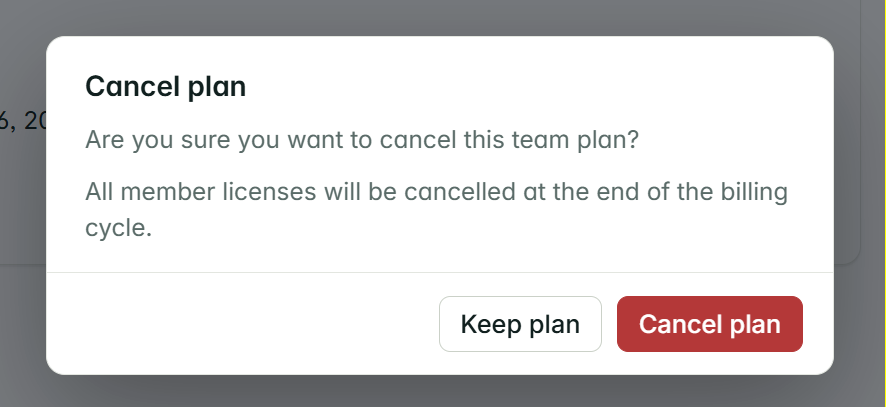
You can cancel your team plan from this section. The cancellation takes effect at the end of your current billing cycle.
Utilities
The Utilities section lets you standardize and share resources across your entire organization. It's split into two parts: Document Templates and the Markup Library.
Document Templates
Create and distribute single-page document templates to everyone in your organization. Import any 1-page PDF and it will appear in the blank page creation modal for all members when they open the app, making it easy to start from the right format every time. You can distribute multiple templates simultaneously.
To remove a template, enter the plan name and click Withdraw.
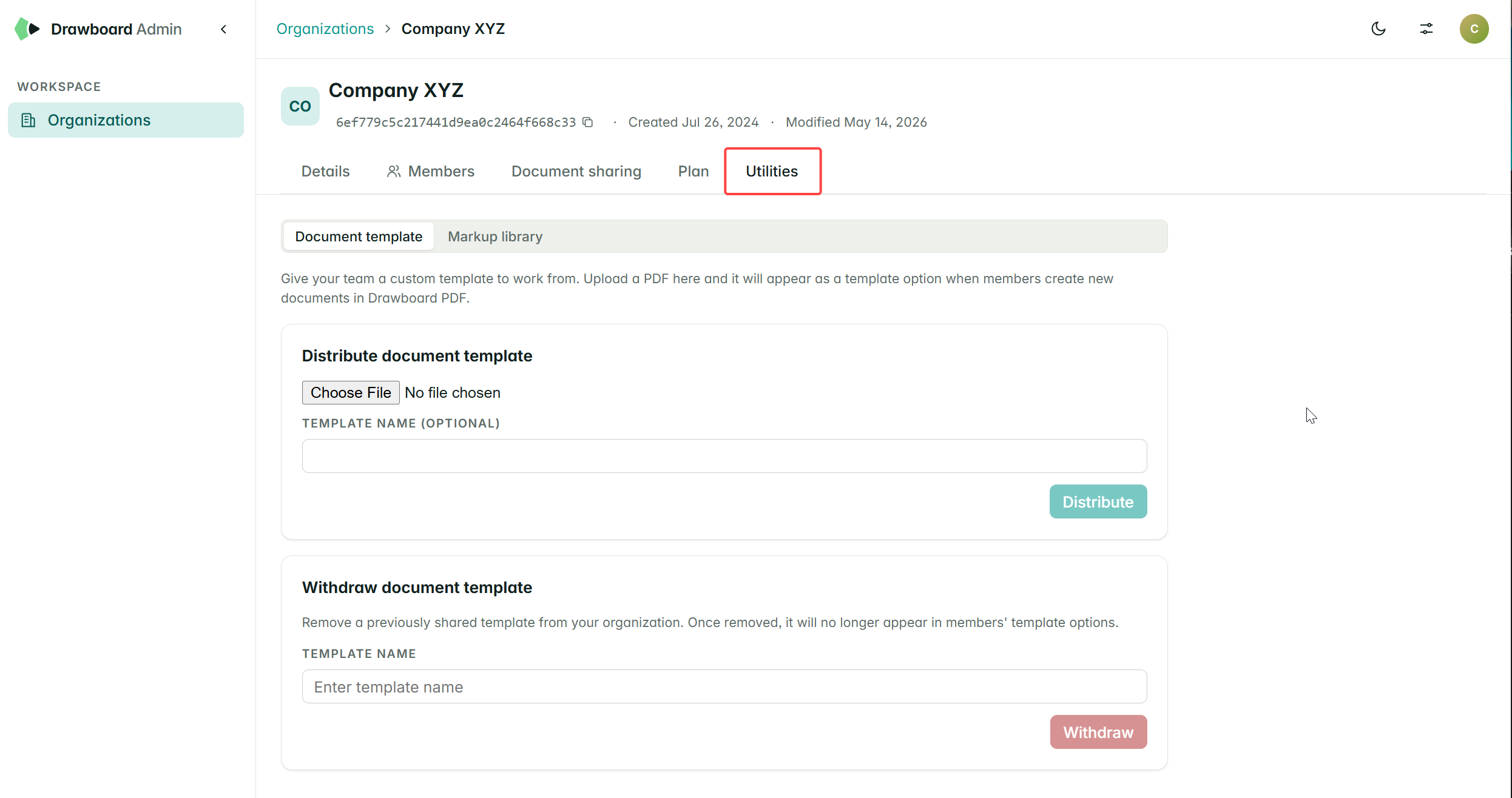
Only the first page of an uploaded document is used as a template. If you upload a multi-page PDF, only the first page will be distributed to members.
Markup Library
Distribute your custom Drawboard markups to everyone in your organization. First, export from within the app:
- Open the Markup Library in the Drawboard PDF app.
- Click the triple ellipsis (⋯) in the top-right corner.
- Select Export. This generates a
.drawboardmarkups file.
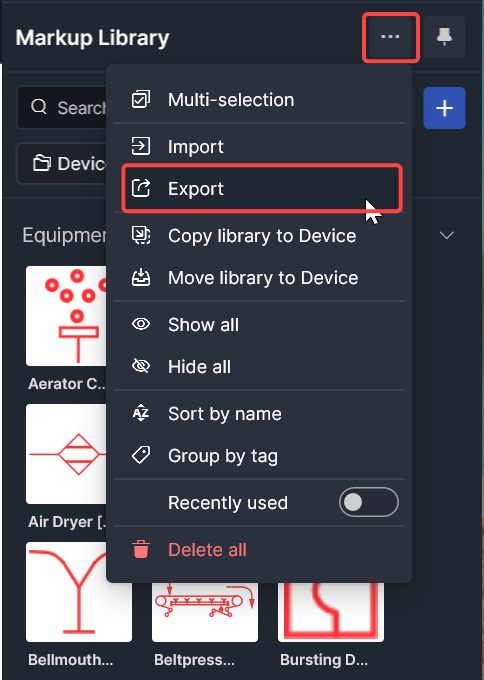
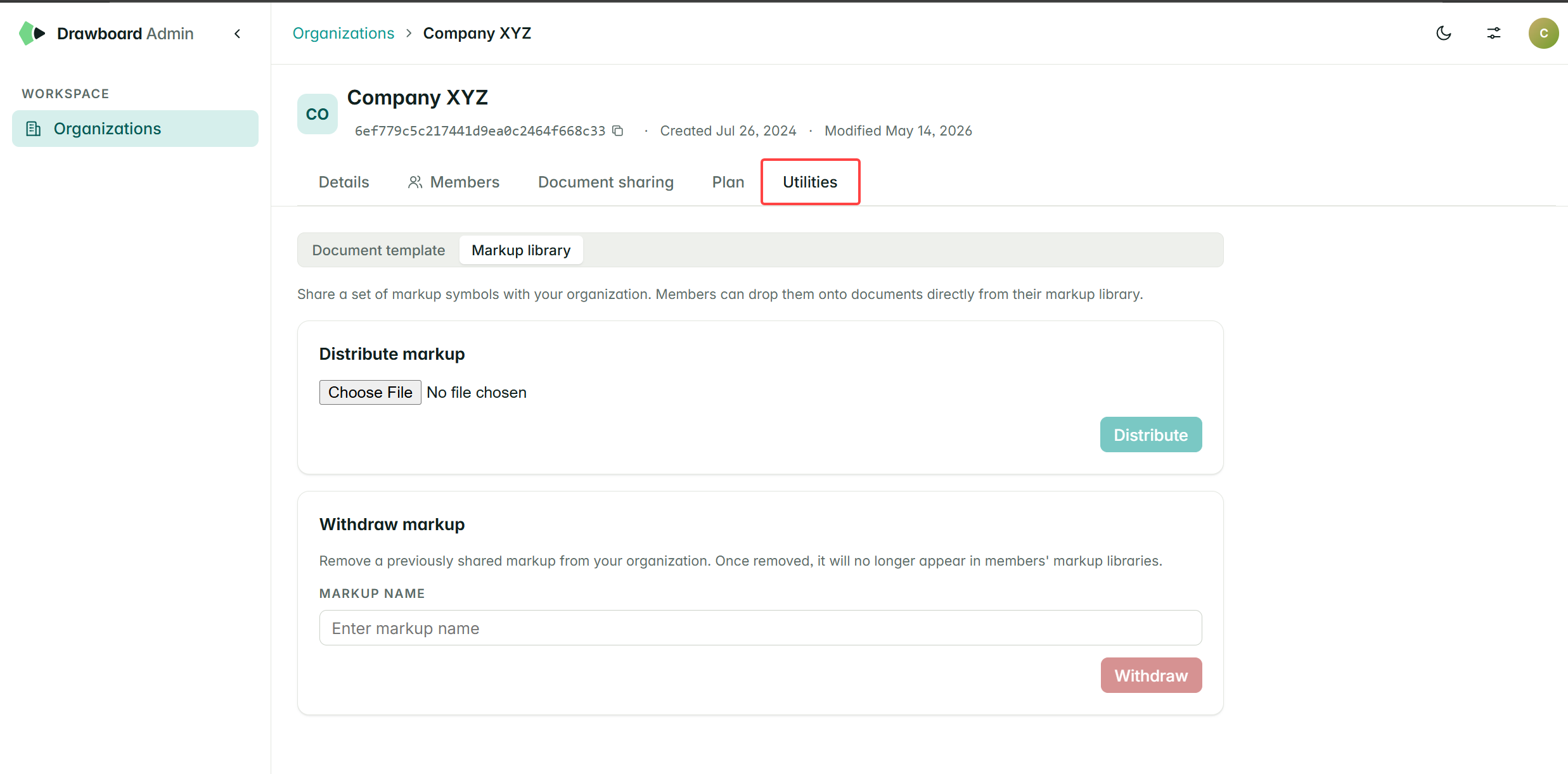
Upload the file in the Distribute Markups section and click Distribute. The markups will be instantly available in the Markup Library for everyone in your organization.
To remove markups from all members, enter the markup name and click Withdraw.
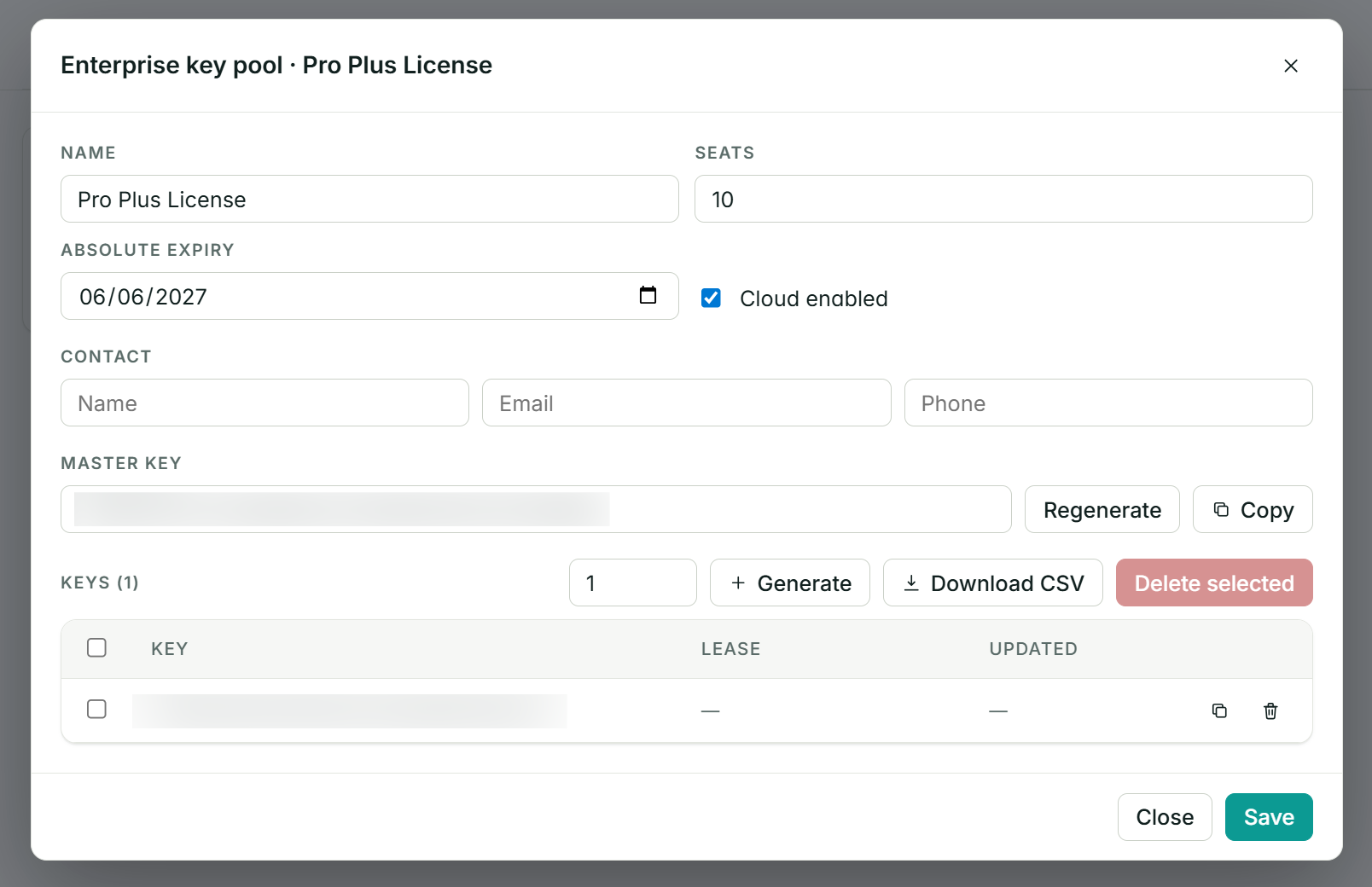
Enterprise Key Pools
Enterprise Key Pools are for customers who activate and assign licenses to specific devices using a license key. This section only appears in your portal if it has been set up by our sales team.
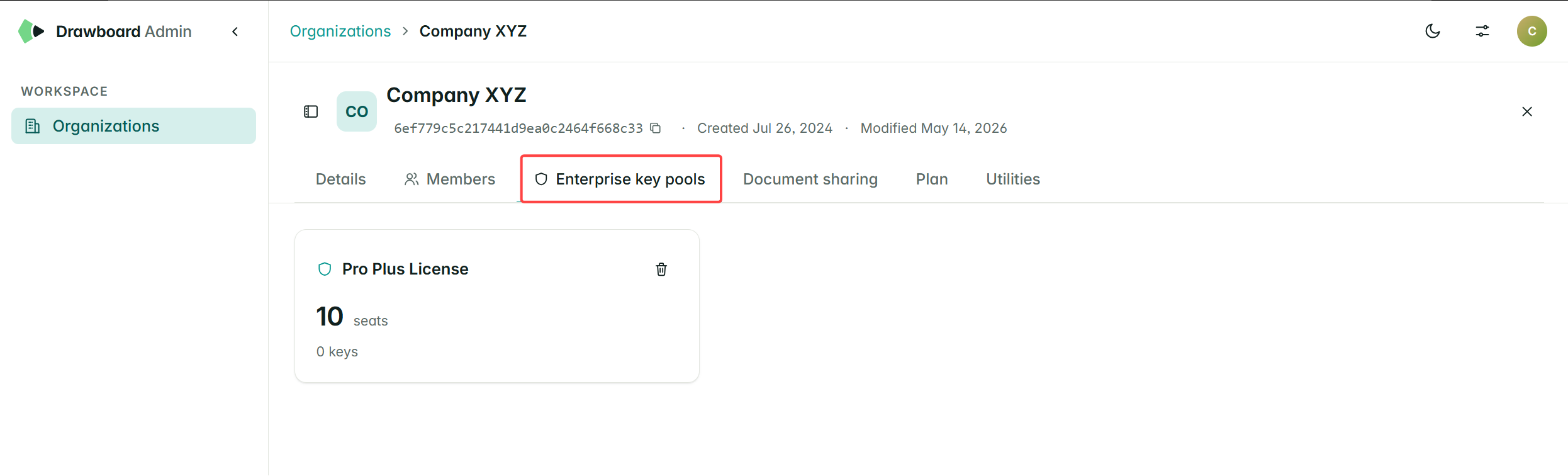
Click on a key pool to open it. From there you can:
-
Master key: copy or regenerate a single key for your whole team to use.
-
Generate key: create individual keys that can be assigned to specific users or devices.
Frequently Asked Questions
What happens to a user's license if they're removed from the organization?
Any assigned licenses are automatically returned to your license pool when a user is removed.
Can I invite someone who doesn't have a Drawboard account yet?
Yes, they'll receive an invitation email and be prompted to create an account when they accept.