Drawboard AI unlocks powerful text editing capabilities that take the effort out of writing and reviewing documents.
In this article we'll run through:
What does Drawboard AI do?
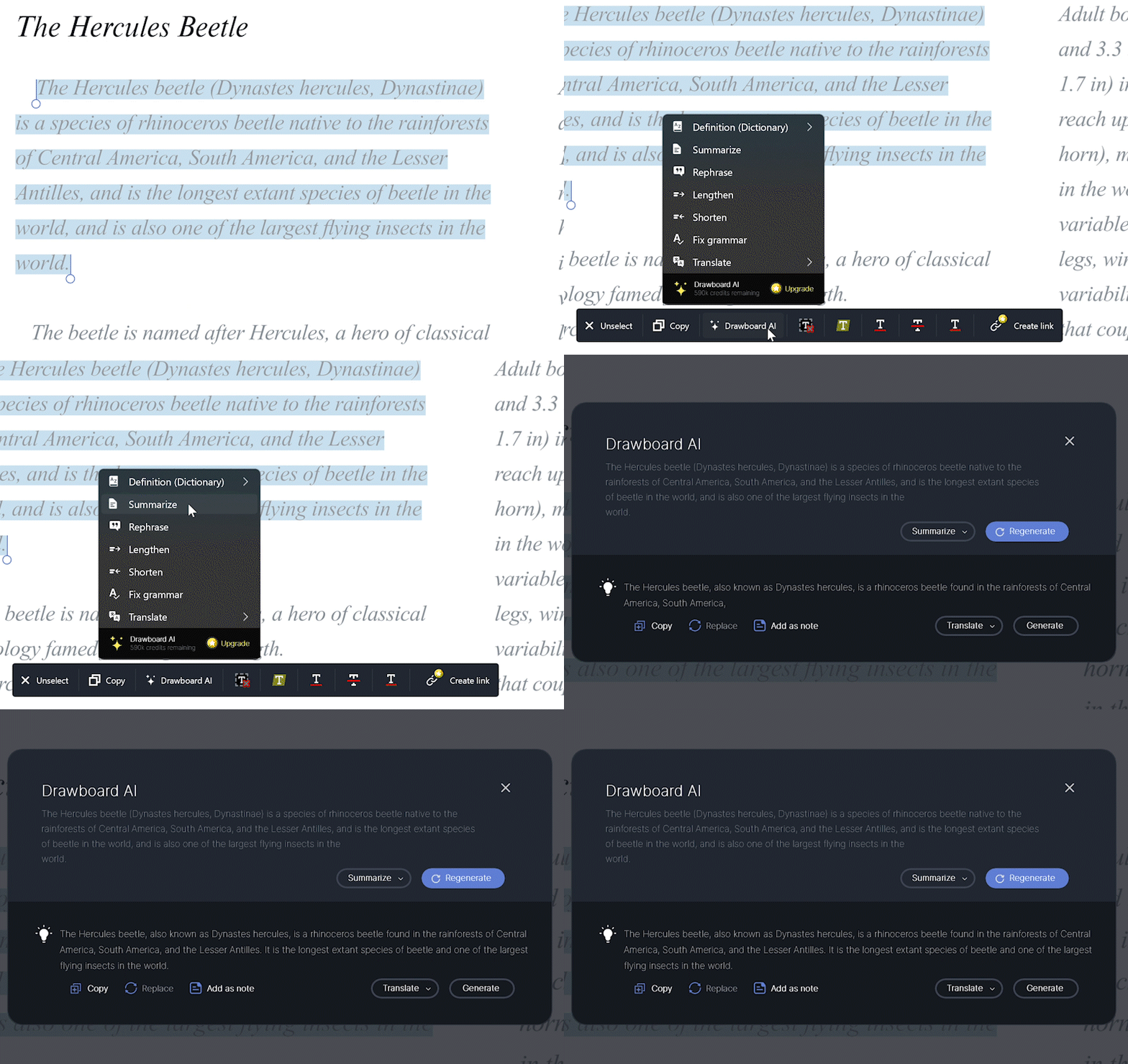
With Drawboard AI, users can select document text and perform a range of actions including:
-
Define a word or phrase
-
Rephrase text
-
Lengthen a section of text
-
Shorten a section of text
-
Summarize a piece of text
-
Fix the grammar on selected text
-
Translate text into various languages including:
- English
- Chinese (Mandarin)
- Spanish
- French
- German
- Hindi
- Japanese
- Arabic
- Italian
- Dutch
- Russian
When an action is requested, Drawboard AI generates a text response that users can then copy to the clipboard or implement on-page.
Using Drawboard AI
To get started with Drawboard AI, from the canvas:
- Select the text that you would like to perform an action on. (Note: you can select PDF text content and callout and text tool text) A menu will appear
- Select Drawboard AI
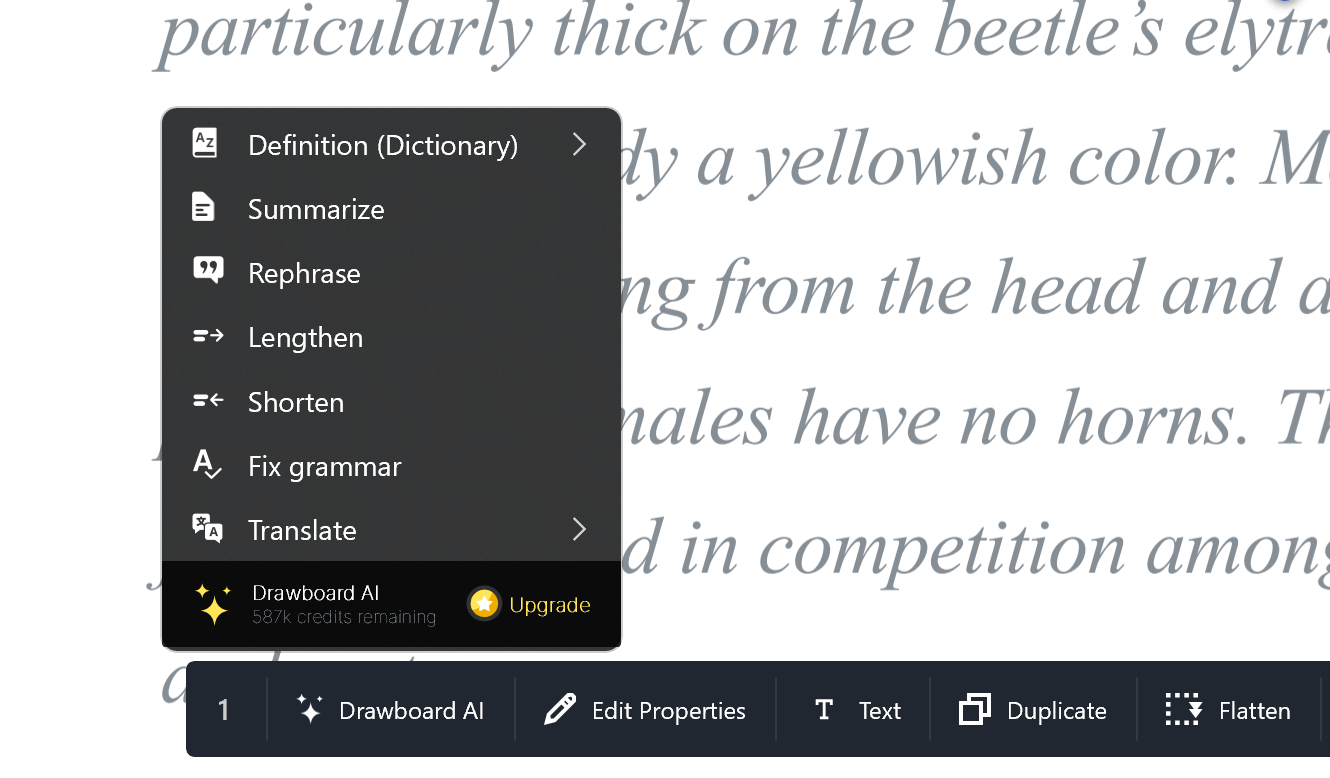
- Select the action you would like to perform from the dropdown options
Once Drawboard AI delivers a response, the following options are available:
-
Copy the response to your clipboard
-
Replace the selected text with the generated response (available on callout and text tool text)
-
Add the response as a note on your document
-
Translate the response into a select language
Drawboard AI credit points
Drawboard AI uses credits to perform requests. Every user is allocated a set number of credits which can be used to run Drawboard AI requests. For every action a user asks Drawboard AI to perform, a number of allocated credits is used. On Pro plans, credits reset each month.
-
Basic plan users get 10,000 credits for a lifetime
-
Pro Lite plan users get 50,000 credits per month
-
Pro Plus plan users get 150,000 credits per month
-
Pro Unlimited plan users get 600,000 credits per month