Windows
Drawboard PDF prints through the Windows printing system, so any printer or virtual printer installed on your device (such as Microsoft Print to PDF) is available. You can print the whole document or selected pages, set a custom scale, and add a watermark. A newer Print (beta) option is also available, which uses the Windows print dialog and may improve printing performance on some devices.
This article contains the following topics:
Related articles:
Printing a document
To print a document
- Open the document you want to print.
- Press Ctrl + P, or select the three-dot menu in the left-hand side menu and then select Print.

- Choose whether to print all pages or annotated pages only.
- Choose your printer. The Windows print dialog opens with your document ready to print.
Printing a range of pages

To print a range of pages
- Select Print.
- Under Page Range, select Custom Range.
- Enter the pages to print. Use a hyphen for a continuous range (for example, 1-5) or commas for individual pages (for example, 1, 5, 7).
- Select Print.
Printing at a custom scale

To print at a custom scale
- Select Print.
- Under Scaling, select Custom.
- Enter the scale as a percentage (for example, 25% or 50%).
- Select Print.
Adding a watermark when printing

To add a watermark
- Select Print.
- Toggle Show Watermark on.
- Enter the watermark text.
- Set the watermark opacity.
- Select Print.
Using Print (beta)
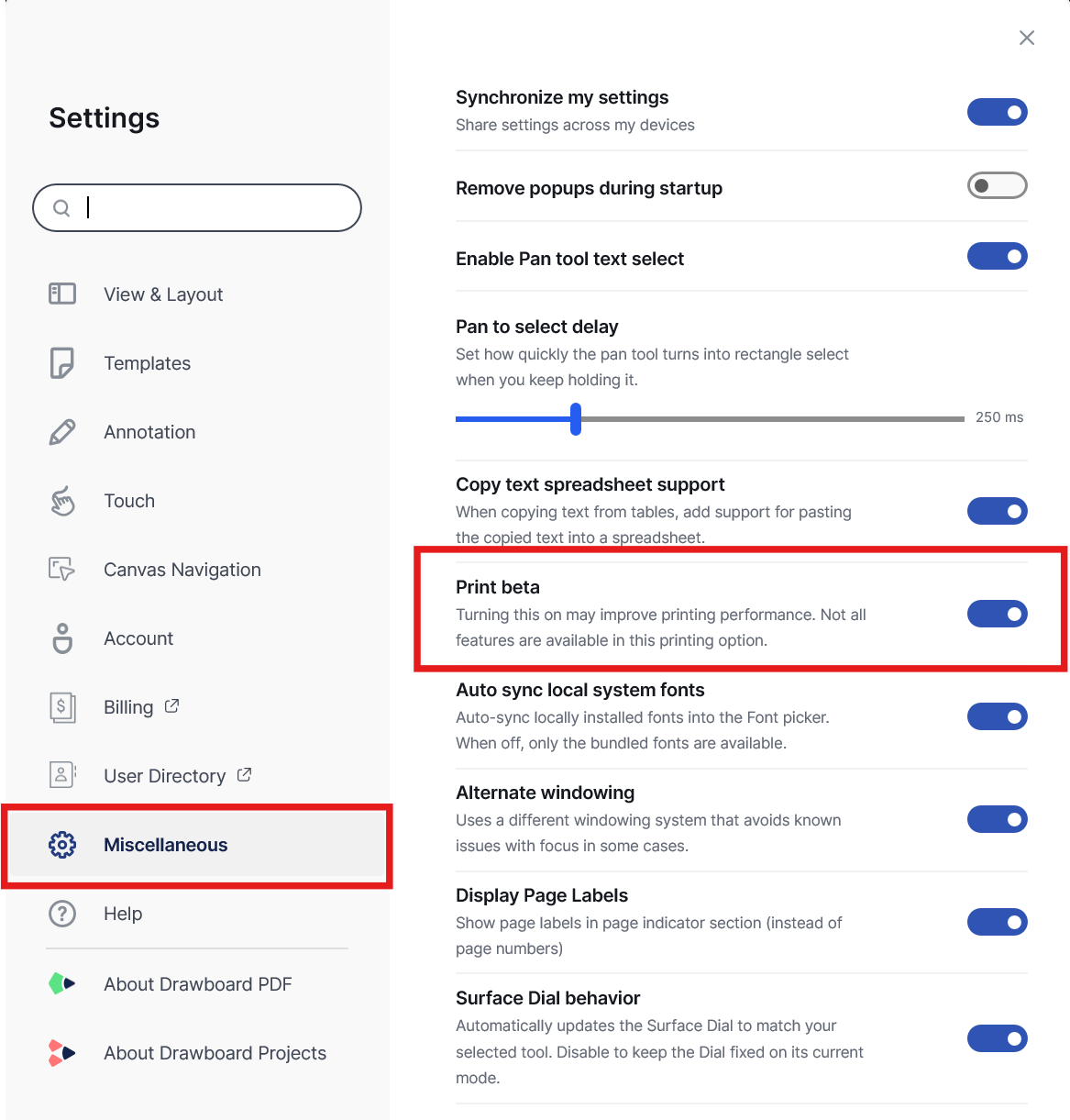
Print (beta) is an alternative printing option that sends your document directly to the Windows print dialog. It may improve printing performance, particularly on large documents or devices where the standard print flow is slow or fails. Because it is still in beta, not every option from the standard print flow is available yet.
To turn on Print (beta)
- Open Settings.
- Select Miscellaneous.
- Toggle Print (beta) on.
With Print (beta) turned on, selecting Print or pressing Ctrl + P opens the Windows print dialog. From here you can choose a printer, set the orientation and paper size, choose which pages to print, and turn automatic rotation and page borders on or off.
Under Print Options, choose whether annotations are included in the print. Under Scaling, choose how the page is fitted to the paper. Select More settings for additional printer-specific options.
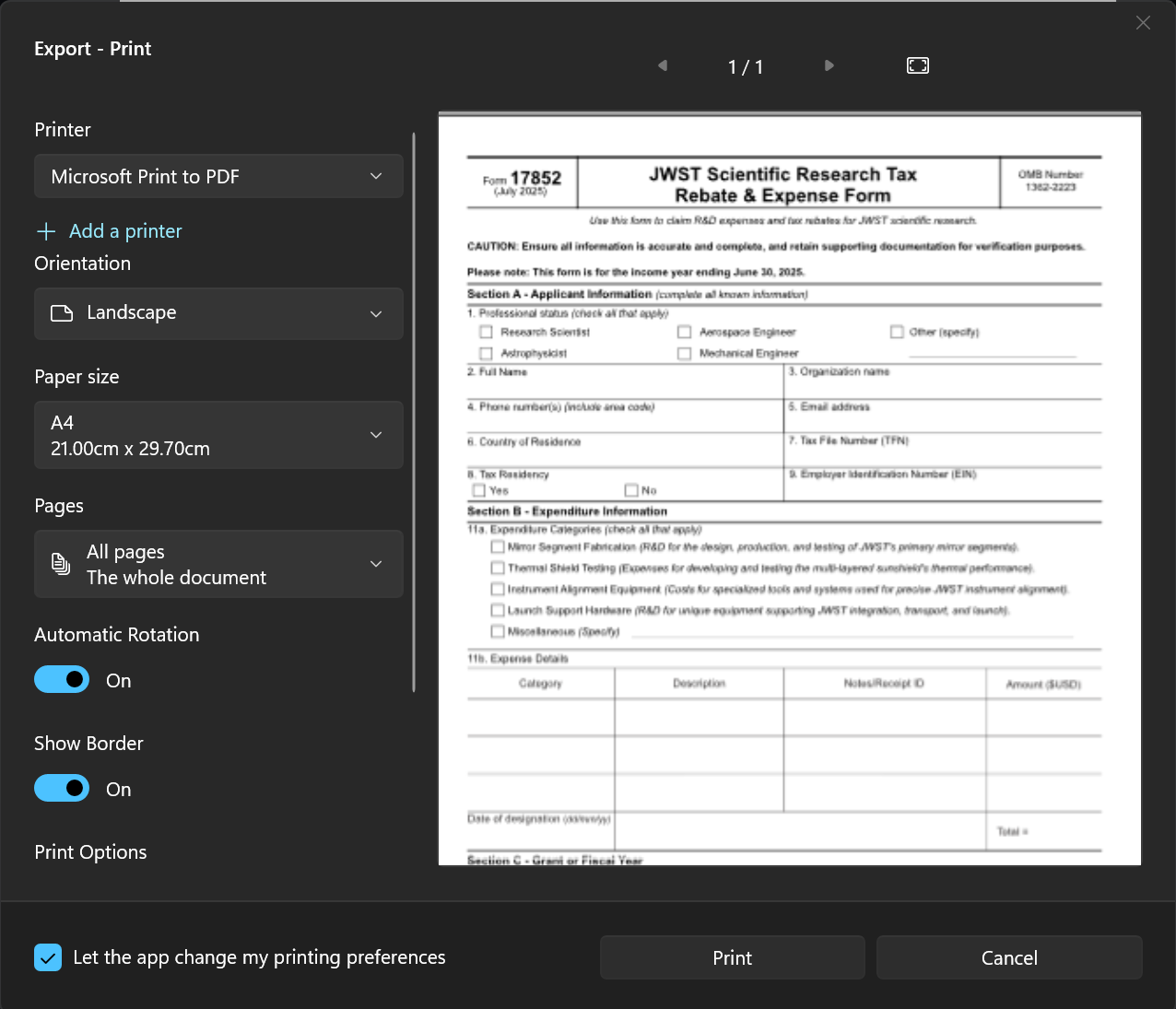
Note: Options specific to the standard print flow, such as the watermark, are not available in Print (beta). To use them, turn Print (beta) off in Settings and print again.
FAQ
Should I use Print (beta) or the standard print option?
Use the standard print option if you need a watermark or other options not yet available in Print (beta). If printing is slow or fails on your device, try Print (beta), as it hands the job to Windows earlier in the process.
Printing does not work, or the output is incorrect
Drawboard PDF uses the Windows printing system. If printing fails or produces unexpected results, try the following in order:
- Turn on Print (beta) in Settings and print again.
- Update your printer drivers.
- Update Windows.
- Restart your device.
The format or page size I want is not available
The options shown depend on the printer selected (for example, XPS Document Writer, Microsoft Print to PDF or a physical printer). If the setting you need is missing, select a different printer and check whether it appears.
"The printer encountered an unexpected configuration problem" (error 0x80040154)
This is a Windows error rather than a Drawboard PDF error. The steps in this guide may resolve it.
For further help with printing, contact support@drawboard.com.