Gathering timely feedback from the right people can be painful and involve a lot of printing, regardless of whether you are managing an internal design review or kickstarting more independent reviews with partners in other offices. To help ease the burden when getting the right team members to review your drawings, Drawboard Projects enables Project Owners and Admins to invite any external partners to review a project with temporary guest access.
Specific time limits on guest access can be set by Project Owners and Admins.
For organizations on the Team plan, the maximum time limit for guests is 1 week. On Growth, the maximum time limit is 2 months. Teams on the Enterprise plan can invite guests to join projects for up to 6 months.
The option to grant longer temporary guest access can be incredibly useful for teams who would like to collaborate on multi month projects with third party stakeholders and contributors.
Temporary guest access limit options per plan
| |
Team |
Growth |
Enterprise |
| 4 hours |
✅ |
✅ |
✅ |
| 1 day |
✅ |
✅ |
✅ |
| 1 week |
✅ |
✅ |
✅ |
| 1 month |
X |
✅ |
✅ |
| 2 months |
X |
✅ |
✅ |
| 6 months |
X |
X |
✅ |
To invite a guest user
On the Web application:
- Open the project you want to invite a guest user to.
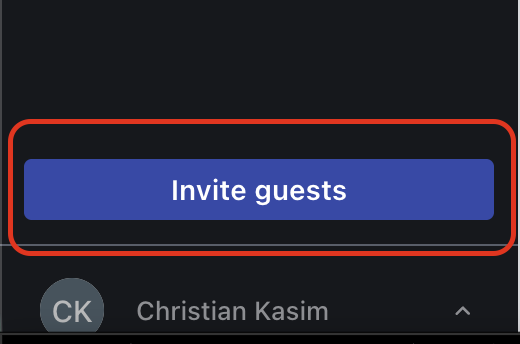
- In the left-hand navigation menu, click the Invite Guests button above your profile icon.
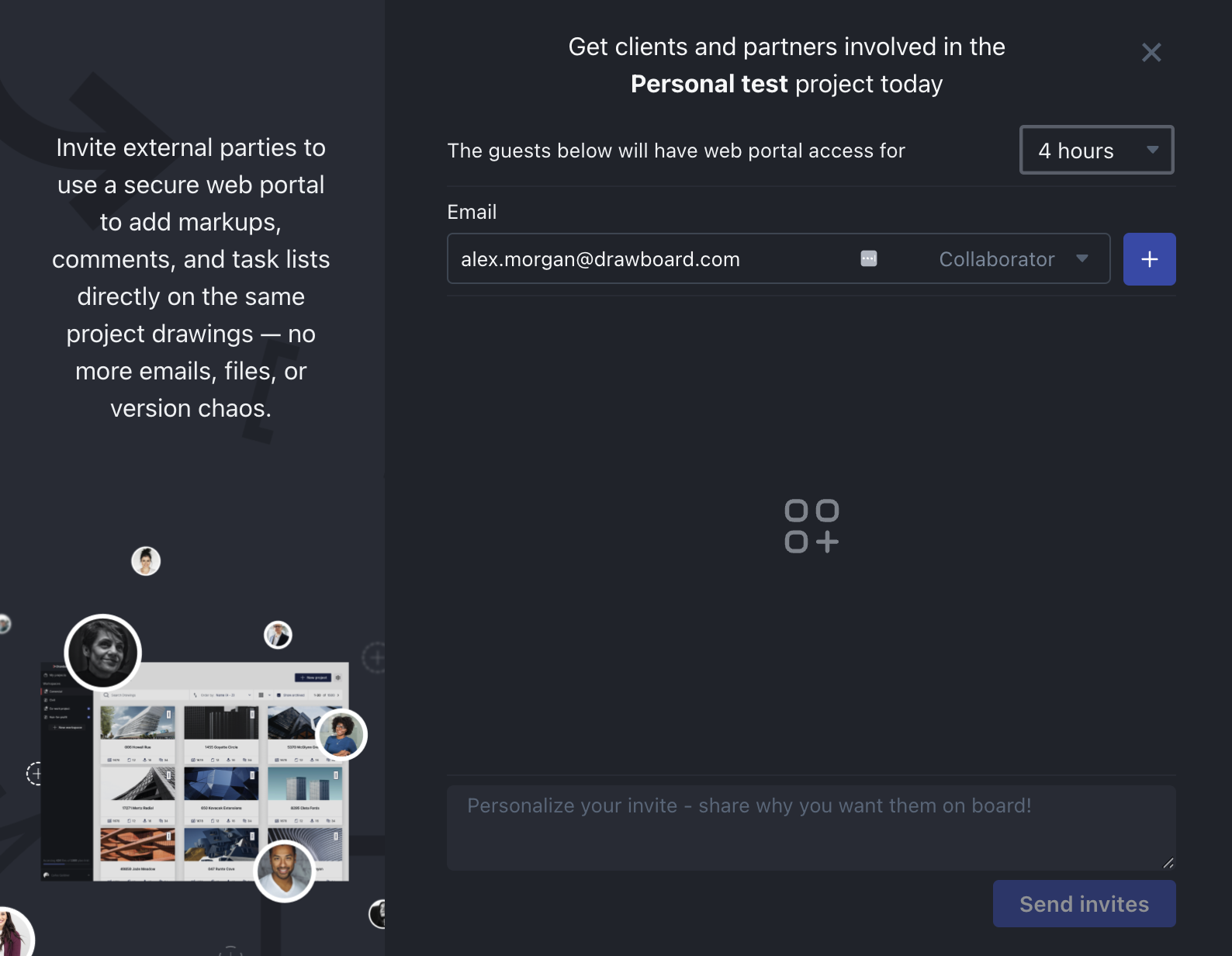
- In the Guest Access panel, complete the following:
-
Email – Enter the guest's email address. Add multiple by typing "," or pressing Return.
-
Permission – Select Reader (read-only) or Collaborator (can mark up and comment, cannot add files). Learn more about user permissions.
-
Expiry – Select an access duration based on your plan: 4 hours, 1 day, or 5 days (Team); up to 1–2 months (Growth); up to 6 months (Enterprise). Once expired, the guest's link will no longer work.
-
Message (optional) – Add a personalised note with the invitation.
To get access to Drawboard Projects as a Guest user
- As a new guest user, you will receive an email alerting you that you have been invited to collaborate on a particular project by another user for a limited time.
- Either click on the View in Drawboard Projects button or paste the URL link into your web browser to get started.
- Before accessing the project contents, you are required to fill in your first and last names and also agree to the Drawboard Projects Terms of Service.
- Once completed, select Access project to jump right into the project and start reviewing the drawings or documents that have been shared with you.
- As a Collaborator you have access to the full Drawboard Projects drawing tool set including all markup tools, commenting and issue management for the defined period.
As a guest user, you are only able to access Drawboard Projects using the Web application through the email or link that has been shared with you. To take advantage of our powerful mobile apps with best-in-class touch and pen capabilities, register a full account and download the free Drawboard Projects apps from either the Windows Store or the iOS App Store.