WindowsWeb
Drawboard PDF connects to Autodesk Forma, so you can bring drawings and documents from your Forma projects into Drawboard PDF and mark them up without downloading and re-uploading files by hand.
The integration is available in the Drawboard PDF web and Windows apps, and files are opened from the Drawboard side: you browse and import from Forma while in Drawboard PDF, rather than launching Drawboard PDF from within Forma. Once a document is imported, it's available on all your devices like any other cloud document.
Using Drawboard Projects? The Forma integration works differently there. See the Drawboard Projects article instead.
Connecting your Autodesk Forma account
You only need to do this once. The steps are the same on web and Windows.
- Open Drawboard PDF on the web at pdf.drawboard.com, or open the Windows app
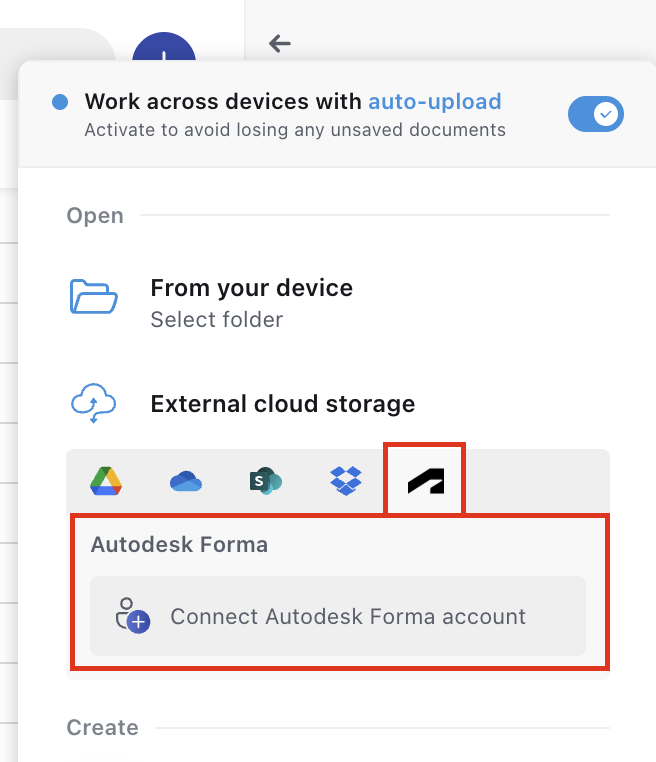
- Select the blue plus button on the dashboard to open Open/Create
- Go to External cloud storage
- Select the Autodesk Forma icon, then Connect
- Sign in to Autodesk if prompted, and approve access
Your Forma account now appears under the Autodesk Forma icon whenever you open Open/Create.
Opening files from Forma
- Select the blue plus button to open Open/Create
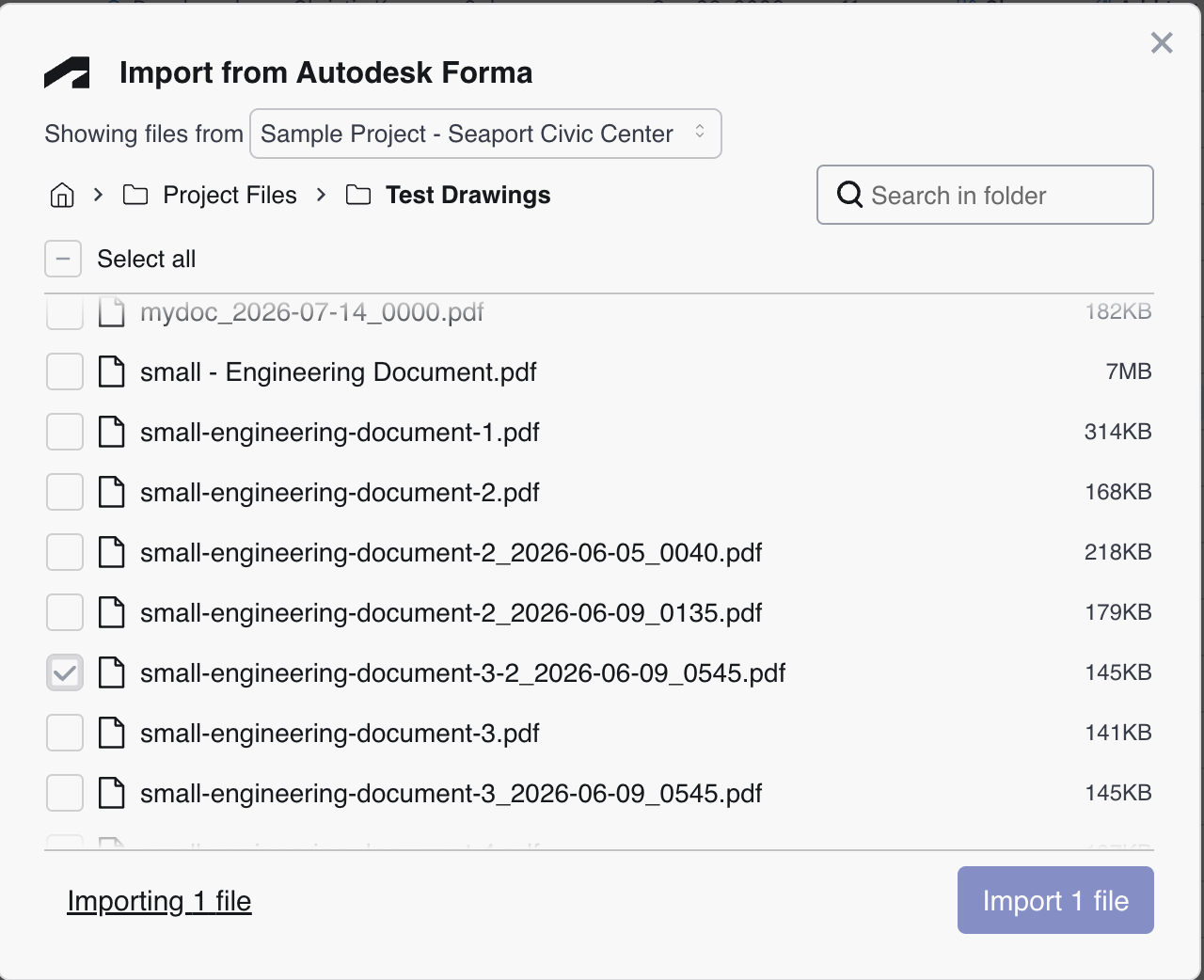
- Under Autodesk Forma, select your account
- In the Forma window that opens, browse to the files you want. You can select one file or several at once
- Select Import
Drawboard PDF uploads the files to your Drawboard cloud in the background. Larger files or larger batches take longer, so allow a few moments; each document appears on your dashboard as soon as it's ready, with its location shown as Autodesk Forma.
Working with imported documents
An imported document is a copy held in your Drawboard cloud. Markups and edits you make in Drawboard PDF are saved to that copy and stay in Drawboard PDF; they are not written back to the original file in Forma. The file in Forma remains as it was when you imported it.
To get a marked-up version into Forma, export or download the document from Drawboard PDF and upload it to your Forma project.
Note: importing the same Forma file again creates a new, separate copy in Drawboard PDF. It does not replace or update the copy you imported earlier.
Current limitations
- Connecting to Forma and importing files is available in the web and Windows apps. Documents you've imported can still be opened and edited on Mac and iOS afterwards
- The integration runs from Drawboard PDF to Forma. There is no option yet to open a file in Drawboard PDF from inside Forma
- Changes made in Drawboard PDF are not synced back to Forma automatically. Sync back is not available at this stage
Troubleshooting
Autodesk Forma isn't listed under External cloud storage: make sure you're using the web app at pdf.drawboard.com or the Windows app, rather than the Mac or iOS app, and that you're signed in to your Drawboard PDF account.
The Forma sign-in window didn't appear: the sign-in opens in your browser. Check that your browser isn't blocking pop-ups for pdf.drawboard.com, then select Connect again.
Imported documents haven't appeared yet: uploads run in the background and can take a few minutes for large files or batches. Refresh the dashboard after a short wait. If they still don't appear, try importing a single file to confirm the connection is working.
Need a hand? Contact your Drawboard account manager or support@drawboard.com.