Drawboard PDF works with OneDrive/SharePoint in two ways: using the Cloud Integration, or opening files locally. Both keep your files in your Microsoft environment. Cloud Integration is available natively on web, Windows, iOS, and Mac, while opening locally is available on Windows and iOS. Here's how each one works.
|
Cloud Integration |
Open locally |
| Live collaboration |
Yes |
No |
| Changes written back |
Periodically, via Drawboard Cloud |
Instantly, via OneDrive/SharePoint |
| Works offline |
Needs a connection to sync |
Yes |
| Best for |
Teams working together |
Individual work, restricted environments |
Cloud Integration
Best for teams collaborating on the same document. Drawboard brings the file into Drawboard Cloud, syncs markups live between collaborators, and periodically saves changes back to OneDrive/SharePoint.
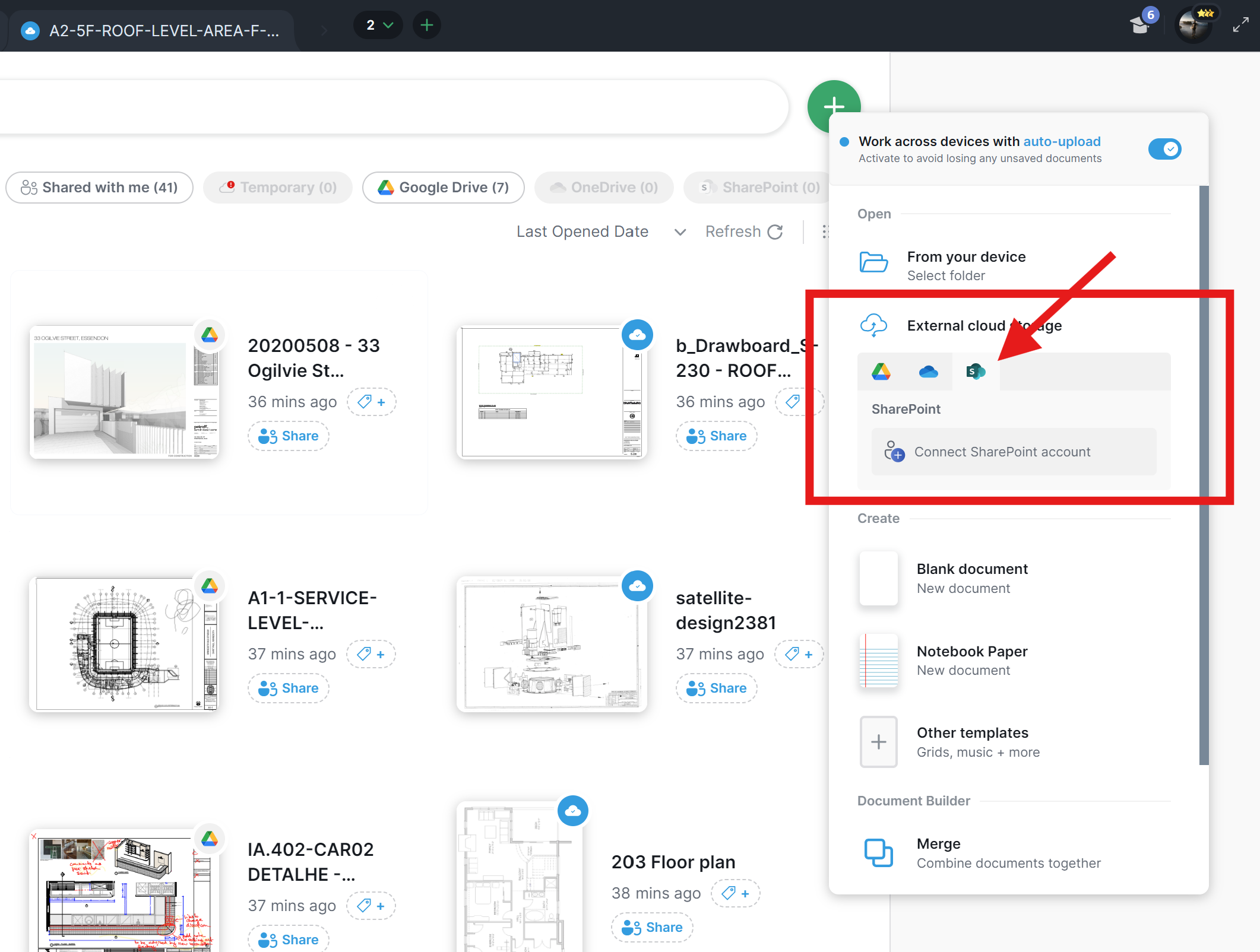
Steps to use the Cloud Integration
Ensure you are logged in to your Drawboard PDF account, then, on web, Windows, iOS, or Mac:
- Tap Create or Import
- Choose OneDrive/SharePoint (Google Drive and Dropbox are also available)
- Sign in and pick the file you want to open
- The file opens as a cloud document, ready for you to mark up
You can now mark up and edit your document and all changes will sync to OneDrive/SharePoint in near real-time.
On iOS
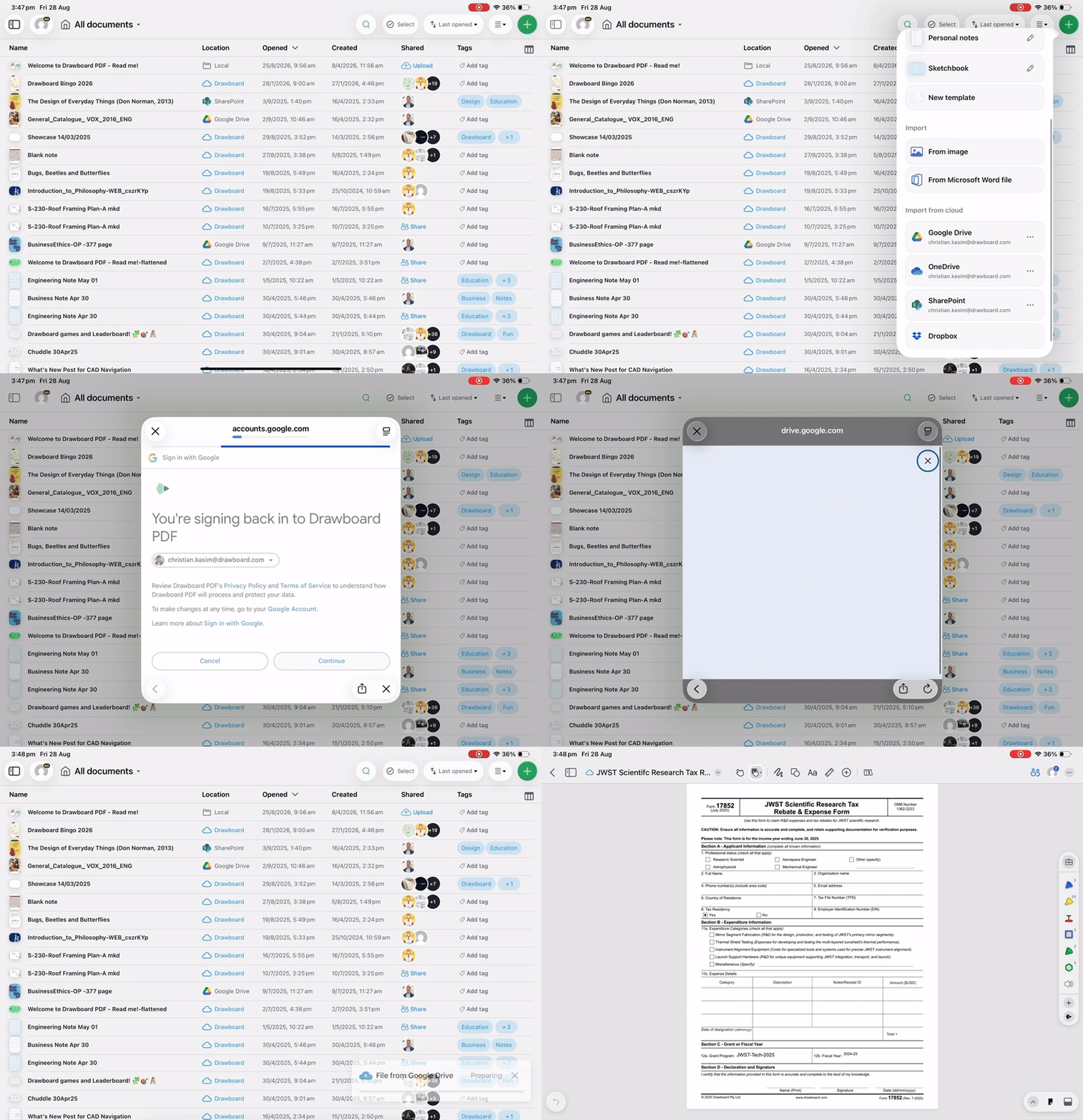
Once connected, the document is available on all your devices from your Drawboard documents list, and you can invite collaborators to mark it up together.
Note: Don't upload a file you already opened locally, as this creates a disconnected copy that won't sync back; always bring files in through the Integration itself. Sync back is also periodic, so allow a moment after your session for the latest version to reflect in OneDrive/SharePoint.
To connect more cloud storage services, see here.
Open locally
Best for individual work. Drawboard opens the file in place, and OneDrive/SharePoint saves your changes back automatically. This option is available on the Windows and iOS apps.
Requirements
- The OneDrive/SharePoint app must be installed and signed in on your device
- Your IT team may need to allow Drawboard PDF in your organisation's device management policies (see Troubleshooting below)
Steps to open locally
- Open Drawboard PDF and select to open a document
- Browse to OneDrive/SharePoint (select Libraries to access shared sites)
- Open, mark up, and close. OneDrive/SharePoint syncs your changes automatically
Note: Always open through the file picker, not a share menu, or your markups won't save back. Only one person should have the file open at a time, since the last save overwrites others; use Cloud Integration instead for simultaneous work. Close the document when finished, so OneDrive/SharePoint can sync it.
This option doesn't use Drawboard Cloud, so live collaboration features aren't available.
Which option should I use?
Use Cloud Integration when multiple people need to work on the same document, with shared markup history and live presence. Use local for individual markup, quick edits, or if your organisation restricts third-party cloud services. Many teams use both, Cloud Integration for review sessions and local for everyday work.
Understanding your Syncing Options
These syncing options are only available for documents opened using the Cloud Integration.
We've enhanced your control over document synchronization by adding several flexible syncing options. These allow you to customize how and when your changes are saved to your third-party cloud storage services like Google Drive, OneDrive/SharePoint, and Dropbox.
1. Manual Sync
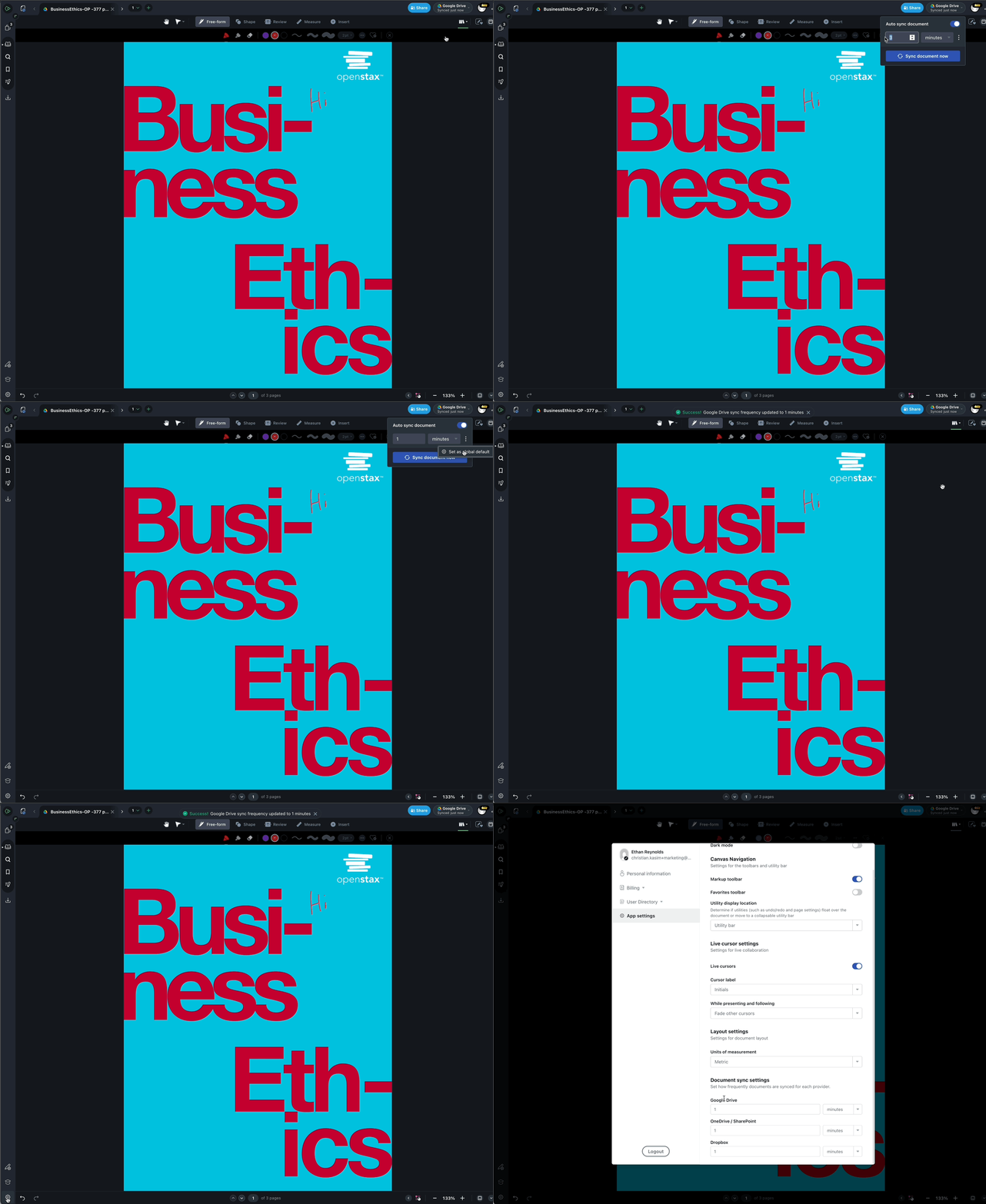
To immediately save your latest changes to your cloud documents, simply click the Sync Document now button. This ensures your work is instantly backed up and accessible from any device.
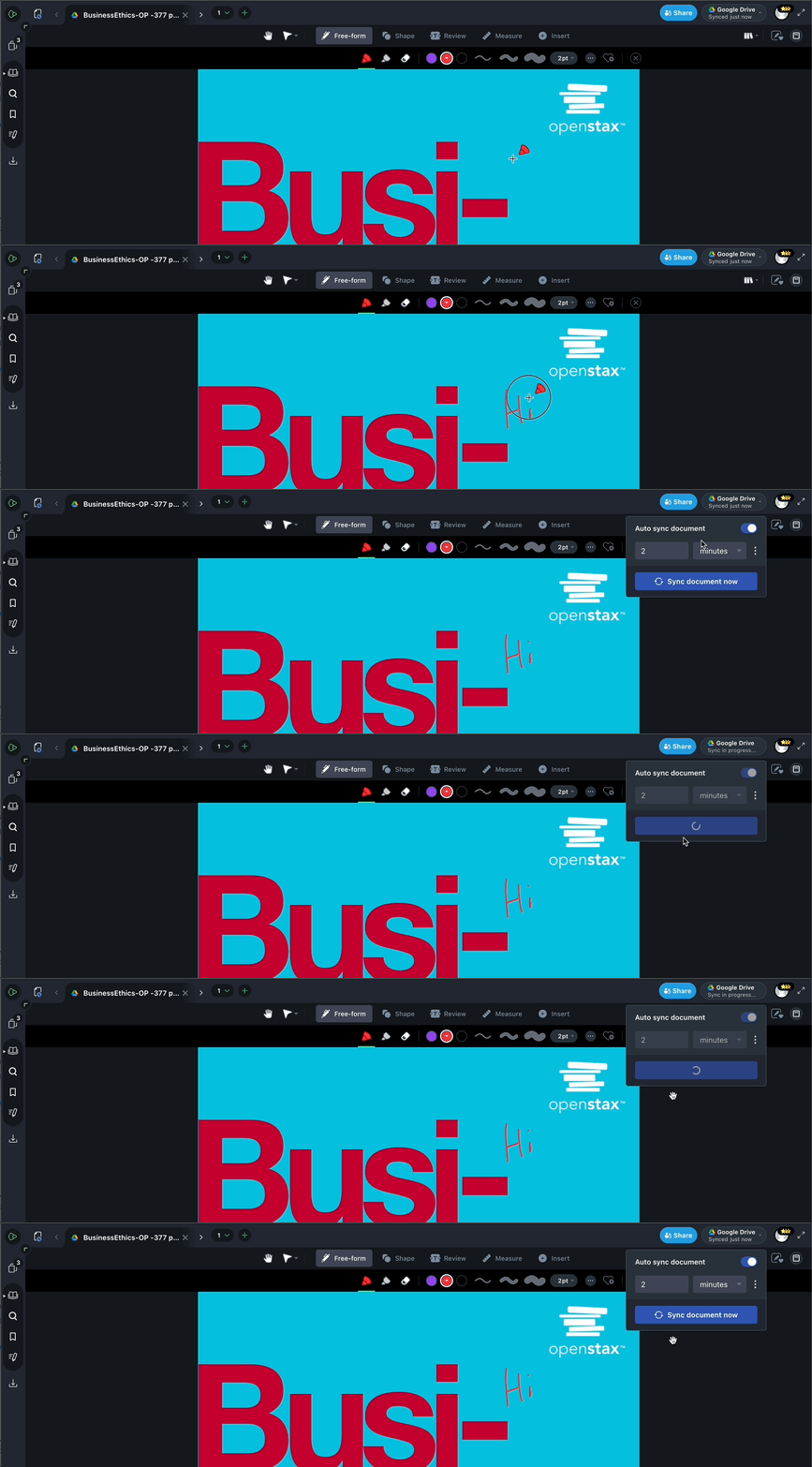
2. Adjust sync frequency
To adjust the sync frequency for a particular document:
- Open the document.
- Locate the sync settings (usually an icon or menu option related to syncing).
- Choose your desired sync interval.
Important: Changes made here will only apply to that specific document and its associated third-party drive.
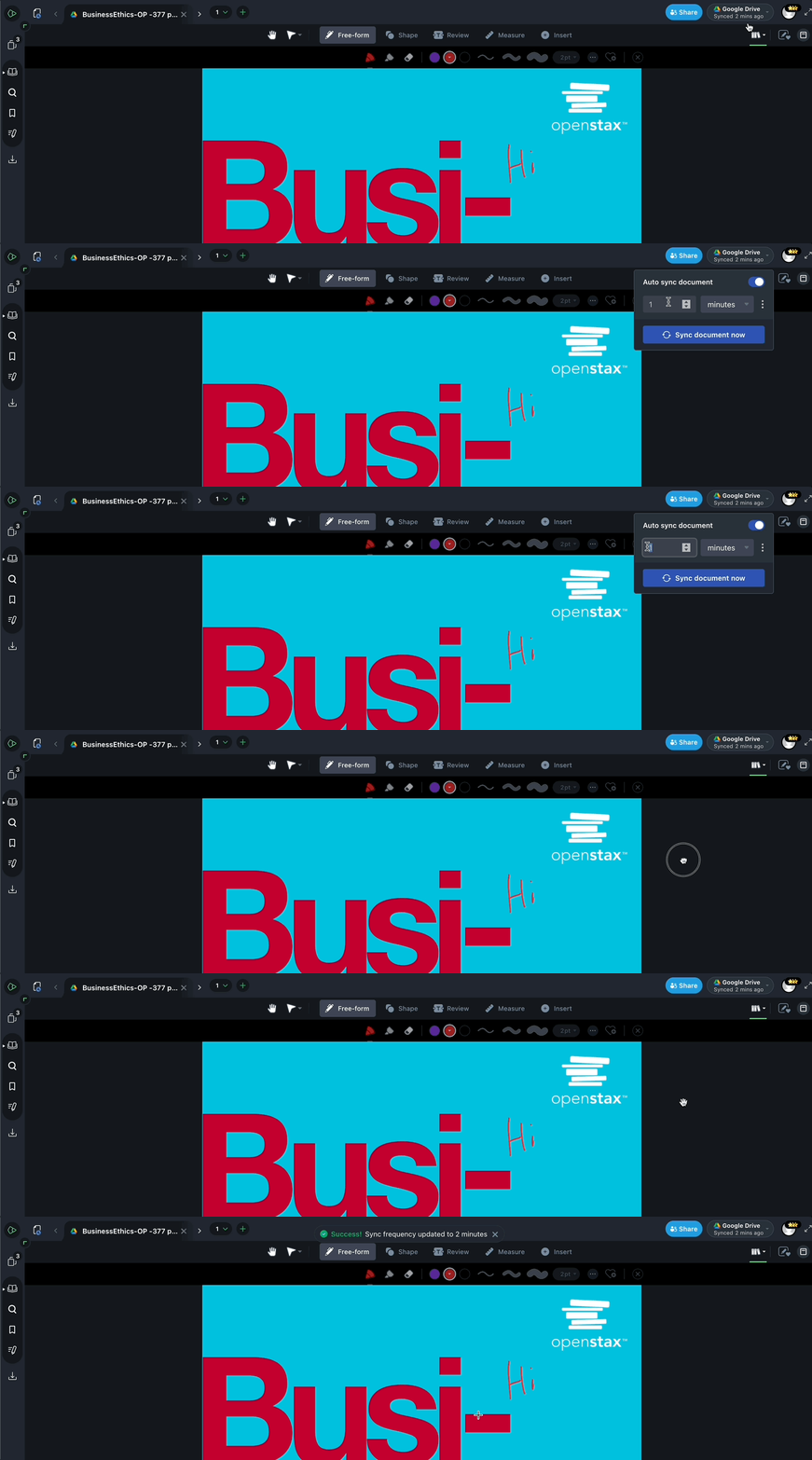
If you want to apply a consistent sync frequency to all documents opened with a specific third-party drive:
- Open any document from that third-party drive.
- Locate the sync settings (usually an icon or menu option related to syncing).
- Choose your desired sync interval.
- Click the triple-dot menu.
- Select "Set as global default."
This will apply your chosen sync frequency as the default for documents opened from that drive. If you'd like to review or change the global default sync frequency for each of your connected third-party drives, you can do so under App Settings > Document Sync Settings.
3. Turn Auto-Sync Off
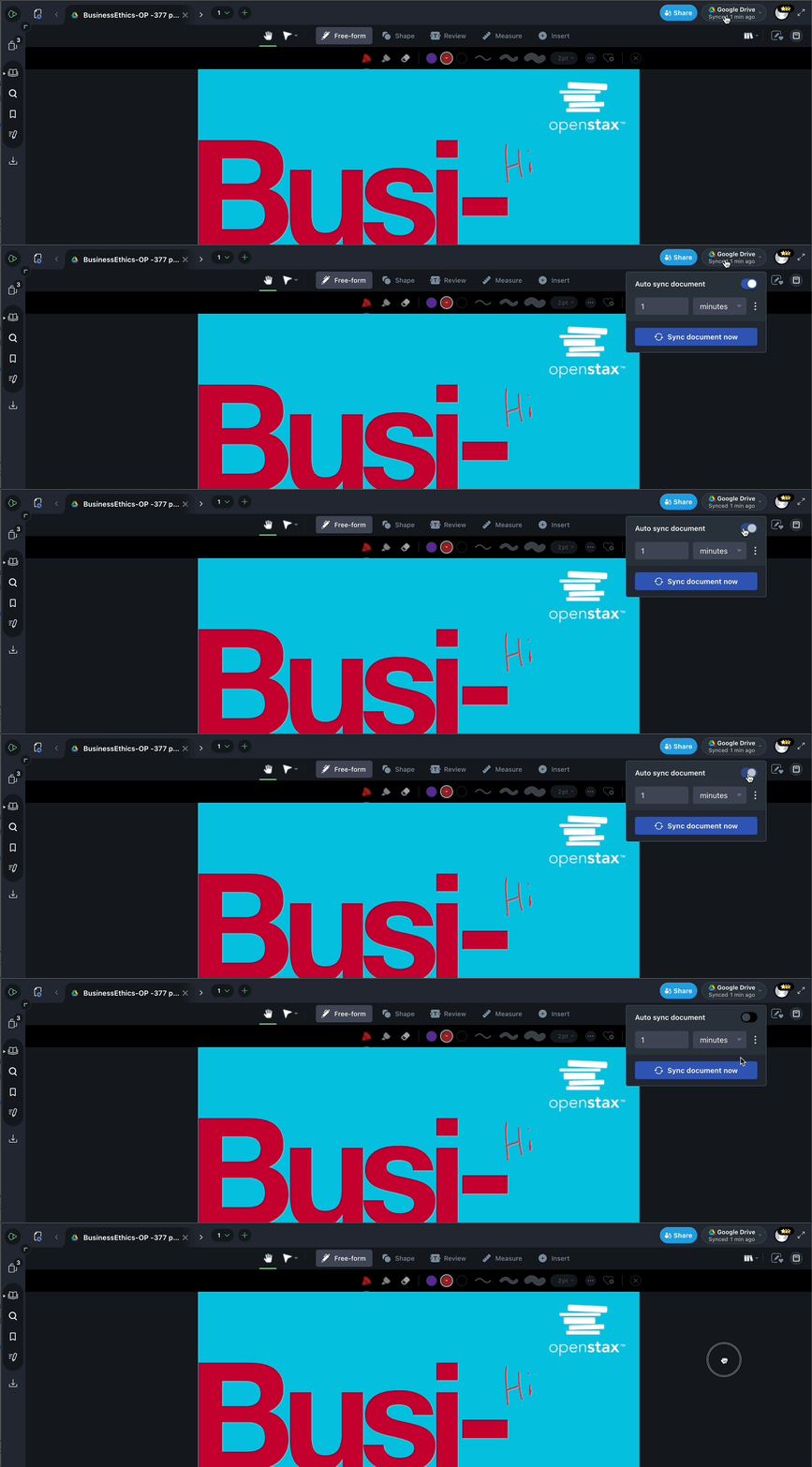
For times when you prefer not to automatically sync your changes (e.g., working offline or making experimental edit), you have the option to turn off auto-sync. Simply toggle this feature off in the settings, and your changes will only be saved locally until you re-enable it or manually sync.
Troubleshooting
"PDF Error 31" or "Failed to open document": usually caused by your organisation's device management (e.g. Microsoft Intune) blocking Drawboard PDF from reading OneDrive/SharePoint files. Ask IT to allow Drawboard PDF in the Intune App Protection Policies.
Changes not saving from SharePoint or Teams sites: Drawboard has completed its save; the failure is on the Microsoft side. Ask IT to check the site's sync configuration, or use Cloud Integration instead.
SharePoint doesn't appear as a location: access it inside OneDrive, under Libraries. Make sure OneDrive is installed, signed in with a work account, and has access to the site.
Markups from another device disappeared: this is an edit conflict from having the file open on two devices at once. Close documents when finished, and use Cloud Integration for multi-person work.
Need help choosing the right setup? Contact your Drawboard account manager or support@drawboard.com.