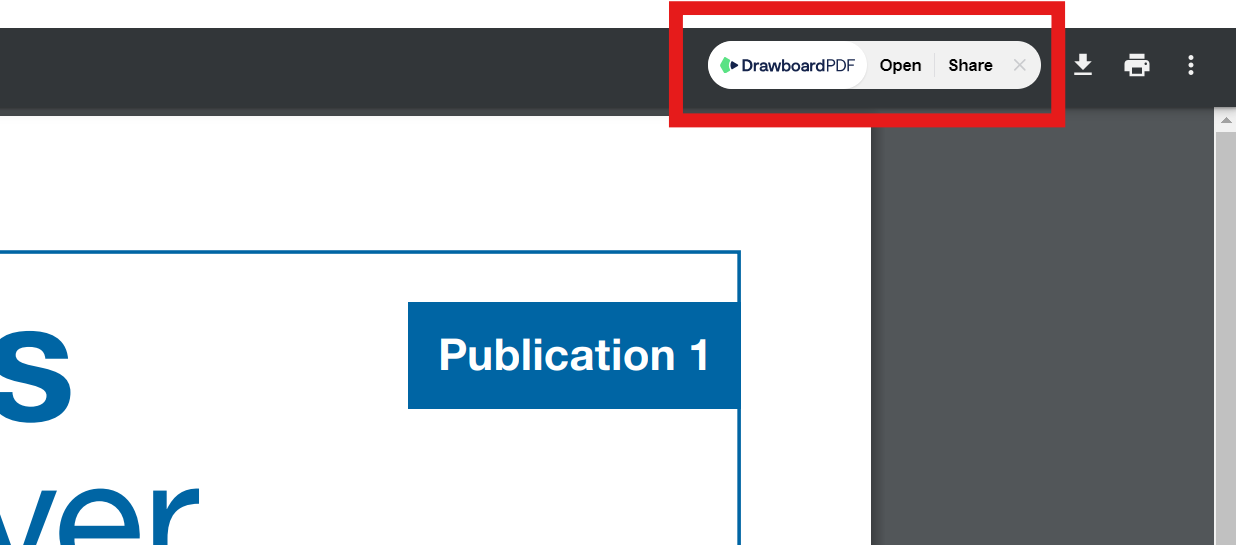
Drawboard PDF integrates seamlessly with your Google account to help you work faster with Drawboard PDF across Chrome, Gmail and Google Drive. Google syncing capabilities are available to all Drawboard PDF users.
- Install the Drawboard PDF Google Workspace app to open and mark up Google Drive files with Drawboard PDF
-
Connect your Google Drive account with Drawboard PDF to instantly access, open and mark up Google Drive files when working in Drawboard PDF.
- Add the Chrome extension to attach Drawboard PDF cloud files to emails directly from the compose window in Gmail and automatically open PDFs from the web or your email in Drawboard PDF
Google Drive
Open files from Google Drive with Drawboard PDF
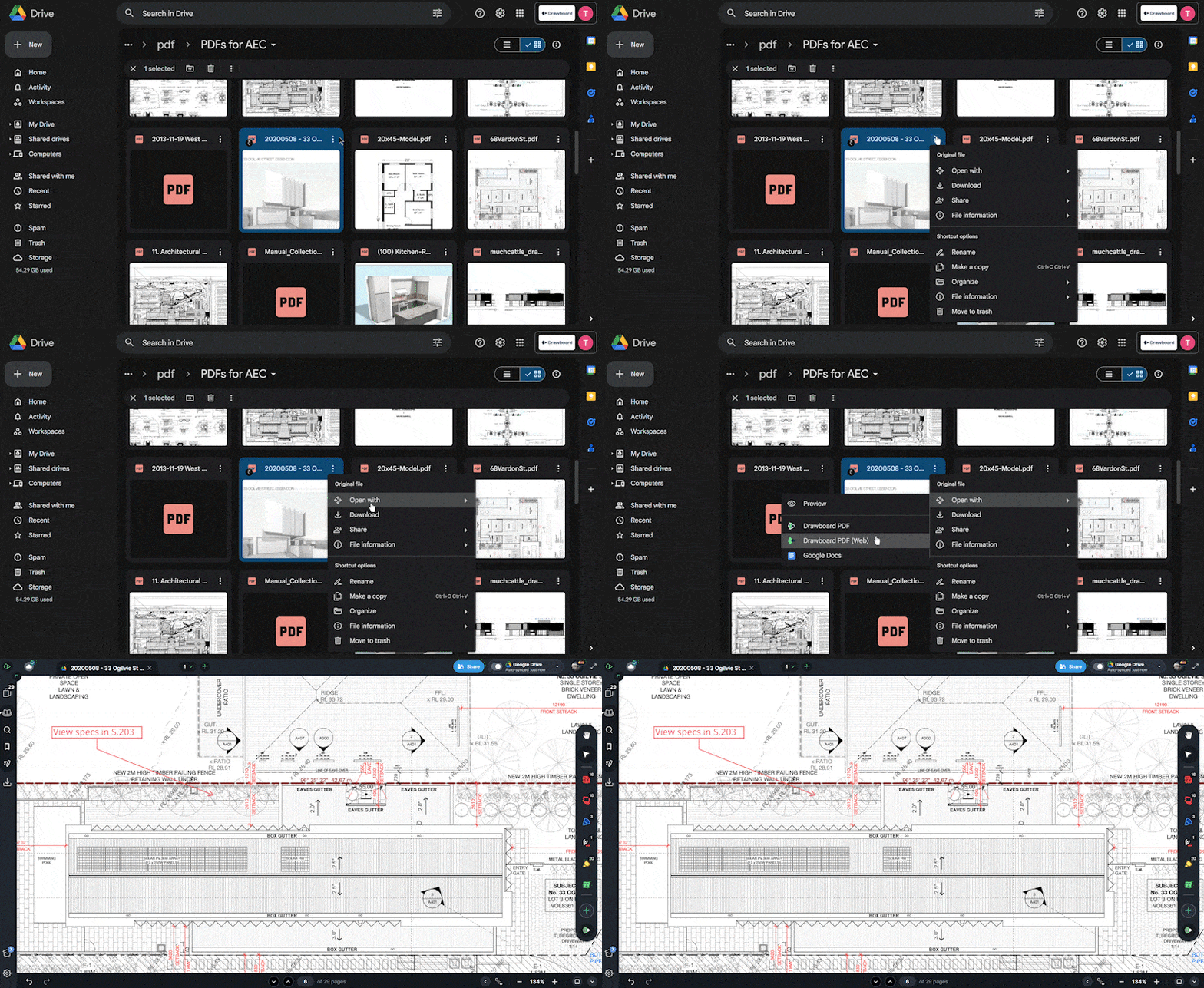
To activate the Google Drive integration, installing the Drawboard PDF Google Workspace app is required. Installing the Drawboard PDF Google Workspace app enables users to open Google Drive files with the Drawboard PDF web app, mark them up and see changes in Google Drive in near real-time.
To open a Google Drive file with Drawboard PDF:
- Install the Drawboard PDF Google Workspace app here
- In Google Drive, navigate to the file you would like to open
- Right click > Open with and then select Drawboard PDF
You can now mark up and edit your document and all changes will sync to your Google Drive account in near real-time.
Open files in Drawboard PDF from Google Drive

When working in Drawboard PDF, to open a file from Google Drive ensure that you are logged in to your Drawboard PDF account. Then, from the dashboard of the web or Windows app:
- Tap the plus icon to open a new file
- Under External cloud storage, tap Google Drive
- If you haven't yet connected your account, select Connect Google Drive account, follow the Google prompts and then (if using the web app) tap your account email under Google Drive
- Select the file that you would like to open. If using the Windows app, tap Open on the browser prompt to re-open Drawboard PDF
You can now mark up and edit your document and all changes will sync to your Google Drive account in near real-time.
Understanding your Syncing Options
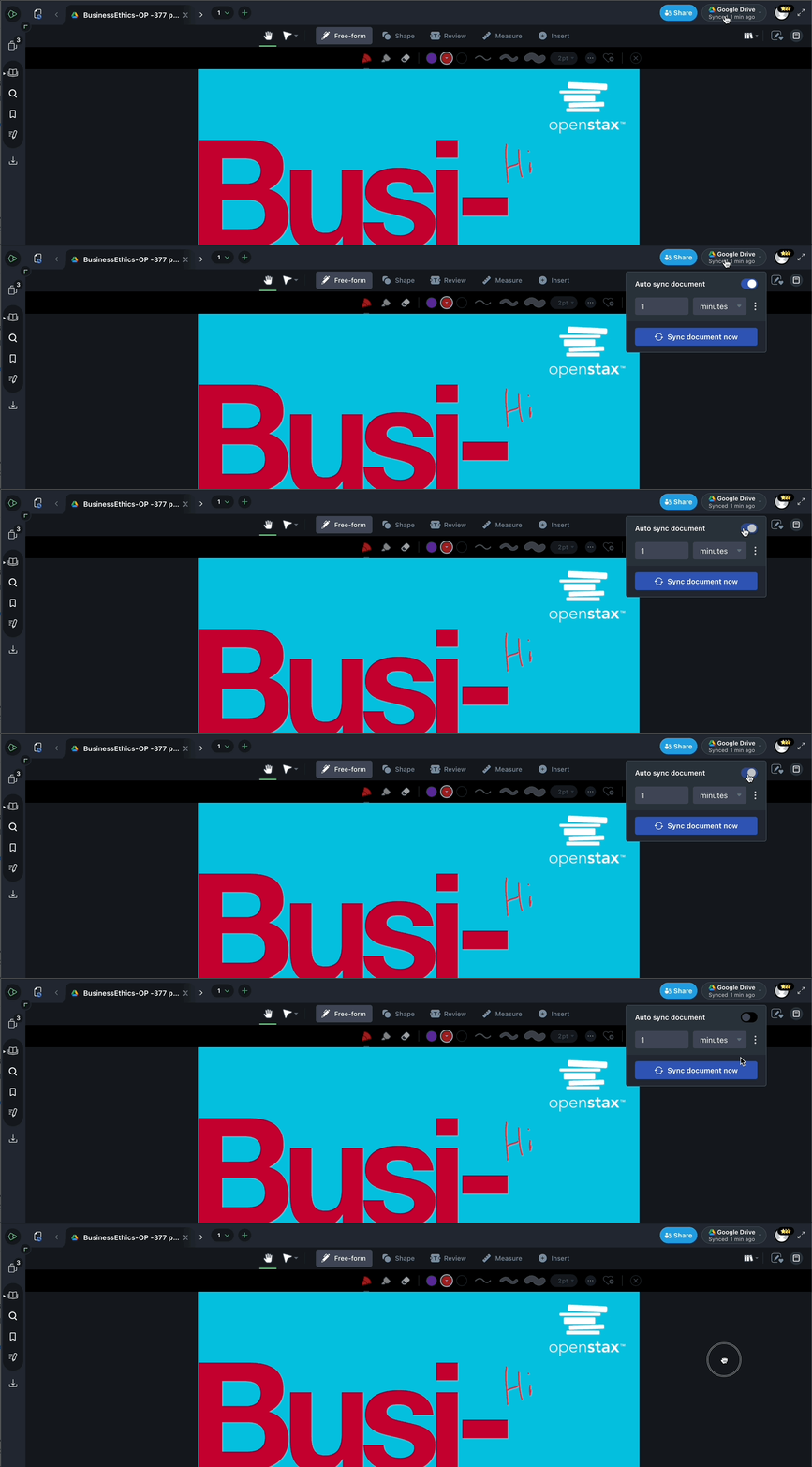
We've enhanced your control over document synchronization by adding several flexible syncing options. These allow you to customize how and when your changes are saved to your third-party cloud storage services like Google Drive, SharePoint, OneDrive, and Dropbox.
1. Manual Sync
To immediately save your latest changes to your cloud documents, simply click the Sync Document now button. This ensures your work is instantly backed up and accessible from any device.
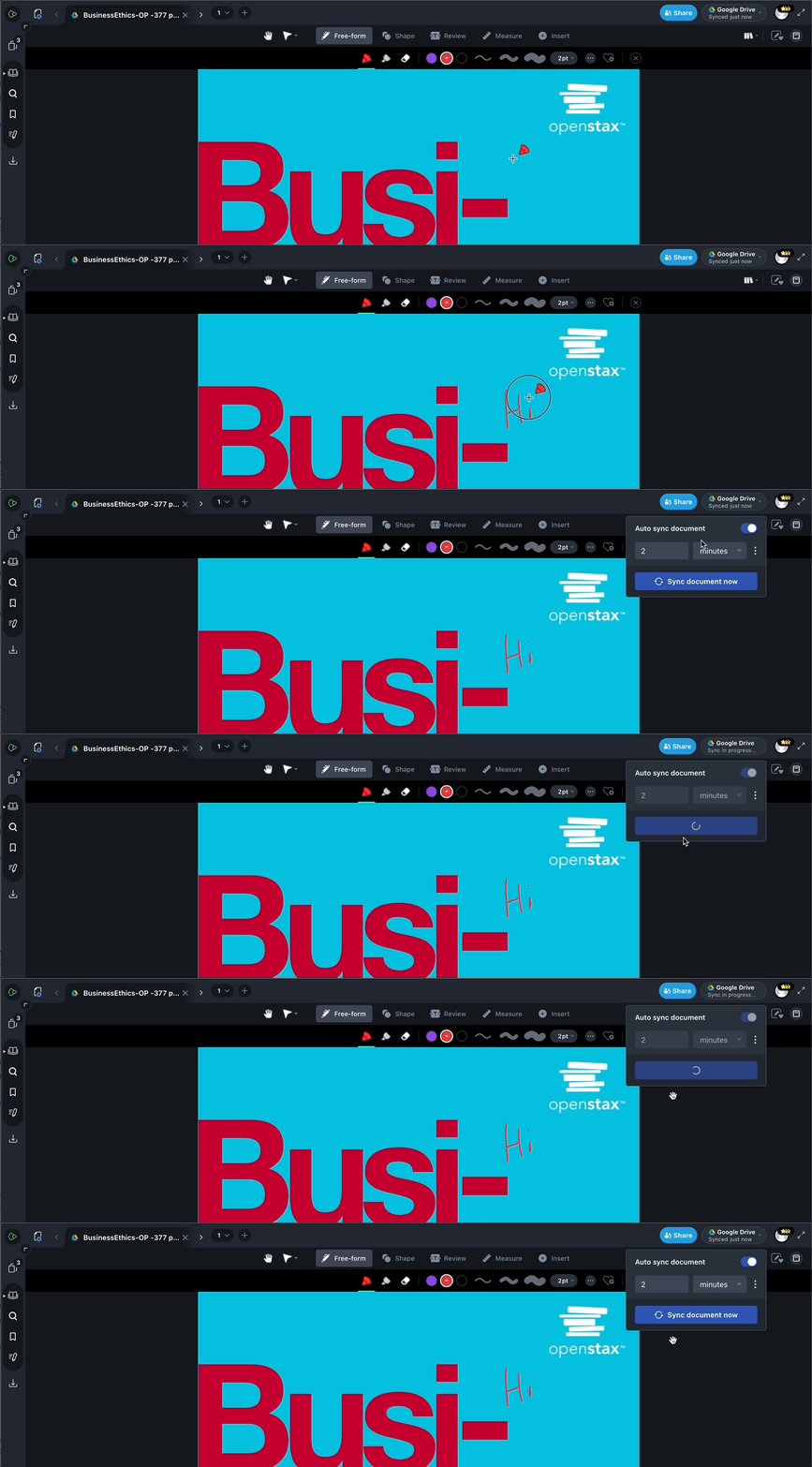
2. Adjust sync frequency
To adjust the sync frequency for a particular document:
- Open the document.
- Locate the sync settings (usually an icon or menu option related to syncing).
- Choose your desired sync interval.
Important: Changes made here will only apply to that specific document and its associated third-party drive.
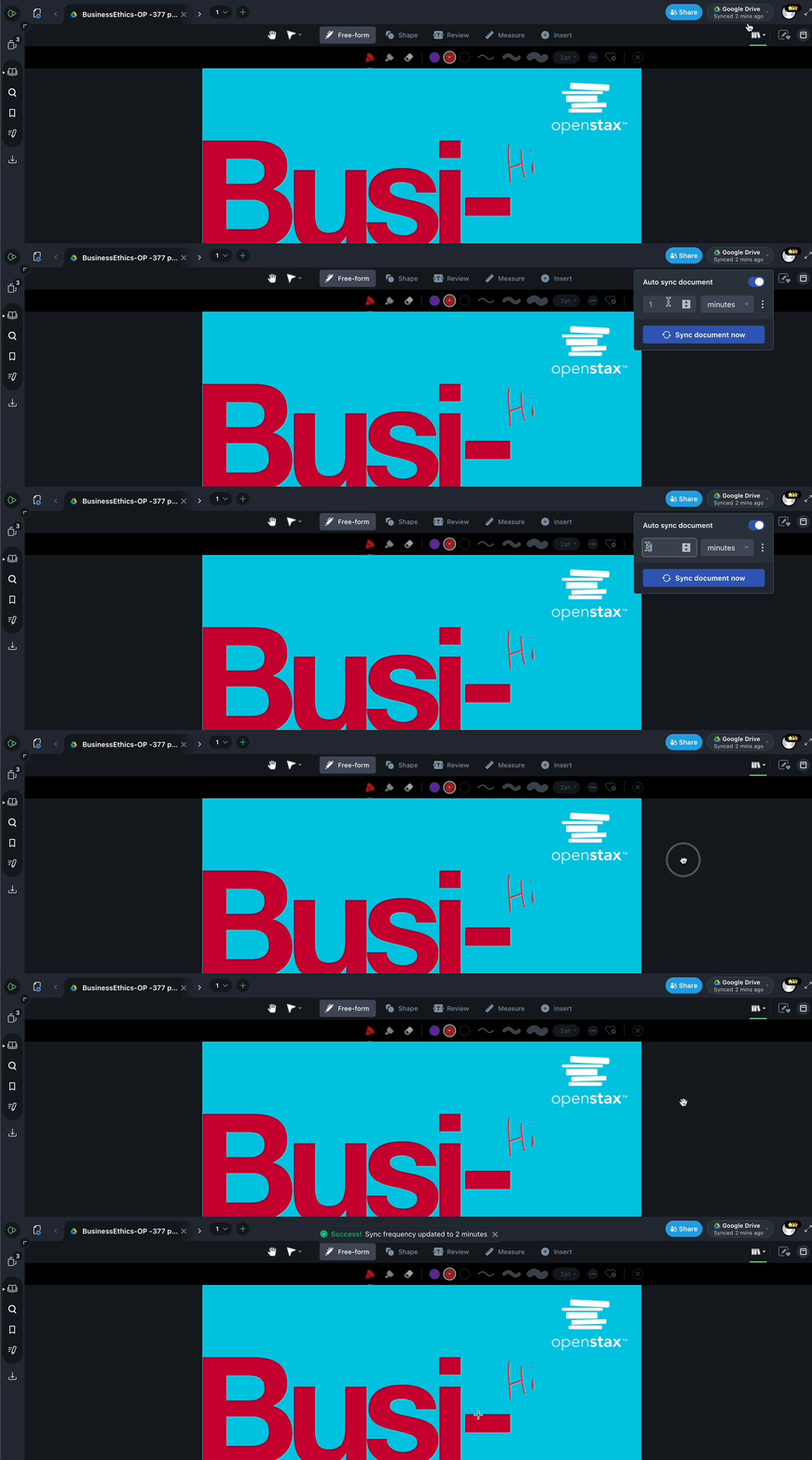
If you want to apply a consistent sync frequency to all documents opened with a specific third-party drive:
- Open any document from that third-party drive.
- Locate the sync settings (usually an icon or menu option related to syncing).
- Choose your desired sync interval.
- Click the triple-dot menu.
- Select "Set as global default."
This will apply your chosen sync frequency as the default for documents opened from that drive. If you’d like to review or change the global default sync frequency for each of your connected third-party drives, you can do so under App Settings > Document Sync Settings.

3. Turn Auto-Sync Off
For times when you prefer not to automatically sync your changes (e.g., working offline or making experimental edit), you have the option to turn off auto-sync. Simply toggle this feature off in the settings, and your changes will only be saved locally until you re-enable it or manually sync.
Drawboard PDF Chrome extension
Adding the Drawboard PDF Chrome extension enables you to:
- Attach Drawboard PDF cloud files to emails directly from the compose window in Gmail.
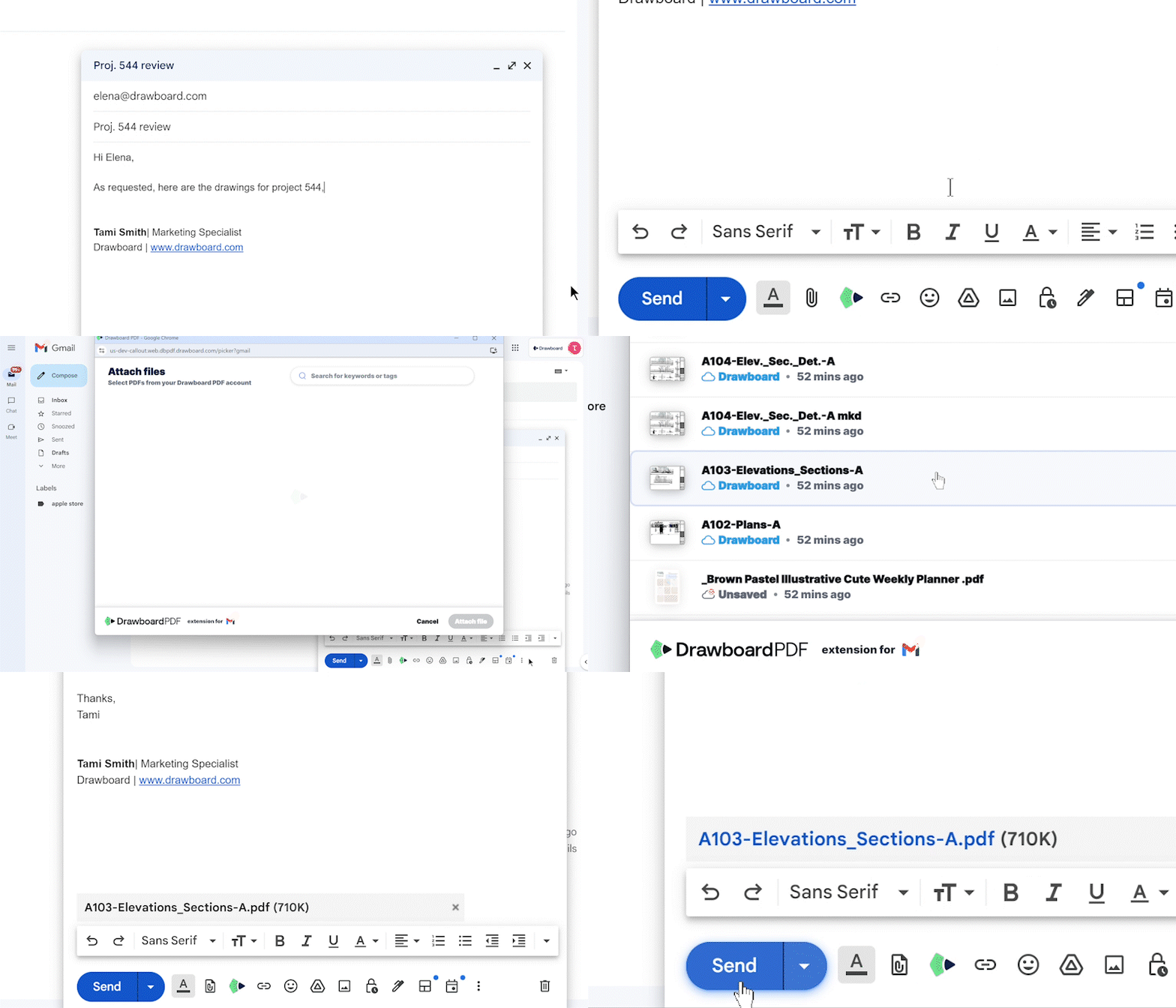
- Open PDF email attachments in Drawboard PDF instantly.
- Open PDFs from the web directly in Drawboard PDF, granting you instant access to a suite of PDF tools.
- Open local PDF files in the Drawboard PDF web app by dragging and dropping them into your Chrome browser.
To change the Chrome extension settings
- Select the Drawboard PDF Chrome extension in your browser
- Select Extension Settings
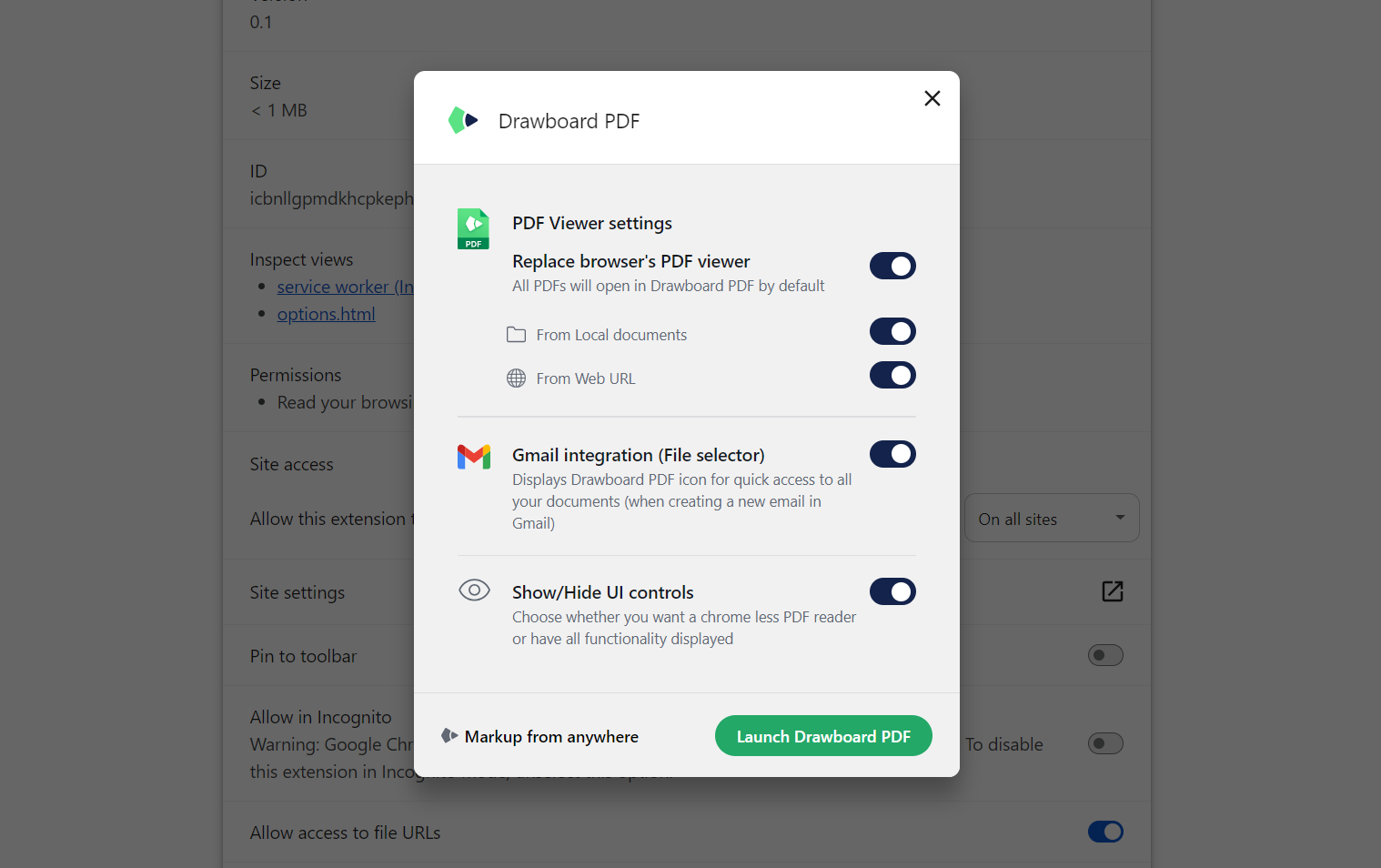
- Customize your settings by switching the toggles on or off
Users can customize the following extension settings:
-
Replace browser's PDF viewer
Open files in Drawboard PDF automatically
- From local documents
- From web URL
-
Gmail integration
Display Drawboard PDF icon in the compose window in Gmail to quickly access and attach Drawboard PDF cloud files to emails.
-
Show/Hide UI controls
When Replace browser's PDF viewer is toggled off, users can choose whether or not to display the banner enabling them to open or share the file in Drawboard PDF