This guide will help organization that needs the capability to open PDF files with Drawboard PDF from OneDrive for Business.
The official documentation could be found here https://learn.microsoft.com/en-us/onedrive/developer/file-handlers/?view=odsp-graph-online
Below is the detailed guide:
1. Create a new service principal in Microsoft Entra
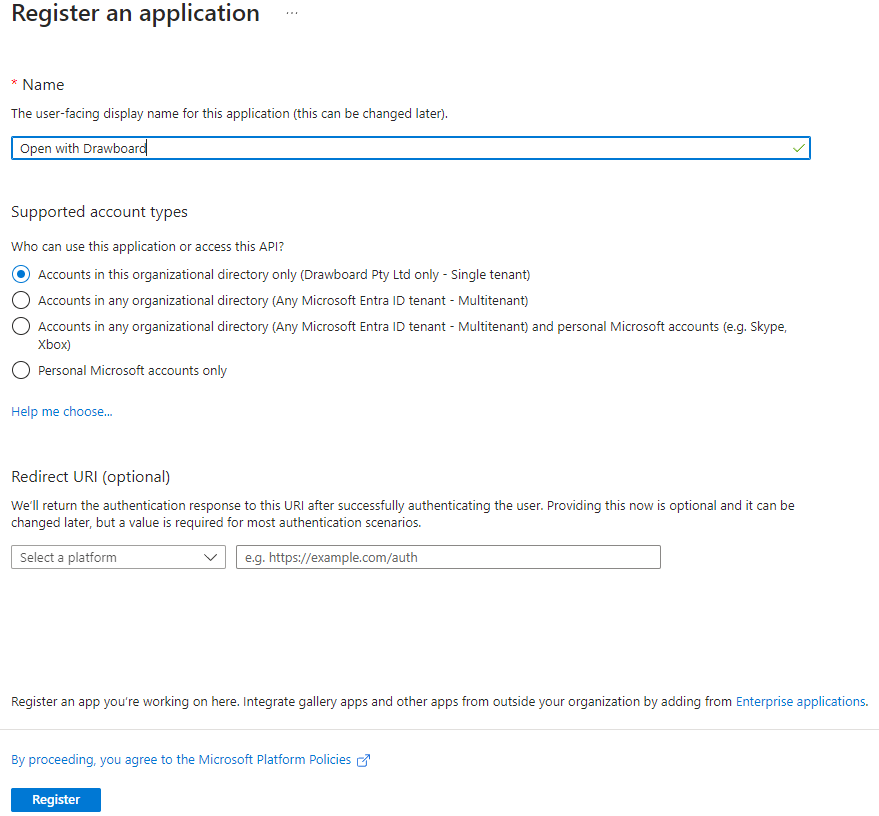
Navigate to Microsoft Entra in Azure portal, under App registrations, click on New registration
Assign a name and select Accounts in this organization directory only
IMPORTANT: Please keep this application accessible internally only as it can affect external users’ experience if accessible by external organizations
2. Add custom action
Open created application Manifest under Manage, and update addIns as below:
NOTE: Please generate and apply new GUID on id field
--------------------------------------------------------------------------------------------------------------------
"addIns": [
{
"id": "fb6195a8-340f-497c-98b6-0cf3317c7fbe",
"type": "FileHandler",
"properties": [
{
"key": "version",
"value": "2"
},
{
"key": "appIcon",
"value": "{\"svg\":\"https://dbpdfimages.b-cdn.net/Drawboard_PDF_Icon.svg\",\"png1x\":\"https://dbpdfimages.b-cdn.net/Drawboard_PDF_Icon.svg\"}"
},
{
"key": "actionMenuDisplayName",
"value": "Drawboard PDF"
},
{
"key": "actions",
"value": "[{\"type\":\"open\",\"url\":\"https://us-prod-prod.dbpdf.drawboard.com/api/v1/documents/onedrive/open\",\"displayName\":\"Open in Drawboard\",\"shortDisplayName\":\"Open in Drawboard\",\"icon\":{\"png1x\":\"https://dbpdfimages.b-cdn.net/Drawboard_PDF_Icon.svg\"},\"availableOn\":{\"file\":{\"extensions\":[\"pdf\",\"png\",\"tif\",\"tiff\",\"jpg\",\"jpeg\",\"bmp\",\"gif\"]},\"web\":{}}}]"
}
]
}
],
--------------------------------------------------------------------------------------------------------------------
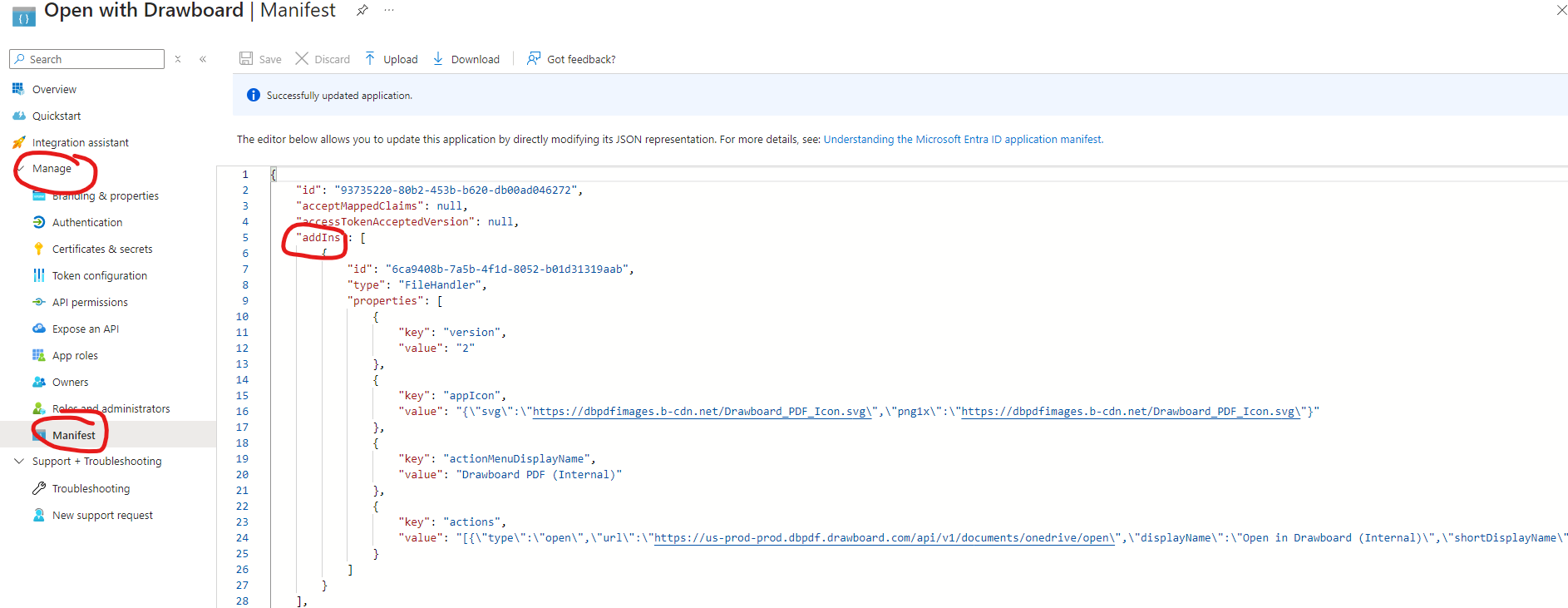
Click Save to apply
3. Set enterprise application to be visible to user
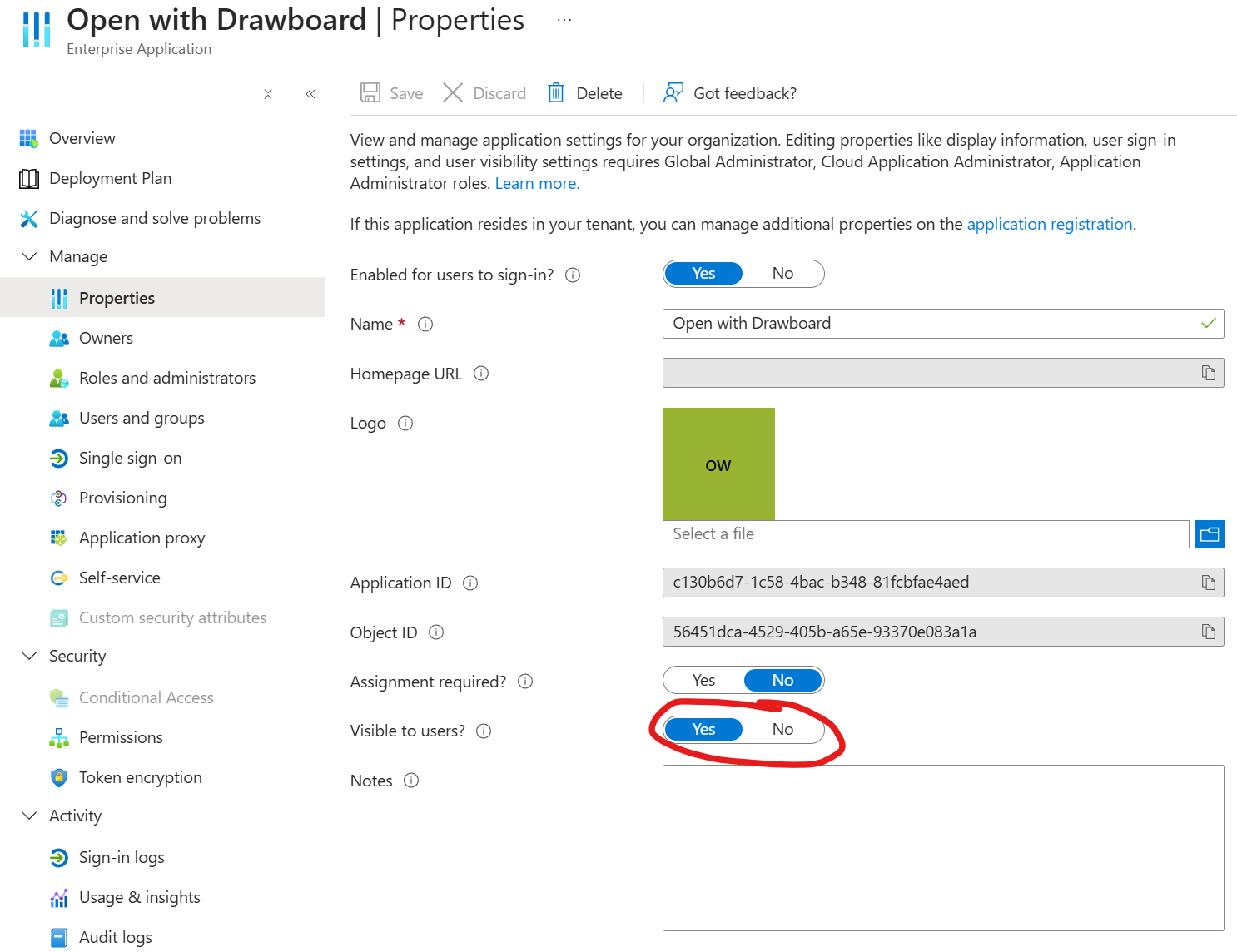
Navigate to Microsoft Entra in Azure portal, under Enterprise applications, select the created application and select Properties
Set Visible to users to Yes
Once completed, custom file handler action will be added for your organization’s users. However, it may take up to 48 hours for this new action to be applied.
Troubleshooting
If the button does not appear after 48 hours, follow these steps:
1. Clear cached context menu
Use Chrome to navigate to SharePoint site, and open Developer panel by pressing F12. Locate fileHandlerCache item as below and delete

2. Force server side cache
Open this URL to clear server side cache after replacing {tenant name} with appropriate value: https://{tenant name}-my.sharepoint.com/_api/v2.0/drive/apps?$forceRefresh=1