Collaboration is at the heart of Drawboard Projects. With Live Cursors and Presence, you can see who is active in your project in real-time and stay perfectly in sync during design reviews or team huddles.
Document Presence
You no longer have to guess if a teammate is looking at a drawing.
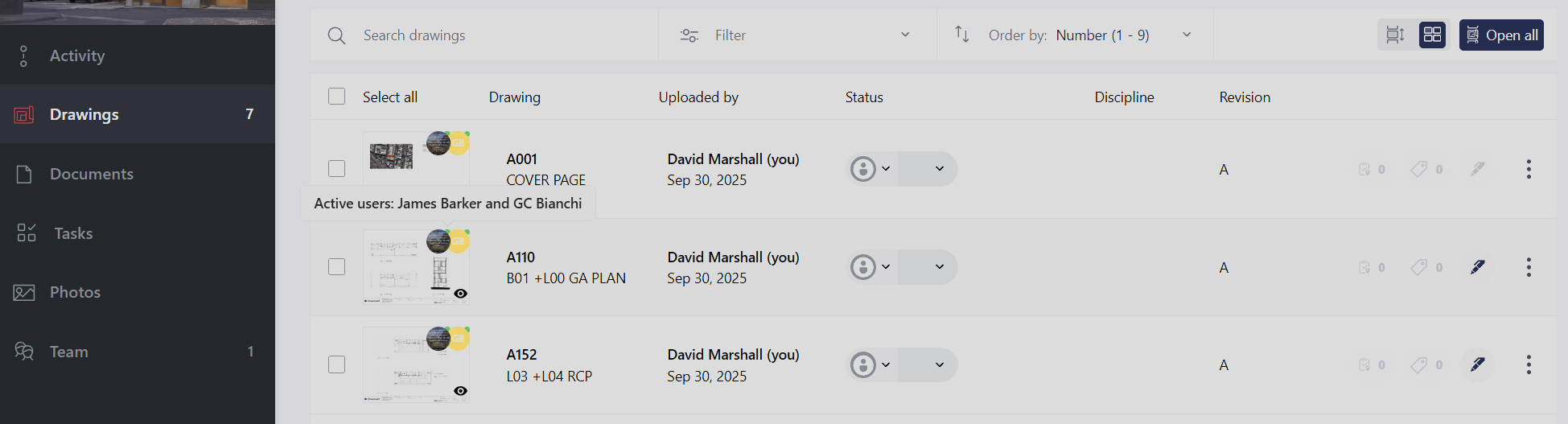
In Drawing & Document Lists: You will see user avatars next to any file currently being viewed by another team member.
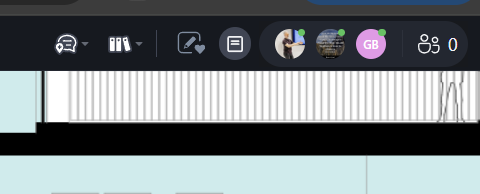
Inside a Drawing: Active users appear as avatars in the top right corner of the canvas. Clicking an avatar allows you to follow that person immediately.
The Collaborator List: "Active" Tab
The Collaborator list now includes an Active tab. This provides a real-time view of everyone currently viewing the drawing (or multiple drawings in multi-drawing view)—even if they haven't made any annotations.
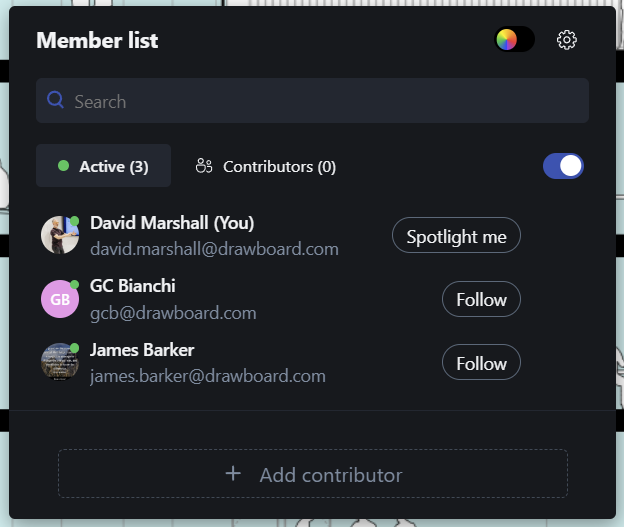
This is the best way to see exactly who is "in the room" during a live session.
Live Cursors & Following
When you are working in the same drawing as a teammate, their cursor will appear on your canvas. This allows you to point to specific details and follow the flow of a conversation visually.
Synced Views
For formal walkthroughs or design reviews, you can sync your view with a teammate:
Click on a user’s avatar in the top right.
Your view will now lock to theirs.
What stays in sync: If the person you are following zooms, pans, switches drawings, or toggles between Single and Multi-drawing views, your screen will update instantly to match.
Customizing Your Experience
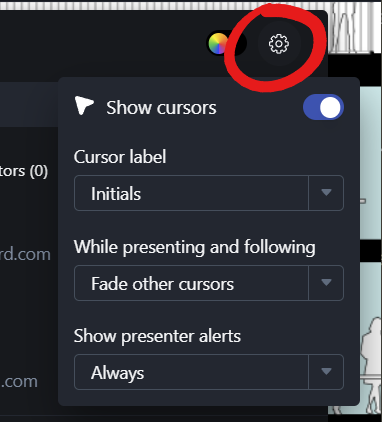
You have full control over how you see others. To adjust this, while the canvas is open click the Collaborator button, and click the Settings Cog in the top right.
Cursor Display
Choose how teammate cursors appear on your screen:
Cursor Label: Show initials, full names, or the cursor only for a minimalist look.
While presenting and following: Choose to show cursors normally, faded, or hidden completely while you are in a Spotlight or Following session.
Show Presenter Alerts
The Spotlight Me feature allows a lead to prompt everyone to follow their view. You can customize how you receive these invitations:
Always: Receive requests while viewing any drawing, document, or even while browsing the drawing/document lists.
Only on the same drawing/document: Only receive requests if you are already looking at the same file as the presenter.
Never: Silence all spotlight requests if you prefer to work uninterrupted.
Pro Tip: You can stop following at any time by simply panning or zooming your own canvas, or clicking 'Unfollow' on the user's avatar.