Available on: Web app, iOS app
Whenever you attach an image to a task or issue, the photo is automatically uploaded to the project’s Photo Gallery. This allows you to reuse images across tasks or issues within the same project.
In this article, we'll show you how to:
Manually Add Photos to the Gallery
You can add photos to the gallery without attaching them to a task first. This is useful if you want to prepare reference images or organize important visuals in advance.
Steps:
- Open the Photo Gallery in your project.
- Click the Add Photo button in the top-right corner.
- Select the image(s) from your device to upload.
- The photo will now appear in the gallery and can be reused across tasks or issues.
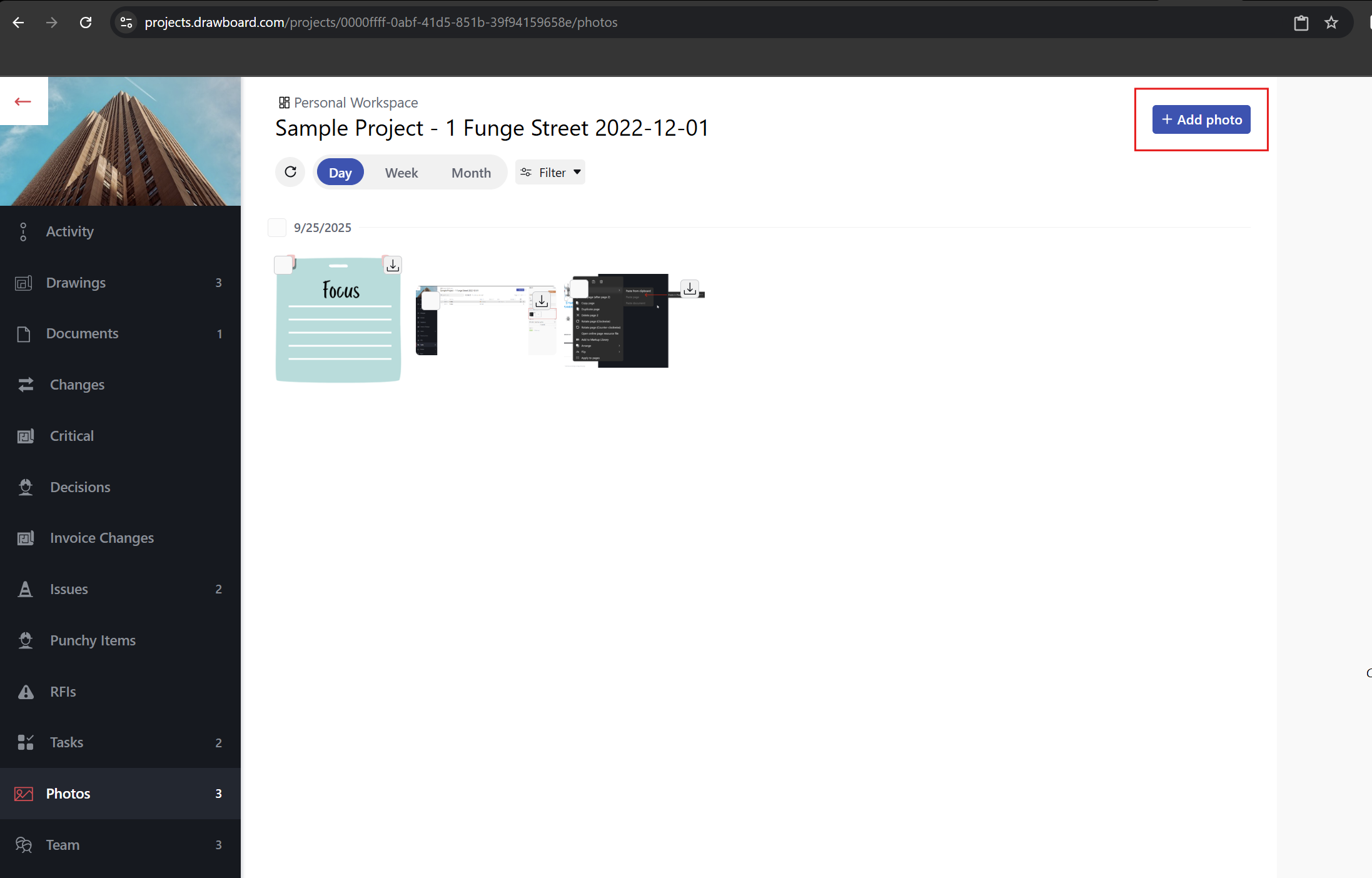
Add photo button in the Photo Gallery
Insert Markups on Photos
The Photo Gallery allows you to add markups directly to your images, which is particularly useful for highlighting issues, giving instructions, or emphasizing details.
Steps:
- In the Photo Gallery, select the photo you want to edit.
- Click Edit image to enter Edit Mode.
- Use the Pen, Text, or Arrow tools to add markups.
- Adjust the color and stroke thickness to suit your needs.
- Once saved, any markups will automatically update on all tasks or issues where that photo is linked.
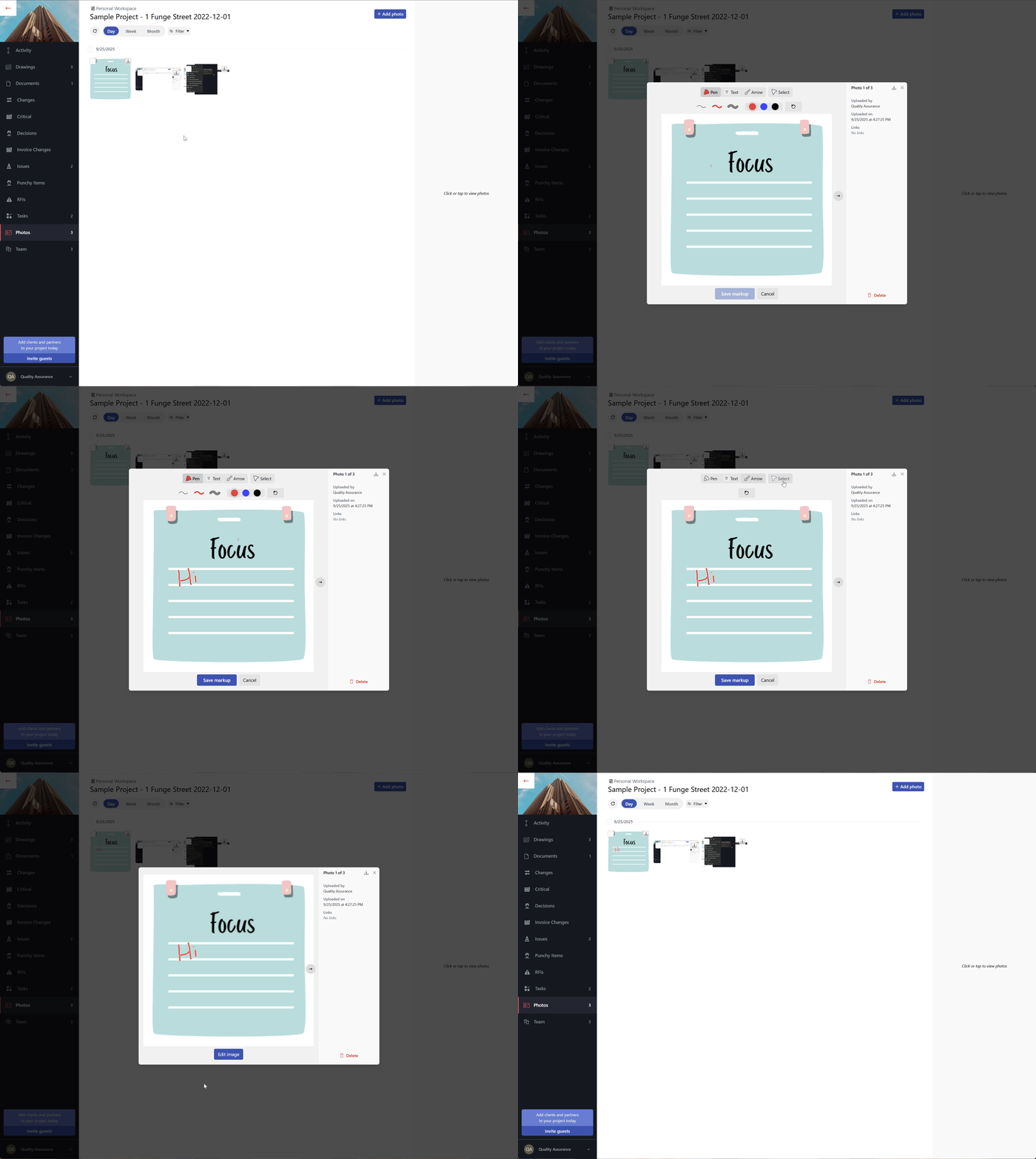
Insert markups to your photos
Managing Your Photos
The Photo Gallery includes powerful tools to help you organize, filter, and manage your images efficiently. This ensures you can quickly find, reuse, or update photos without manually searching through tasks or issues.
Sort Photos
You can sort your gallery to view photos by different timeframes:
-
Day (default) – Shows photos uploaded on the same day.
-
Week – Groups photos by the week they were uploaded.
-
Month – Groups photos by month.
Filter Photos
You can narrow down your gallery using several filters:
-
Uploaded by Me – Shows only the photos you uploaded.
-
Linked – Displays photos currently attached to one or more tasks or issues.
-
Not Linked – Shows photos that haven’t been attached to any task yet.
-
Uploaded by [User] – Lets you filter by a specific team member who uploaded the images.
-
Uploaded Within [Timeframe] – Filters photos uploaded within a custom time range (e.g., All time, Last day, Last full week, Last 30 days, Date range).
Bulk Actions
You can perform actions on multiple photos at once, which saves time when managing a large gallery:
- Select multiple photos (selection is per day depending on your current sort).
- Choose one of the following bulk actions:
-
Delete - Remove the selected photos from the gallery permanently. Note: This will remove all instances of the photos from any linked tasks or issues.
-
Download – Save the selected photos to your local device.