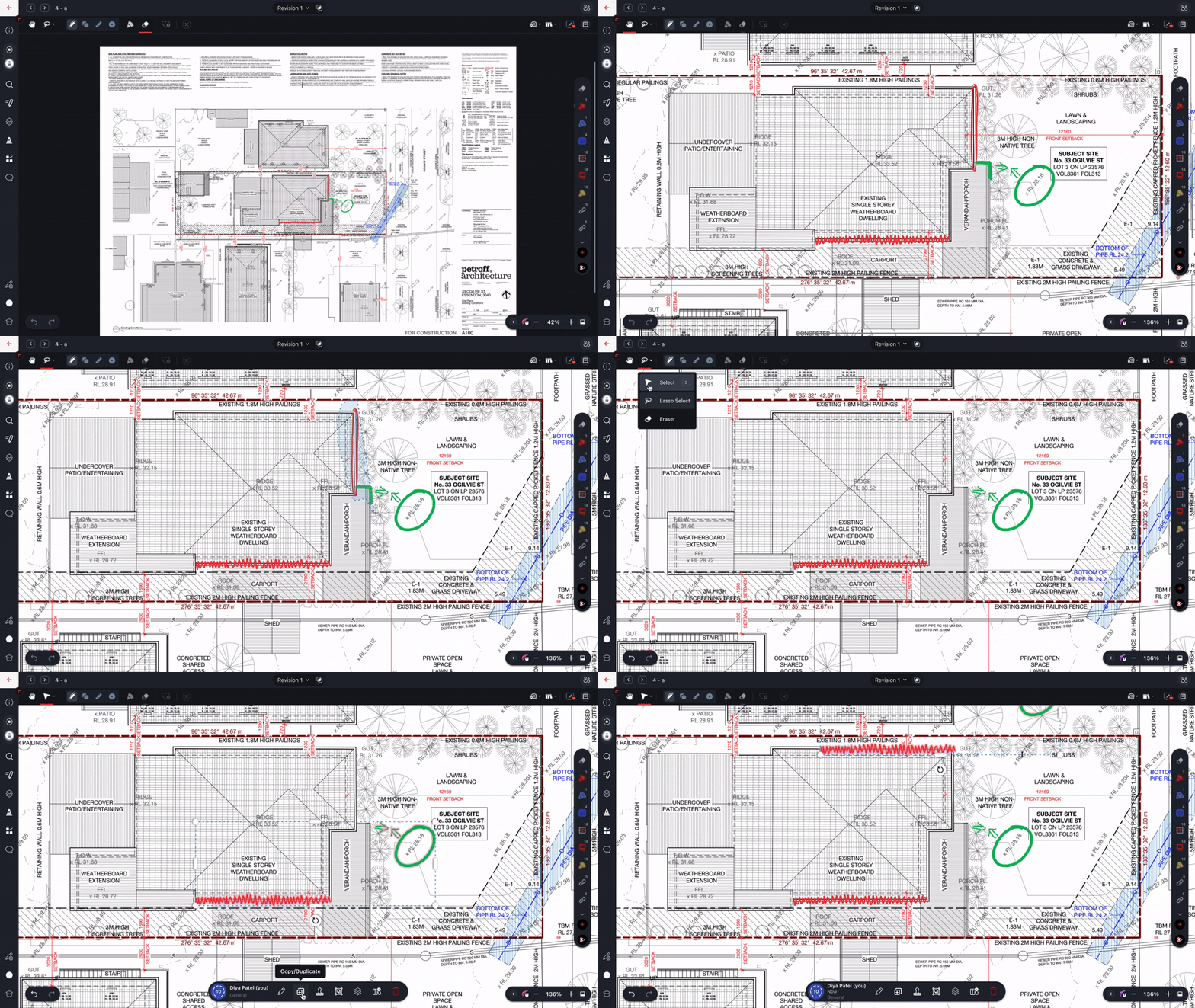
Available on: Web app, Windows app, iOS app
Select

Use the Select tool to select annotations, and erase them using the delete key on your keyboard, move them around the canvas, edit their properties in the selection panel at the bottom of the screen, or create a stamp to re-use on other drawings in the future.
You can only edit the properties of annotations that you inserted. If you select annotations made by someone else, you'll only be able to copy/duplicate them or make a stamp from them.
Lasso Select allows for more precise selection manipulation of annotations. You are able to be draw a freeform shape, which is perfect for selecting complex or irregular groups of annotations.
Pan

Use the Pan tool to move around the canvas. In the Web and Windows apps, click the Pan tool (or in the Web app press s on the keyboard), then click and drag to move around the canvas and use the mouse wheel to zoom the canvas in and out.
In the iOS app, tap the Pan tool, then tap and drag to move around the canvas, and pinch to zoom in and out.