Create beautifully aligned stamps and sketches using Drawboard Projects' alignment snapping functionality.
There are two options document for snapping on Drawboard Projects.
Snap to annotations:
Helps the user align objects or annotations with other objects, such as lines, shapes and measurements. When you move an object close to an alignment point, for example a side, vertex, centerline or centroid, the object will automatically be "snapped" into alignment.
Cursor snaps to vectors of embedded content on the page, like the edge of a floor plan or the perimeter of an object. This means you don’t need to rely on how you place an annotation with your hand; your cursor will snap into place to help you work faster and with more precision.
Content snapping settings:
- Snap to line edges: The cursors snaps to the edge of embedded lines on your PDF
- Snap to line midpoints: The cursor snaps to the midpoint of any embedded line on your PDF
- Snap to line intersections: The cursor snaps to the point at which two or more intersecting lines meet
- Snap to line endpoints (vertices): The cursor snaps to the endpoints of embedded lines and vertices on your PDF
Use any one or more setting/s to suit the way you work.
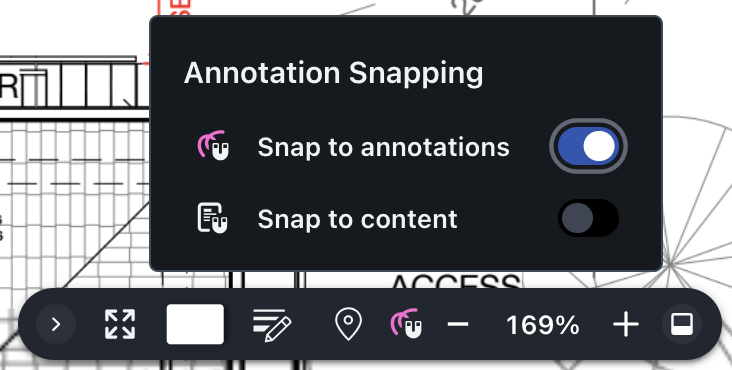
For Windows 10:
Access snapping from the bottom right hand side menu bar. Look for the magnet icon to open up more settings.
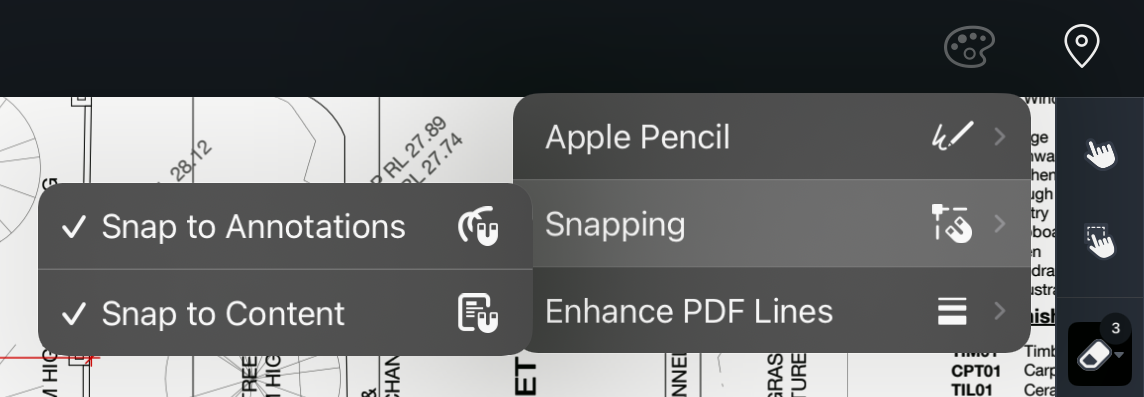
For iOS:
Navigate to the top right hand corner of the canvas to find the paint pallet icon and select Snapping to open up more settings.
To access snap an annotation to the edge of another annotation:
- Select the annotation you wish to align with another.
- Grab the annotation and move it towards the edge of the other.
- Hold down the Shift key while moving the annotation to turn on Snapping mode.
- Find the line you wish to snap to and let go of the annotation to drop it.
Drawboard Projects' edge snapping functionality works for all annotations with hard edges (think Lines, Rectangles and Text Boxes).