Available on: Windows only
Use the Stamp tool to quickly stamp a drawing or document with a review status or seal. Projects provides a set of pre-set stamps that cover common review outcomes, and you can make custom stamps that are available across all your projects.
- Pre-set Stamps
-
Custom Stamps
- Making Custom Stamps
- Editing Custom Stamps
- Sharing Custom Stamps
Pre-set Stamps
- Select the Stamp tool (from the Insert tab of the tool drawer)
- Pick a stamp to use from the stamps displayed in the pre-set stamp library
- Click or tap on the canvas to stamp the drawing
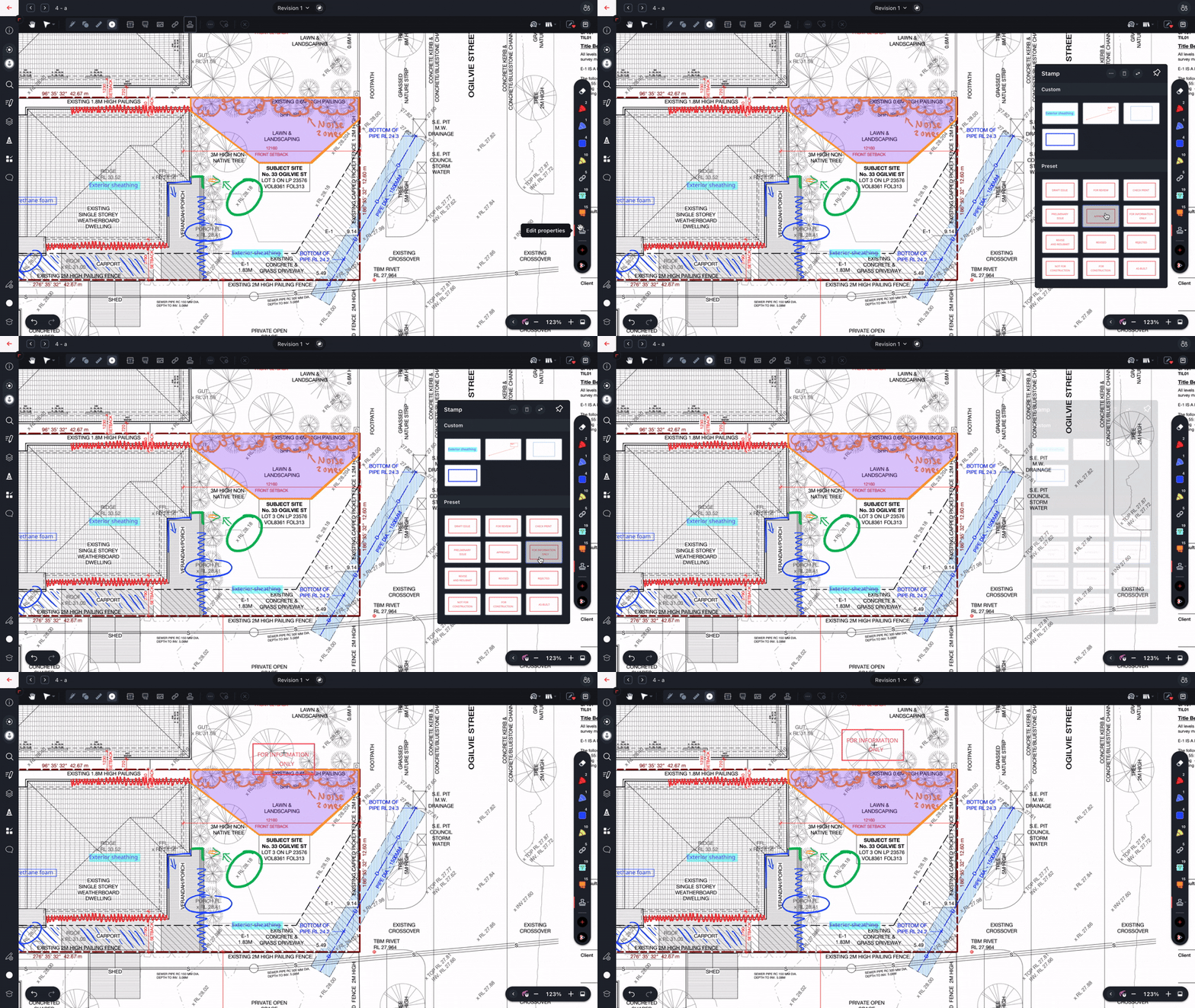
Tip: When using a stylus on the Windows app, hovering the stylus tip close to the screen without clicking will allow you to preview the stamp location. On the Web app, you can click and drag to position the stamp, and firmly click again to set the stamp in place.
Custom Stamps
Your Custom Stamps are associated with your user account and are available across all of your projects in Drawboard Projects. Custom stamps live in the custom stamp library, which is available in the tool drawer when the Stamp tool is selected. Any combination of text, shapes, images and lines can be used to design your custom stamp. The only limitation is that custom stamps cannot contain callouts or other stamps.
To make a Custom Stamp:
- Use a combination of text, shapes, images and lines to design your custom stamp
- When the design is complete, select all the annotations you wish to include
- Click or tap the Make a stamp button in the selection panel at the bottom of the screen
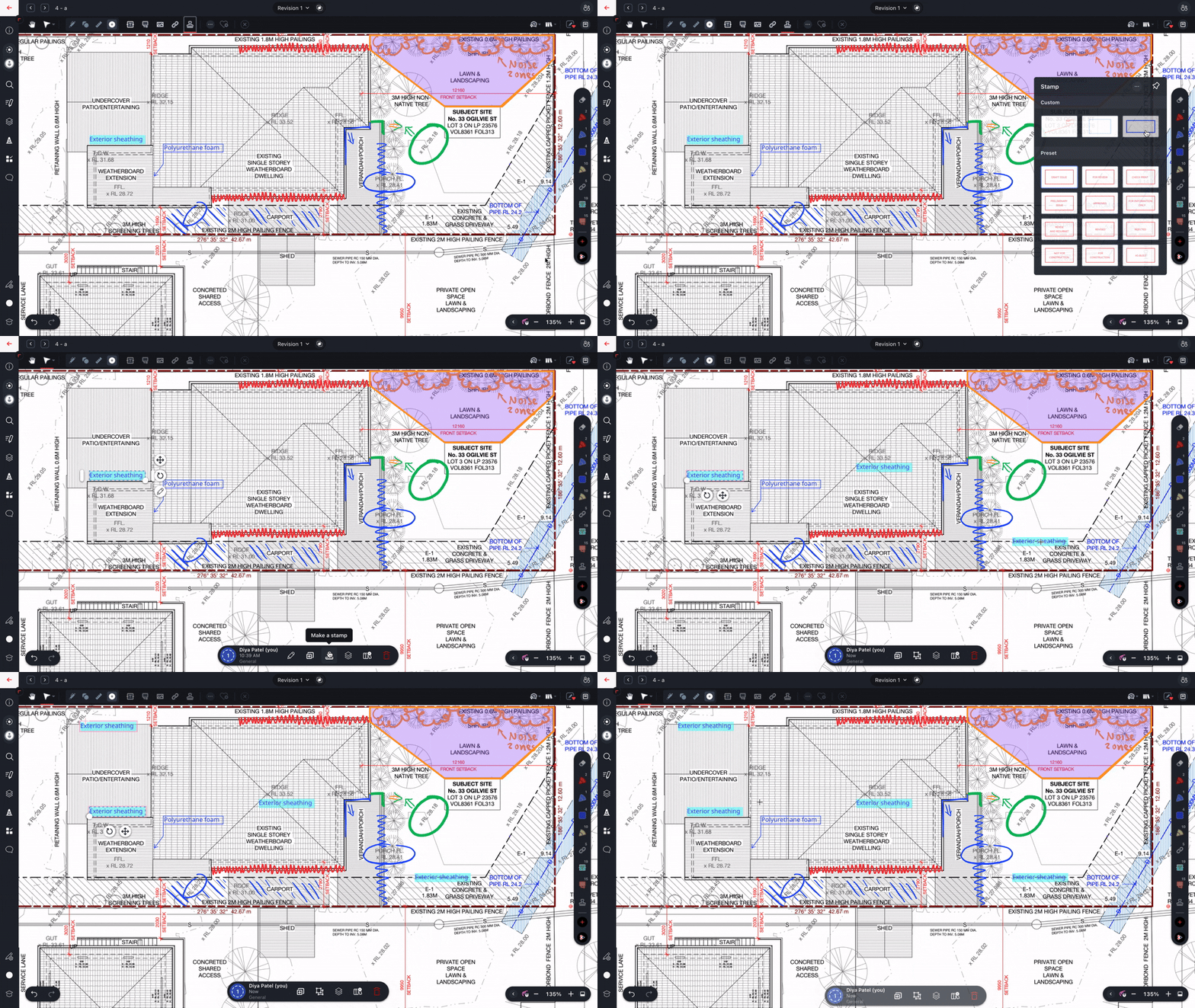
Tip: To align text, shapes, images and lines neatly and quickly while designing your custom stamp, follow the steps in the Snapping to Edges guide
To use a Custom Stamp:
- Select the Stamp tool (from the Insert tab of the tool drawer)
- Pick a stamp to use from the stamps displayed in the custom stamp library
- Click or tap on the canvas to stamp the drawing
Editing and Duplicating Custom Stamps:
While you cannot directly edit or duplicate a custom stamp, you can do this indirectly by stamping a drawing, selecting and ungrouping the stamp, making changes and then creating a new stamp. You can then delete the old stamp from the custom stamp library if it's no longer needed.
You can use this method to make several variations of an existing custom stamp.
To edit a custom stamp:
- Use the Stamp tool to stamp a drawing or document
- Use the Select tool to select this stamp
- Click or tap the Ungroup button in the selection panel at the bottom of the screen
- Redesign your custom stamp by editing or deleting ungrouped elements and using text, shapes, images and lines
- When the design is complete, select all the annotations you wish to include
- Click or tap the Make a stamp button in the selection panel at the bottom of the screen
Sharing Custom Stamps
While you cannot directly share a custom stamp with other project team members, you can do this indirectly by stamping a drawing, so that other team members can duplicate this and make their own stamps.
Many teams create a special drawing which contains all custom stamps for easy re-use by all project members.
To share a custom stamp:
- Stamp the custom stamp you would like to share onto a drawing
- Optionally, let other project team members know by @mentioning them on that drawing to notify them
- Then other team members can:
- Open this drawing, and select the stamp using the Select tool
- Click or tap the Copy/Duplicate button in the selection panel at the bottom of the screen to duplicate this stamp
- Click or tap and drag to move the duplicate to a blank area of the canvas in order to see it better
- Ungroup the stamp
- With all of the annotations still selected, click or tap the Make a stamp button in the selection panel at the bottom of the screen
- With all of the annotations still selected, click or tap the Delete button in the selection panel at the bottom of the screen (or press the delete key on your keyboard) to delete the duplicate