Drawboard Projects is at its best if you are using an active stylus such as the Surface Pen or Apple Pencil. However, if you don't have a stylus and need to annotate, you are able to turn on the Touch to Annotate feature and use your finger instead.
For Windows:
- Open a document or drawing from one of your projects.
- In the bottom right hand side menu bar, you will see an icon that looks like a hand and a finger.
- Tap this icon, and toggle Touch to Annotate, allowing you to draw with your finger.

Note: We recommend turning off Touch to Annotate unless you need it, as it may interfere when you are using a stylus.
For iOS:
- Open a document or drawing from one of your projects.
- Navigate to the top right hand corner of the canvas to find the paint pallet icon.
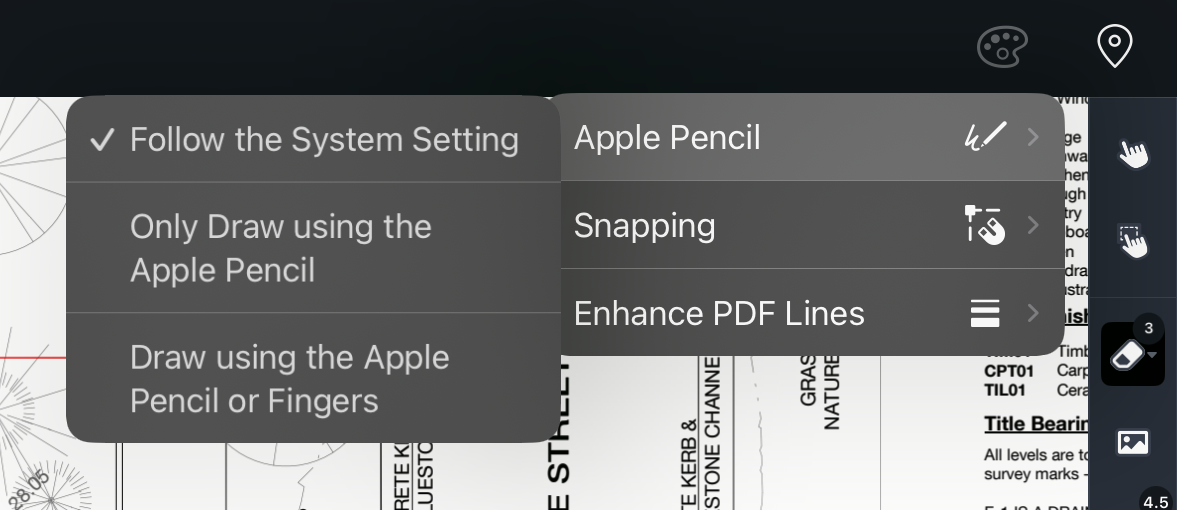
- From there, select apple pencil to open up the annotation options.
- Follow the System Setting uses the same default apple pencil settings as the iPad.
- Only Draw using the Apple Pencil disables the ability to draw using fingers.
- Draw using the Apple Pencil or Fingers allows you to annotate using either.
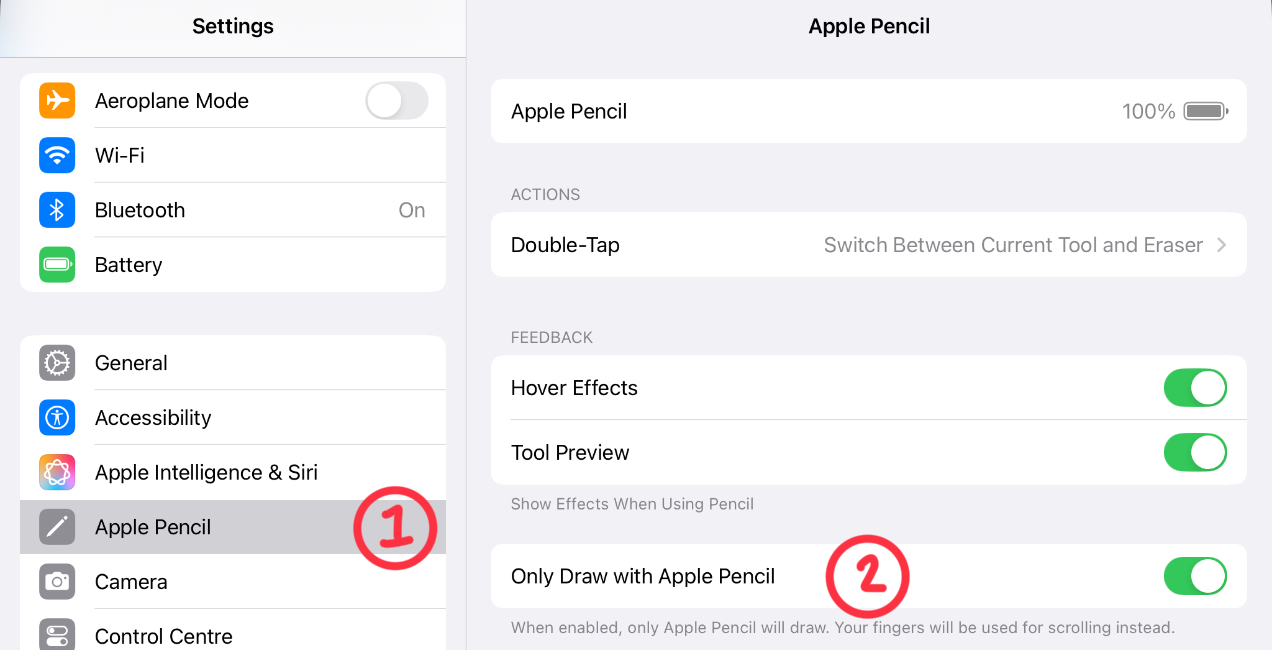
To change your system settings around the apple pencil:
- Go to Settings
- Go to Apple Pencil
- Toggle the Only Draw with Apple Pencil option.