Available on: Web app, Windows app, iOS App
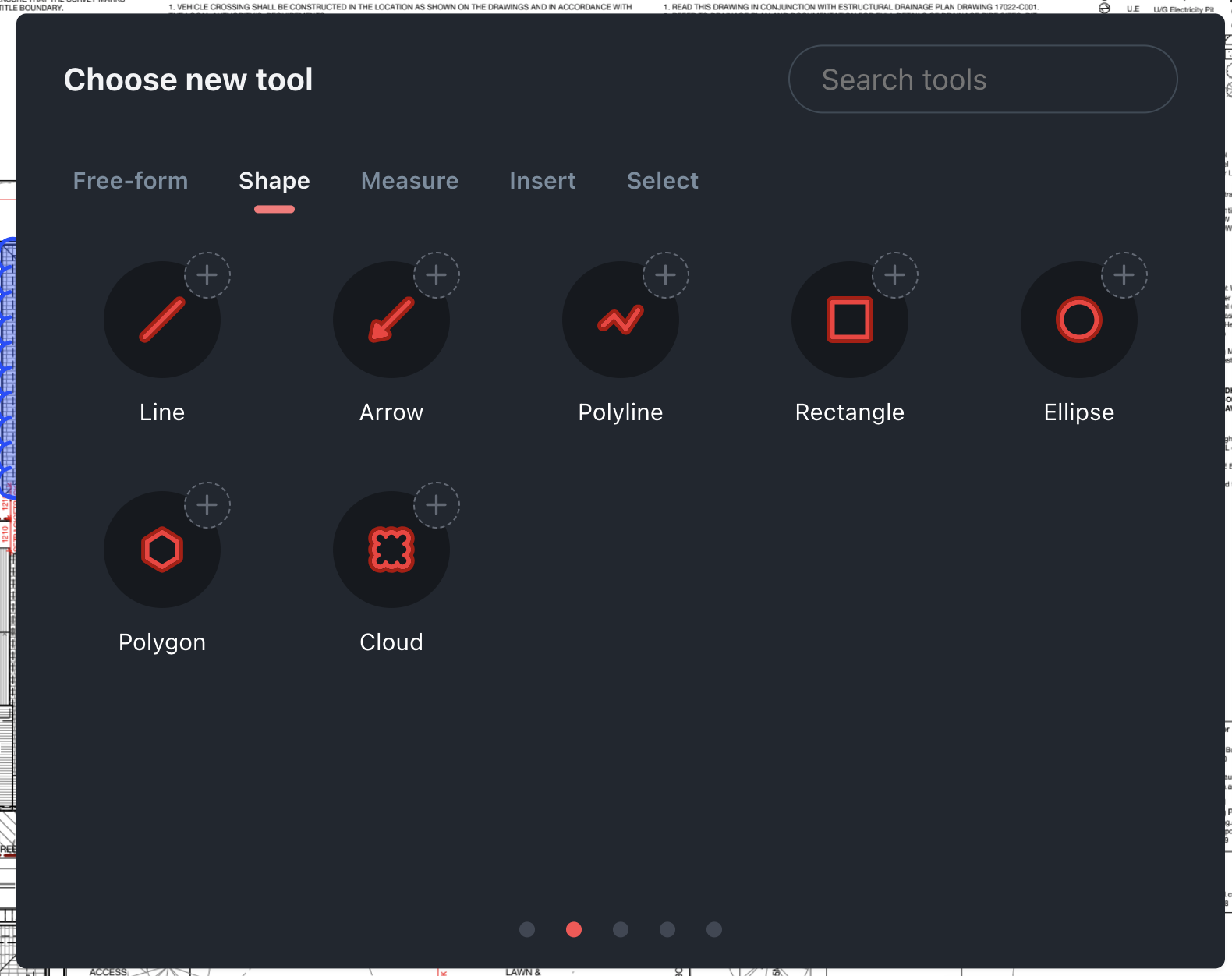
Projects provides a range of shape tools that can be used to mark up drawings and documents, available in the Shape tab of the tool drawer. These include:
- Line – a straight line that starts where your input touches the screen and ends where lifted.
- Arrow – a line with an arrow head at the tail end.
- Polyline – a series of connected line segments, where each point can be defined manually.
- Rectangle – a perfect rectangle that forms by dragging your input from corner to corner.
- Ellipse – an ellipse whose edges snap to your rectangle input path.
- Polygon – a connect-the-dots polygon that continues until you join back to the origin point.
- Cloud – a rectangular cloud that follows the rectangle input
Adding shapes
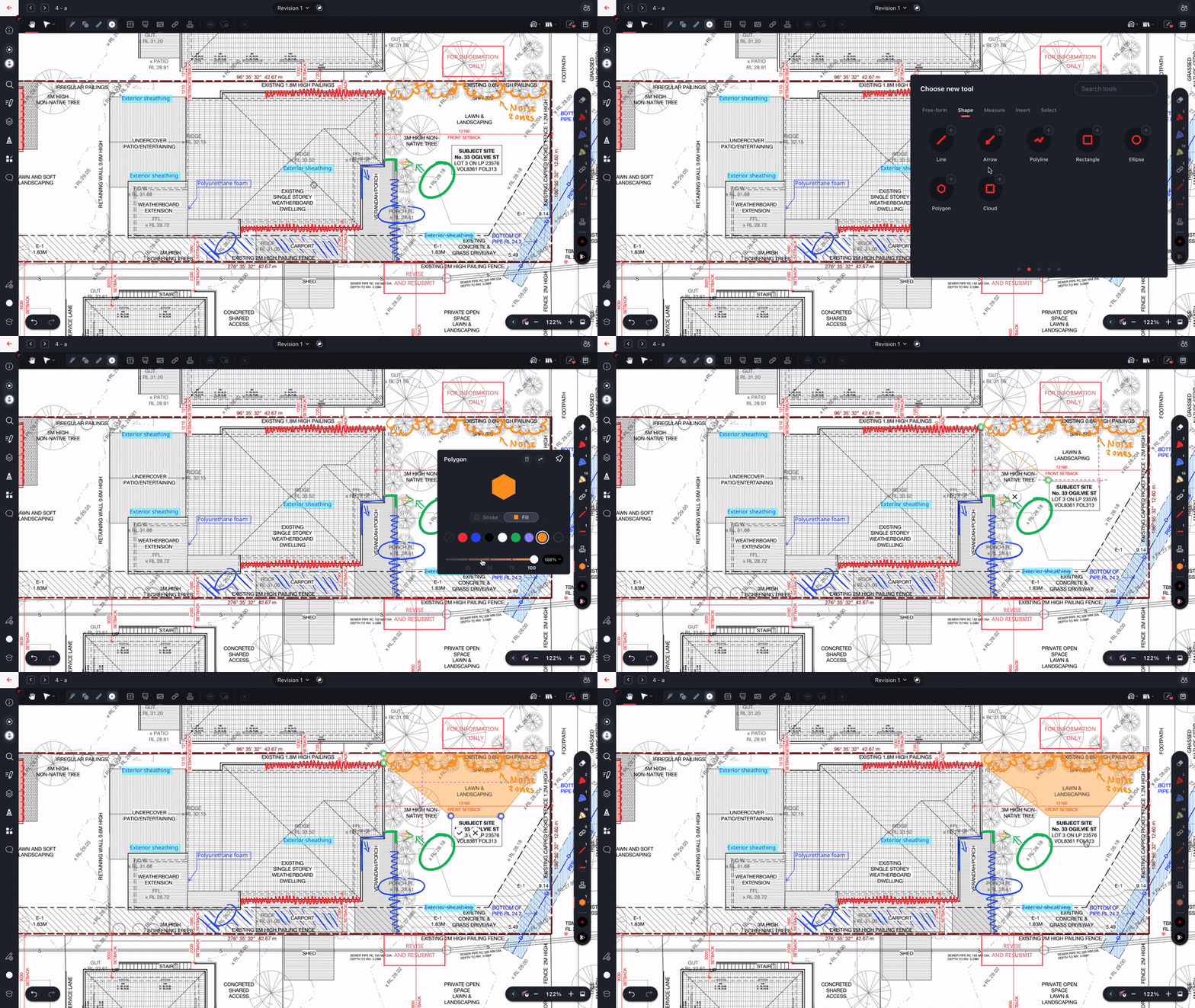
To add a shape, select the tool, then click or tap and drag on the canvas.
The color, opacity and width of a shape's outline can be changed, as can the fill color and opacity for shapes with a fill. The outline and fill can also be turned off, so it's possible to mark up with (for example) a transparently filled polygon with a bold outline, or a cloud with a thin outline and no fill.
Multiple shape tools with different color, opacity and width combinations can be added to the favorites bar so you have easy access to your favorite shapes.
Editing shapes
To edit a shape annotation already in your drawing or document, select it, then rotate, resize or reshape it using its control points, or change its properties using the Edit Properties button in the selection panel at the bottom of the screen.