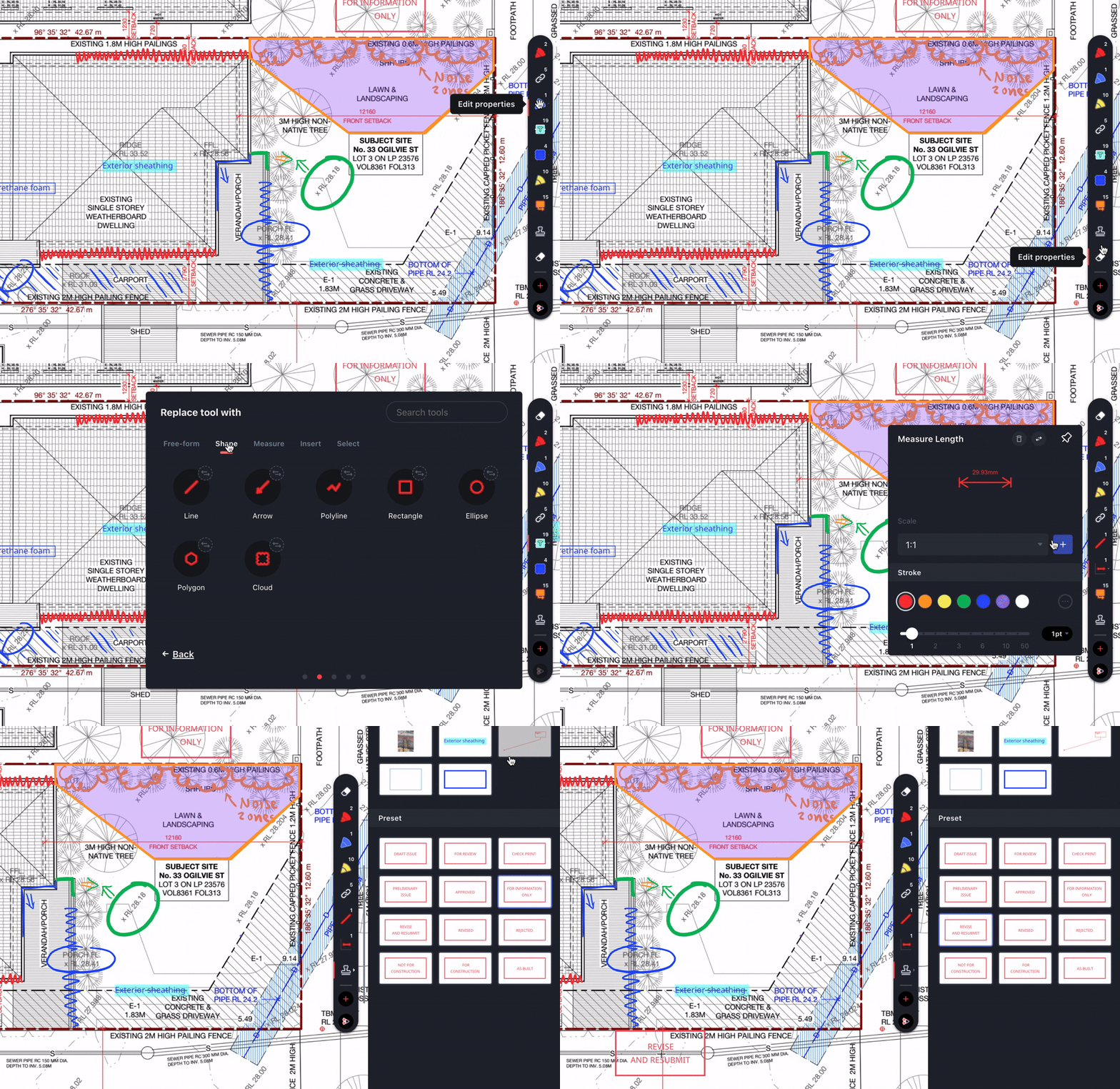
To create a tool to use each time you want to markup a document with a variety of tools is painful. That’s why you have a Favorites Bar that is unique to the user and not to the document.
The tools you create with the current tool widget can be easily saved to your Favorites Bar and carried across to each document on every one of your active projects. It doesn’t matter if you have 4 tools or 100 tools, the Favorites Bar can contain as many tools as you need.
Adding Tools to the Favorites Bar
You can add tools to your Favorites Bar in two ways:
- From the main toolbar: Select any tool and click Add to Favorites.
- From the Favorites Bar: Click the Add Tools button and choose from the full tool list.
Customizing Your Favorites Bar
Removing tools:
Click on a tool in the Favorites Bar and press the bin icon to remove it.
Swapping tools:
Click the replace icon next to a tool to swap it with another. You can search by name or browse by category.
Pinning tools to the canvas:
Pinning a tool opens its customization options directly on the canvas for quick adjustments.
Rearranging tools:
Simply drag and drop tools within the bar to reorder them based on your preferences or workflow needs.