Available on: Web app, Windows app, iOS app
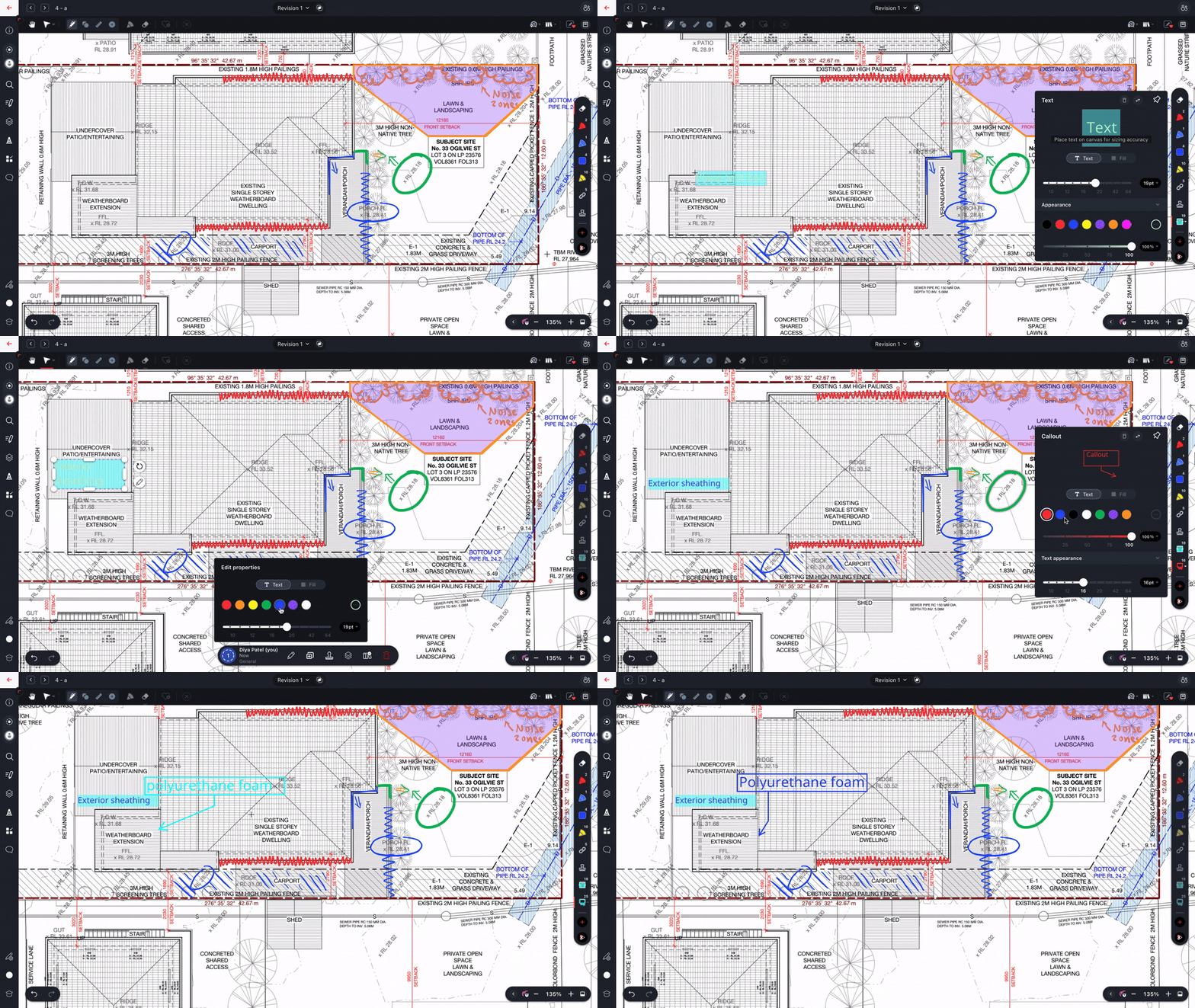
Use the Text tool to leave a comment or instruction on a drawing. If you want to direct a reader's attention to a specific location, use the Callout tool so that your comment also has a border and an adjustable arrow.
Adding Text
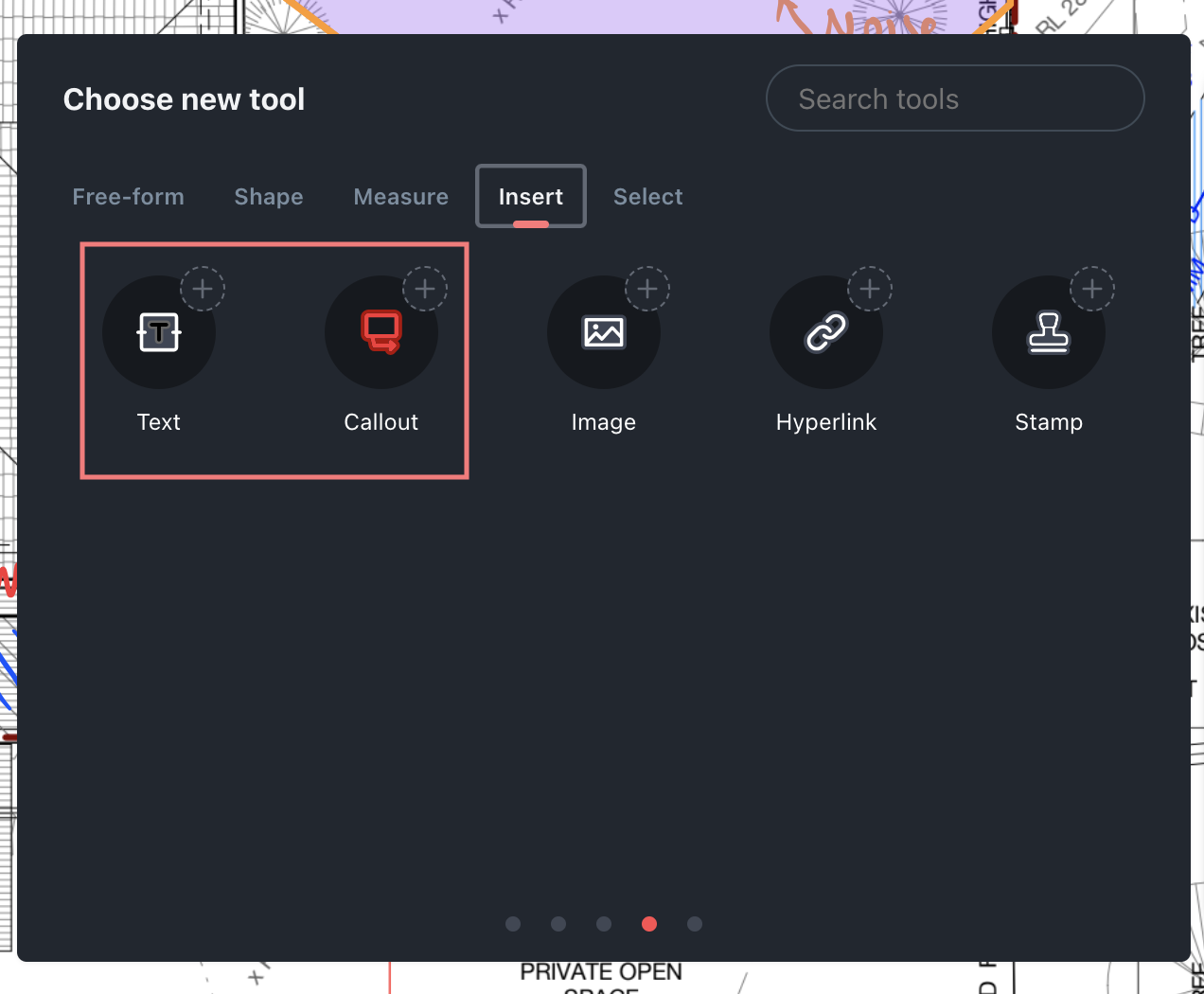
- Select the Text tool (from the Insert tab of the tool drawer), then click or tap and drag on the canvas to size the text box
- A dialogue will pop up into which you can enter the text.
- Click Confirm to insert the text box
The color, opacity and font size of a text annotation can be changed, as can the fill color and opacity. Text annotations have no border.
Adding a Callout
- Select the Callout tool (from the Insert tab of the tool drawer), then click or tap at the point on the canvas where you want the callout arrow point, and drag to position the text box
- A dialogue will pop up into which you can enter the text
- Click Confirm to insert the callout
- To change its shape, select the callout and use the control handles to resize the text section or relocate the arrow point
The color, opacity and font size of a callout annotation can be changed, as can the fill color and opacity. The outline color of a callout annotation will match its text color.
Multiple Text and Callout tools with different color, opacity and font size combinations can be added to the favorites bar.
Editing a Text or Callout
To edit a text or callout already in your drawing or document, select it, then rotate, resize or reshape it using its control points, change the text using the Edit Text button in the selection panel at the bottom of the screen, or change its properties using the Edit Properties button in the selection panel at the bottom of the screen.