WindowsWebiOSmacOS
Drawboard PDF uses two independent sets of roles. Organisation roles apply to Commercial and Team plans and determine who can manage members, licences and billing. Document roles apply to every cloud document and determine who can view, annotate and modify it. A user's organisation role does not affect their permissions on any individual document.
This article contains the following topics:
Related articles:
Understanding organisation roles
Organisation roles are available on Commercial and Team plans. Each organisation has one Account Owner, who holds the billing relationship and can transfer the role to another user. Admins manage members, licences and roles through the Admin Portal. Members have a licence assigned to them and can use the Drawboard PDF apps, but cannot access the Admin Portal.
The following table shows the permissions for each organisation role.
| Permission |
Account Owner |
Admin |
Member |
| Use the Drawboard PDF apps |
✓ |
✓ |
✓ |
| Access the Admin Portal |
✓ |
✓ |
✗ |
| Add members to the organisation |
✓ |
✓ |
✗ |
| Assign licences |
✓ |
✓ |
✗ |
| Manage user roles |
✓ |
✓ |
✗ |
| Add seats to the plan |
✓ |
✓ |
✗ |
| View and manage billing |
✓ |
✗ |
✗ |
| Promote a user to Account Owner |
✓ |
✗ |
✗ |
Note: The organisation Admin role is separate from the document Admin role. An organisation Admin can manage users and licences, but does not automatically receive Admin permissions on documents owned by other users. Document roles are assigned per document, as described in the next section.
Understanding document roles
Every cloud document has four roles. Roles are assigned per document, so a user can hold different roles on different documents.
-
Owner: The user who created or uploaded the document. Each document has one Owner. Only the Owner can delete the document from the cloud.
-
Admin: Has the same editing permissions as the Owner, including modifying pages and sharing the document, but cannot delete the document.
-
Collaborator: Can create, edit and delete their own annotations. Cannot modify pages or other users' annotations.
-
Reader: Can view and download the document. Cannot create or modify content.
The following table shows the permissions for each document role.
| Permission |
Reader |
Collaborator |
Admin |
Owner |
| Viewing |
| View the document |
✓ |
✓ |
✓ |
✓ |
| Download the document |
✓ |
✓ |
✓ |
✓ |
| Annotations |
| Create annotations |
✗ |
✓ |
✓ |
✓ |
| Edit or delete own annotations |
✗ |
✓ |
✓ |
✓ |
| Edit or delete other users' annotations |
✗ |
✗ |
✓ |
✓ |
| Layers |
| Create and rename layers |
✗ |
✓ |
✓ |
✓ |
| Delete a layer that is empty or contains only your own annotations |
✗ |
✓ |
✓ |
✓ |
| Delete a layer containing other users' annotations |
✗ |
✗ |
✓ |
✓ |
| Document |
| Add, delete, rotate, reorder pages |
✗ |
✗ |
✓ |
✓ |
| Share the document and change roles |
✗ |
✗ |
✓ |
✓ |
| Delete the cloud document |
✗ |
✗ |
✗ |
✓ |
Changing a user's document role
Only the document Owner or an Admin can change roles. The change applies to the user immediately.
To change a user's document role
- Open the document in Drawboard PDF.
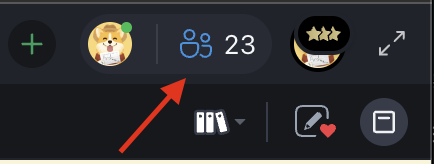
- In the top right corner, next to your profile, open the members list.
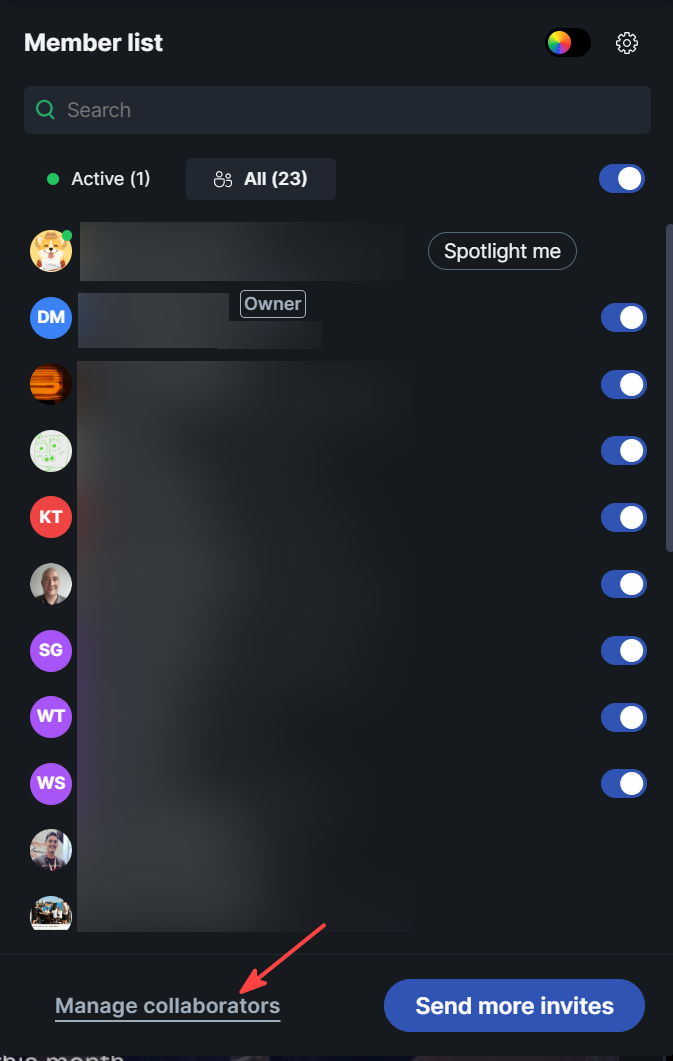
- Select Manage collaborators.
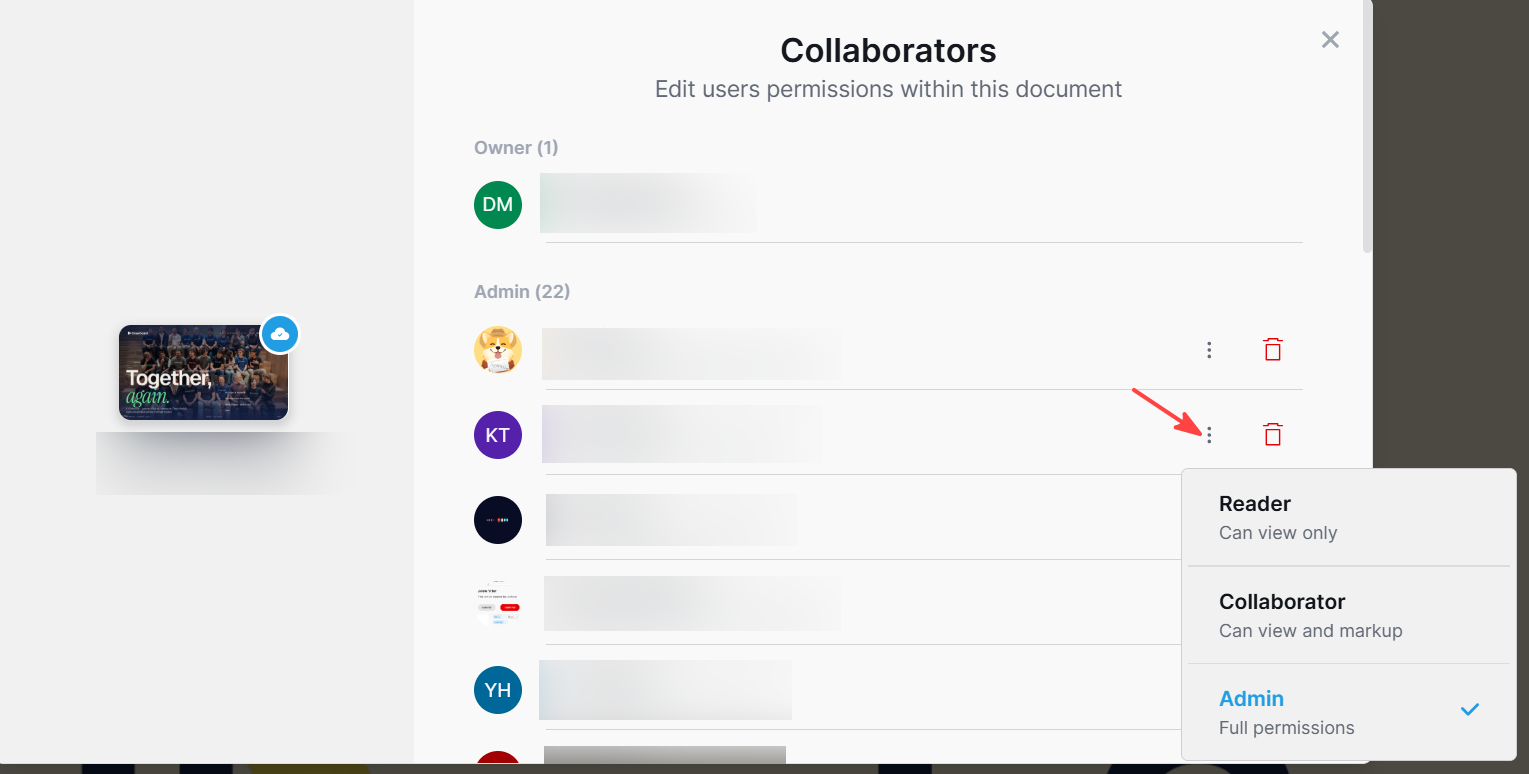
- Select the three-dot menu next to the user's name. This menu is only visible to the document Owner and Admins.
- Select the new role from the list.
FAQ
Can a document have more than one Owner?
No. Each document has a single Owner, the user who created or uploaded it. All other users are assigned one of the remaining three roles.
I am an Admin or the Account Owner of my organisation. Am I automatically an Admin on every document?
No. Organisation roles control members, licences and billing. Document roles are assigned per document by that document's Owner or Admin, and do not carry over from the organisation.
Do document roles apply to local documents?
No. Roles exist only on cloud documents. A local document on your device is not shared until you upload it.
For questions about roles in your organisation or on your documents, contact support@drawboard.com.