The Autodesk Forma integration lets you import drawings and documents directly from Forma into Drawboard Projects, keep them in sync as new versions are released, and publish reviewed files back to Forma when the review is complete.
Available on: Growth, Enterprise plans.
Currently in Early Access, so please ask your account manager for access.
Before you start
- Your organization must have an Autodesk Forma account with at least one active project.
- The integration is configured by an org admin in Drawboard Projects. Setup happens once and applies across all projects for your organization.
- Importing, syncing, and publishing are available on web, iPad, and Windows.
- Users who mark up and review drawings do not need an Autodesk account or a Forma license.
Set up the Forma integration
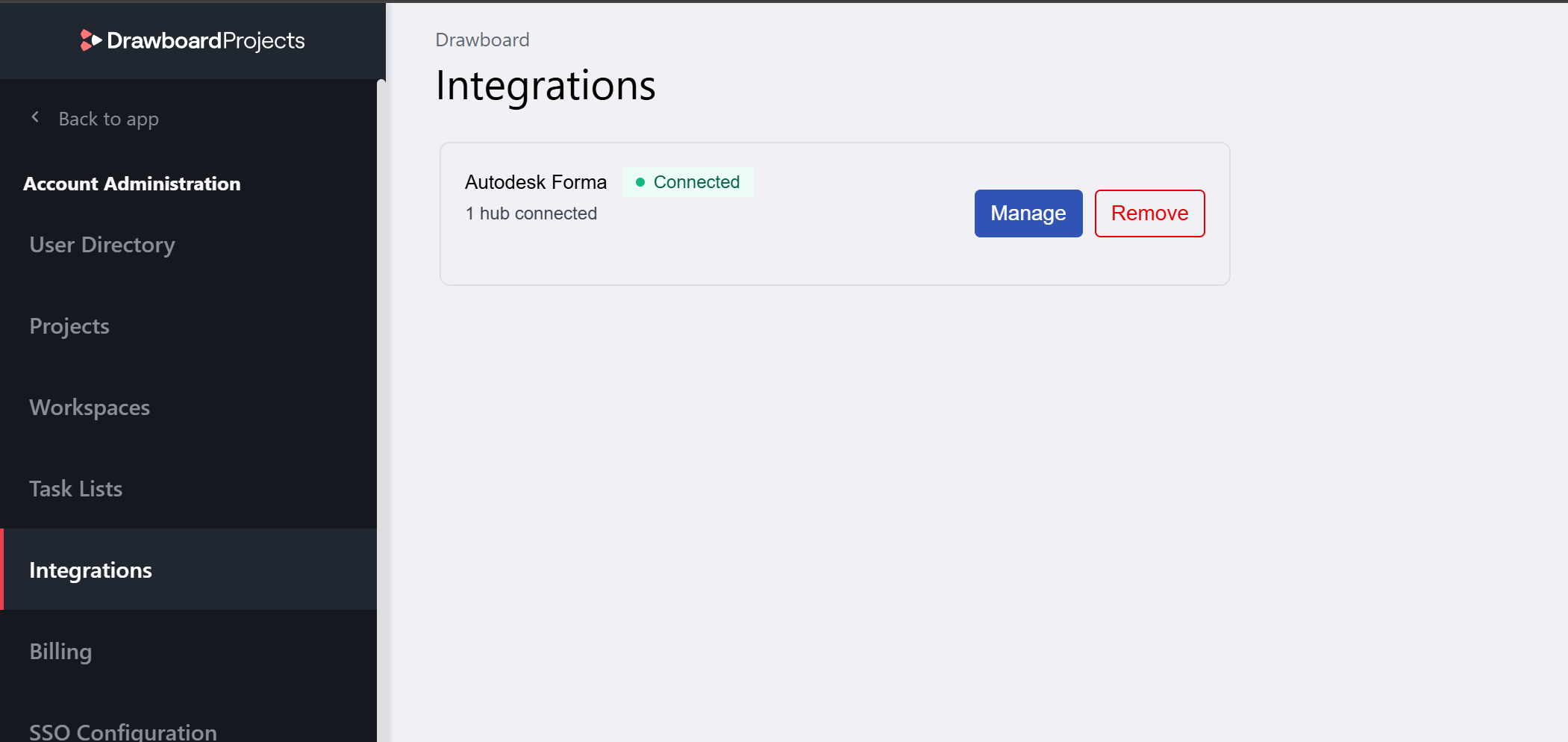
- Sign in to Drawboard Projects as an org admin.
- Open Account Admin and go to the Integrations tab.
- Select Autodesk Forma and follow the prompts to connect your Forma hub using your Autodesk credentials. This involves doing some configuration inside your Forma account, which requires Hub Admin privileges inside Forma
- Once connected, choose which Forma projects are available to your team. Turn on Enable all projects to make every Forma project available, or select specific projects from the list below.
- Save your configuration.
Your Forma hub only needs connecting once. All projects in your Drawboard Projects account can then import from Forma without any additional setup.
Note: If you've been granted the org admin role in Drawboard Projects while you're signed in, log out and back in for the change to apply.
Read-only access: If you connected to Forma using a read-only account, turn on the Read-only access toggle in Integration Settings. Importing will still work, but publishing and folder creation will be disabled.
Import drawings from Forma
Drawings and multi-sheet document sets can both be imported from Forma into the Documents section of Drawboard Projects.
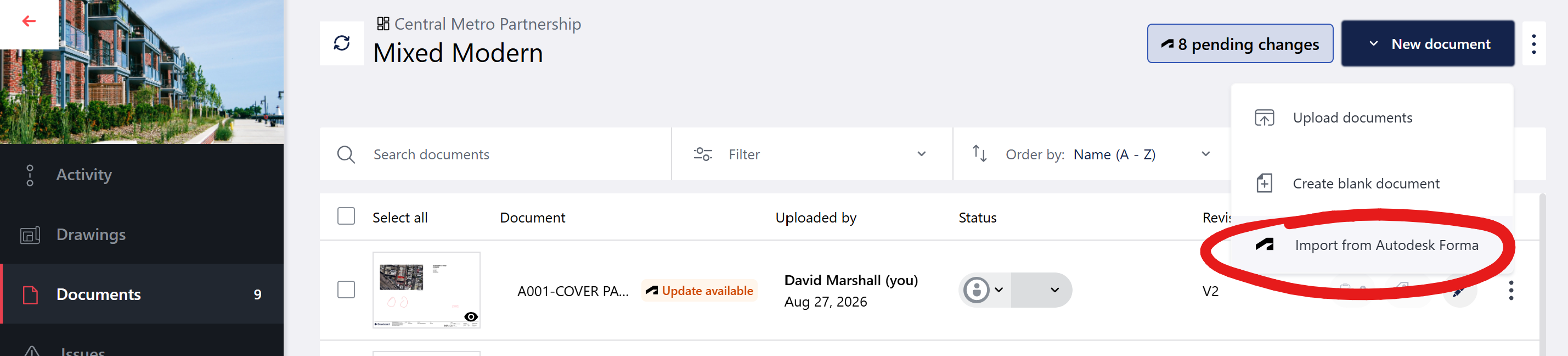
- Open a project and go to the Documents tab.
- Click Upload and select Import from Autodesk Forma.
- The file picker opens into your connected Forma projects. Use search to find specific files, or browse folders directly.
- Select the files you want to import. You can select individual drawings or an entire folder.
- Click Import. Each drawing arrives with its Forma details attached and displays its current sync status.
Tip: Use the search field when working with large Forma projects. Pulling two sheets from a folder of two hundred takes seconds.
Understanding sync status
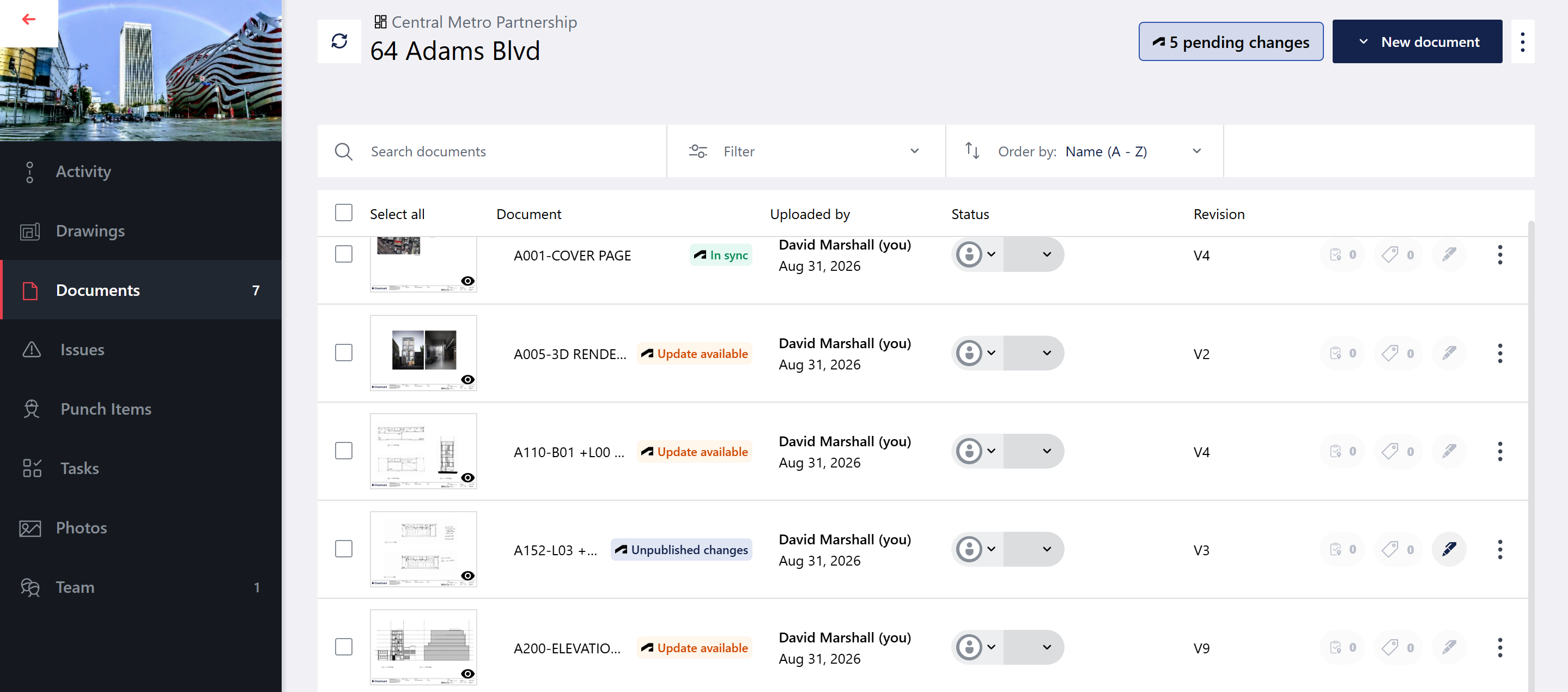
Every drawing imported from Forma shows a sync status in the drawing list. The Forma icon next to each status indicates which integration it refers to.
| Status | Meaning |
|---|
| In sync | This drawing matches the latest version in Forma. |
| Update available | A newer version exists in Forma. Import to get the latest. |
| Unpublished changes | This drawing has markups that have not been sent to Forma yet. |
| Source removed | The original drawing no longer exists in Forma. |
The Pending Changes indicator at the top of the drawing list collects all drawings that need attention, including those with updates available from Forma and those with unpublished local markups.
Sync drawings with Forma
When one or more drawings show a pending status, use the Pending Changes workflow to review and act on them.
- Click the Pending Changes indicator at the top of the drawing list.
- Review the list of drawings and their current status.
- Select an action:
- Click Import updates to bring in all drawings with newer Forma versions and no local markups.
- Click Publish changes to send all drawings with unpublished markups back to Forma.
- Click Sync all to handle both in one pass.
- Drawings that require a decision (see below) will prompt you before proceeding.
Import a new version with local markups
When a drawing has both a newer version in Forma and existing local markups, Drawboard Projects asks how you want to proceed before importing.
Import and retain markups
Get the latest version from Forma, with your existing markups carried over.
Import and start fresh
Get the latest version from Forma. Your existing markups will remain on the previous revision and can be promoted manually as required.
Skip for now
Leave this drawing on its current version and return to it later.
The previous revision always remains accessible in Drawboard Projects for comparison.
Publish drawings back to Forma
When a review is complete, an admin can publish marked-up drawings back to Forma as a new version.
- Open the Pending Changes menu.
- Review the drawings showing Unpublished changes.
- Click Publish changes or use Sync all to publish alongside any pending imports.
- The drawing is written to Forma as a new version, visible in the file's version history to the wider project team.
Publishing requires an admin role. This ensures that in-progress annotations are never sent to Forma before the review is ready.
Note: If a file is locked in Forma, publishing directly will be rejected. In this case, Drawboard Projects will offer to publish the drawing as a new file instead.
Publish a marked-up copy to a new location
At the end of a review milestone, you can publish a copy of a marked-up drawing to a different location in Forma, such as a reviews folder or a consultant issue package. This creates a standalone record of the review, separate from the live drawing register.
- Open the drawing's more options menu (...).
- Select Save marked-up copy to Forma.
- Choose a destination folder in Forma.
- Optionally edit the file description. This is pre-filled with the drawing name and date.
- Confirm to publish the copy.
The original drawing in Forma is not affected.
Per-drawing options
Each drawing in the list has additional Forma options available from the more options menu (...).
| Option | Description |
|---|
| Import from Forma | Get the latest version of this drawing from Forma. |
| Publish to Forma | Send this drawing and its markups back to Forma as the latest version. |
| Save marked-up copy to Forma | Publish a copy to a new location in Forma as a review record. |
Invited reviewers and guest access
Consultants, subcontractors, and clients can participate in reviews in Drawboard Projects without an Autodesk account or a Forma license. Guest users can:
- Open and view drawings
- Add markups
- Raise and close tasks and issues
- Join live review sessions
Guest users cannot publish to Forma. Only Projects admins with the appropriate permissions can write back to the record set.
Frequently asked questions
Which plans include this integration?
Growth and Enterprise
Who can connect the Forma integration?
Only an org admin in Drawboard Projects can set up and manage the integration. Once connected, project admins and workspace admins can import from Forma.
Do reviewers need a Forma license?
No. Only the org admin connecting the hub needs Forma access. Reviewers only need access to Drawboard Projects. They can mark up, raise tasks, and join live sessions without an Autodesk account.
Does the integration work on iPad and Windows? Yes. Setup happens on web, but importing, syncing, and marking up work on web, iPad, and Windows. Once imported, a drawing behaves like any other Drawboard Projects drawing.
What happens to my markups when a new version arrives from Forma?
You choose. Import and retain markups carries your markups over to the new version. Import and start fresh leaves them on the previous revision, where they remain accessible.
Can I push markups back into the original Revit file?
No. Markups created in Drawboard Projects are stored as a PDF overlay and cannot be written back into an RVT file. You can publish a marked-up PDF copy to any folder in Forma as a review record.
What if the original file is removed from Forma?
The drawing will show a status of Source removed. Your local copy and any markups remain intact in Drawboard Projects. You can publish the drawing as a new file to Forma if needed.
Can I use the Forma integration in the Drawings section of Projects?
Forma files can be added via the Documents section. If you are in the Drawings section and looking for Forma files, head to Documents to import them.