Note: Our Windows app doesn't yet have all the features shown on this page, as we're building the new canvas from the ground up. We'll continue to release features as they're added.
What is the canvas?
The canvas is your collaborative workspace for your drawings and documents. It is where you can review and mark up drawings and documents.
1. Markup tools can be accessed at the top of the canvas. Tools can also accessed via, and saved to, Favorites.
2. The buttons on the left provide easy access to information relating to this drawing like comments, issues, layers and the drawing's markup list.
3. Users can also perform various functions via the canvas including comparing drawings revisions, choosing which contributors' markups display, adding grids to your drawings and accessing saved markups via the Markup library.
Snapshot of the Drawboard Projects canvas
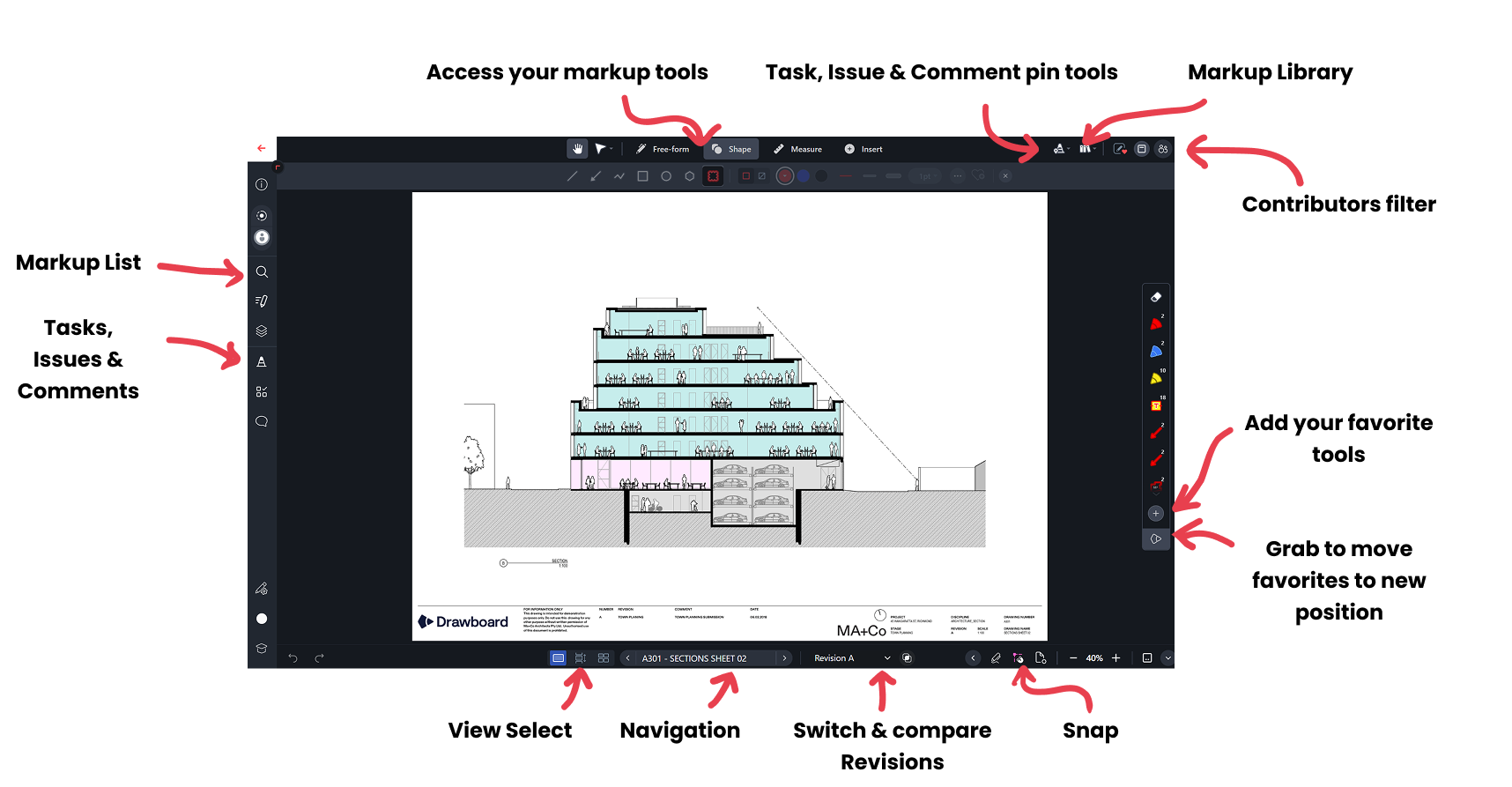 The Projects canvas in Single view
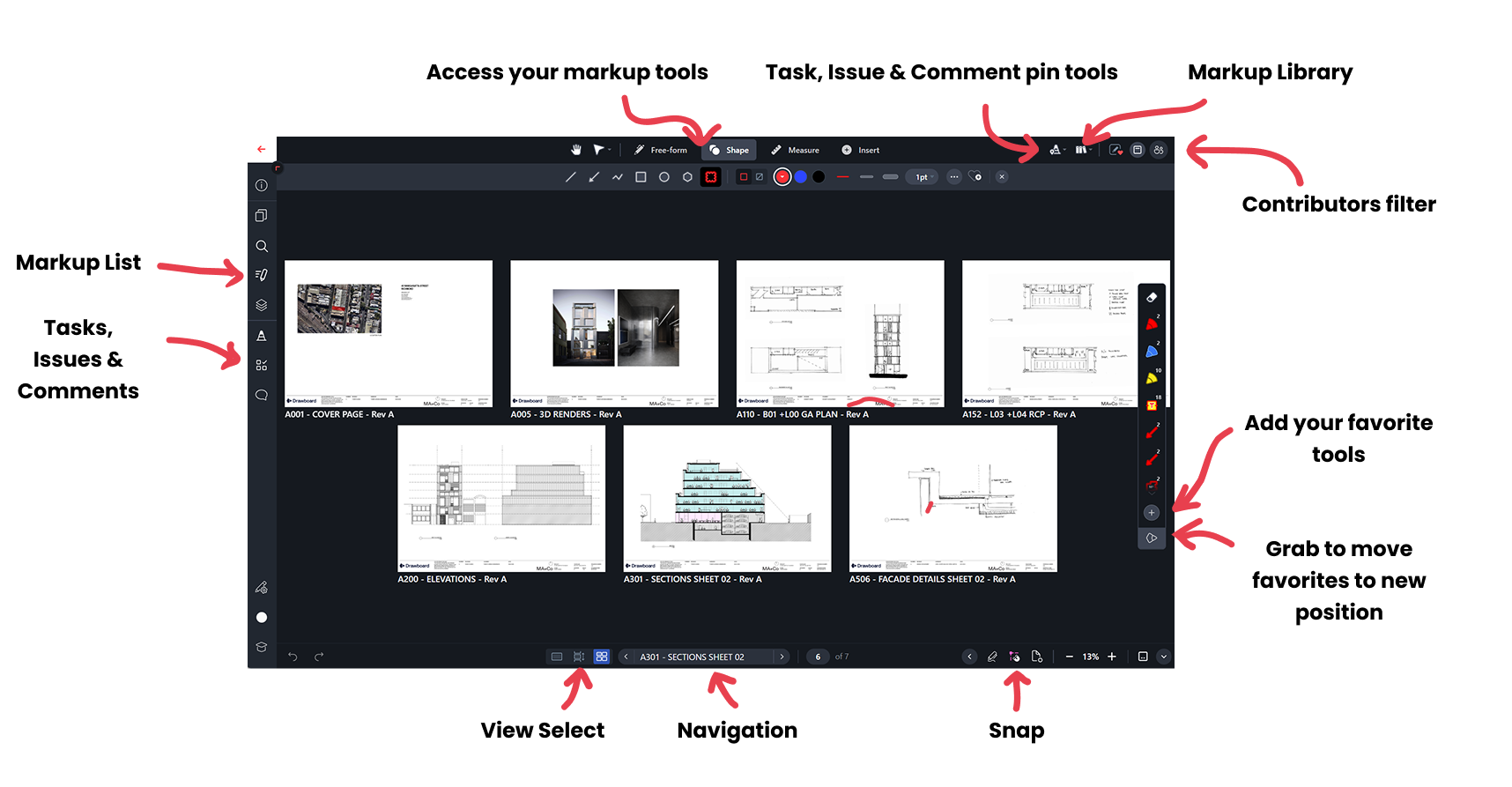 The Projects canvas in Multi-drawing view
From the canvas users can
Opening drawings in the canvas
From the Drawing List in any project, you have two ways to bring your drawings into the canvas:
Open a single drawing: Click on a drawing in the list to open this drawing in single view.
Open multiple drawings: Click the Open all button above the drawing list to load every drawing in the drawing list into the canvas at once.
Tip: If you have any documents selected or any active filters, only the selected/displayed documents will be displayed in the canvas.
Before clicking Open all, you can choose your starting multi-drawing layout (list or grid) using the layout icons next to the Open all button.
Navigation & View Modes
Once you have opened your drawings, you can switch between three primary viewing modes using the shortcut bar on the canvas.
 Single View
The classic experience. View drawings one at a time. This is best for detailed markups where you want to focus on a single sheet.
 Multi-drawing List
Combines your drawings into a single, continuous, scrollable flow. You can pan and scroll through your drawings as if they were one long document.
 Multi-drawing Grid
Opens your drawings in a customizable grid—perfect for a "bird's-eye view" of your project. You can zoom out to see the entire set or zoom in to specific sheets, with the ability to view anywhere from 4 to 8 drawings per row.
Managing your view
If you don't see all your project drawings once the canvas is open, it is because you opened a Selection or had a Filter active in the Drawing List. Click on the navigation control in the utility bar at the bottom of the screen to check.
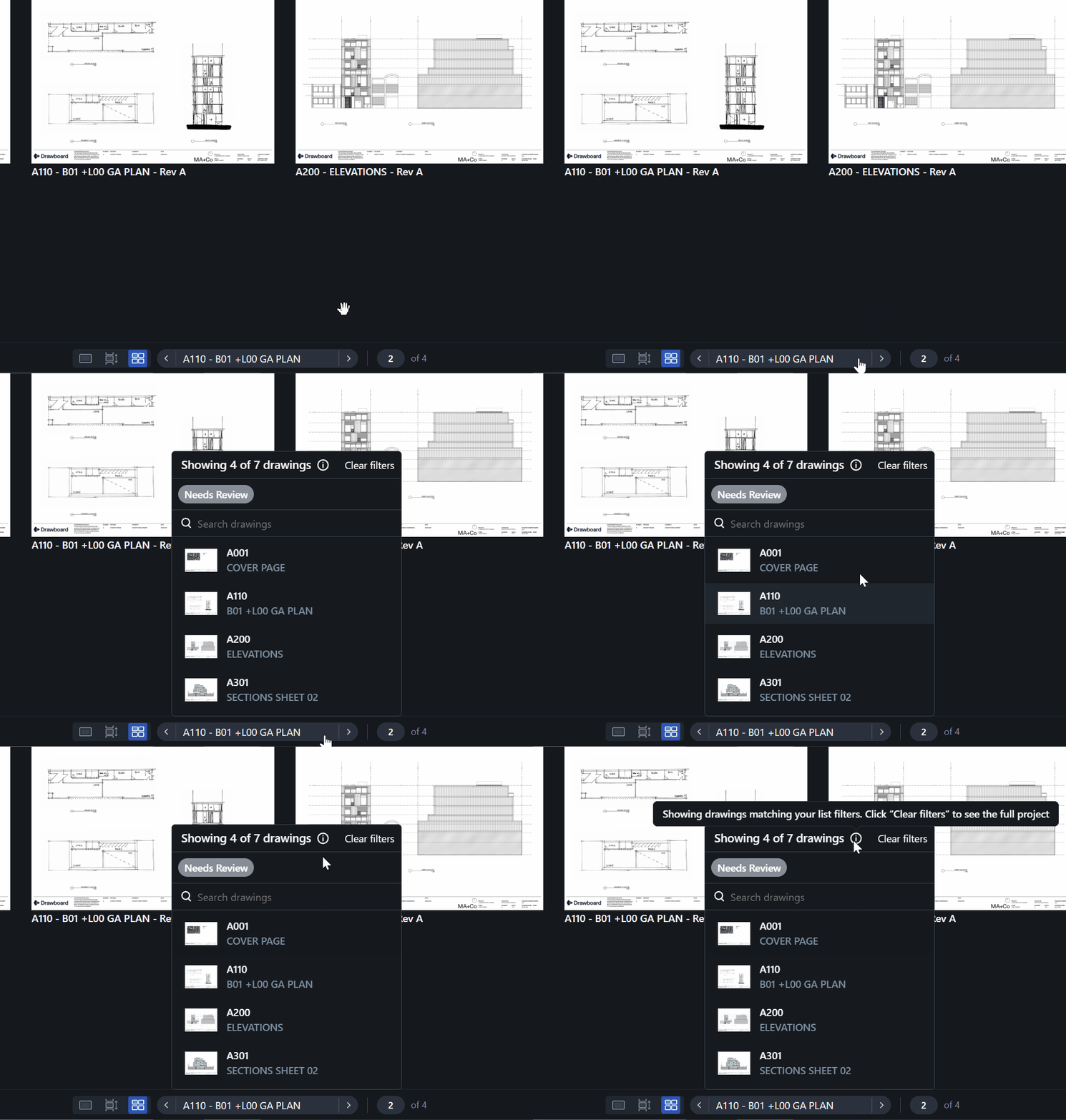
Filtered View: When hovering over the ( i ) at the top of the drawings panel, you will see the message "Showing drawings matching your list filters." To see everything, click Clear Filters.
Selected View: When hovering over the ( i ) at the top of the drawings panel, you will see the message "Showing [X] selected drawings." To see the rest of the project, click Show All.
Clearing filters or showing all from within the canvas will automatically update your main Drawing List to keep your project view in sync.
Markup tools
From the canvas, users can mark up drawings using various tools. Users can customize their tools by changing the color, thickness, opacity and more.
Accessing your tools
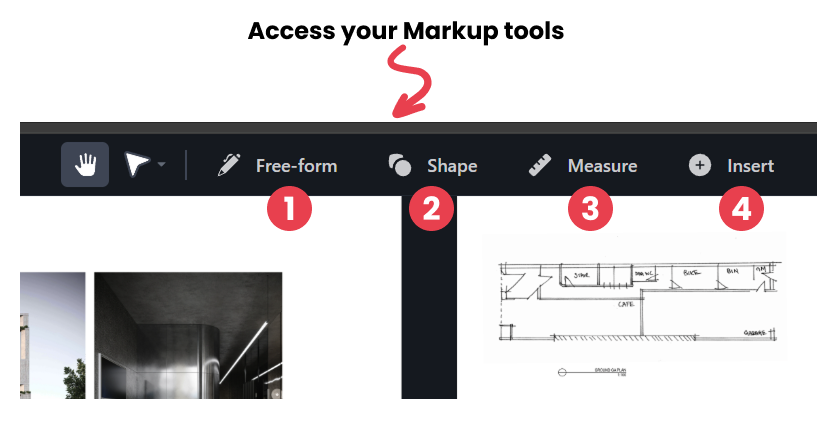
❶ Freehand tools including pen and eraser
❷ Shapes and lines including arrows, polyline, rectangle, ellipse, polygon and cloud
❸ Measurement tools including length, polygon area and rectangle area
❹ Insert images, text, callouts and stamps
Set the properties of a tool
Users can set the properties of their tools including color, thickness, opacity and more. The tool menu offers a few preset properties to help users work faster. Easily select from the color and thickness presets or choose from options by opening the full color set or thickness dropdown.
Access more tool properties
To access all properties for a tool, ensure that the tool is selected and then tap the 3 dots in the tool menu.
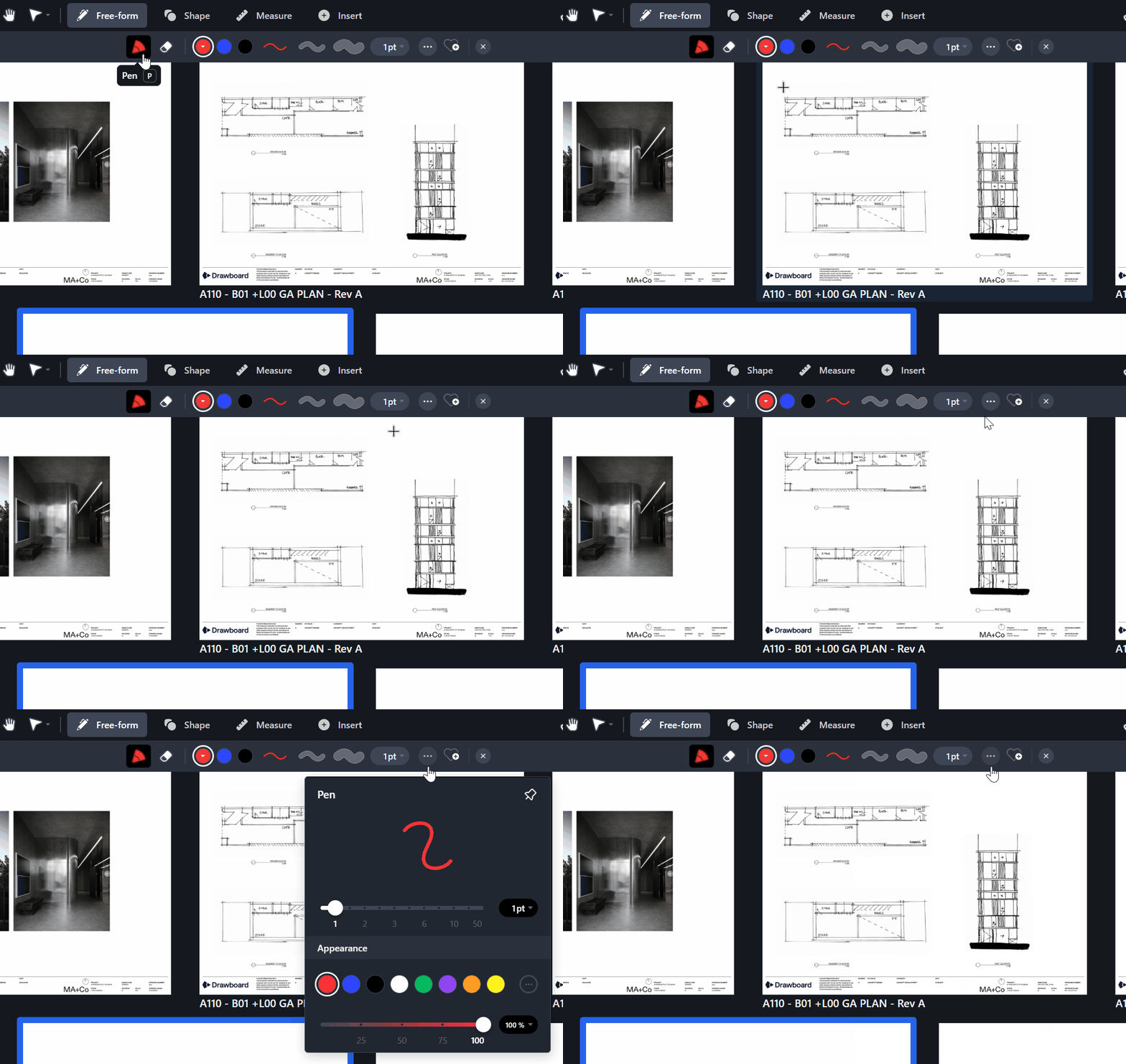
Markup Toolbar Compact Mode
You can toggle the Markup Toolbar to compact mode and back to expanded mode by clicking on the icon in the top right corner of the canvas. When in Compact Mode, tools and properties will be displayed on a single line instead of two lines.
There are two main viewing modes for the Markup tools menu: 1 bar mode and 2 bar mode.
-
1 bar mode
All tools can be accessed conveniently from a single bar menu. Perfect for maximizing visibility on the canvas. To access tools in this mode, select between the tool category icons.
-
2 bar mode
Tools can be accessed from a 2 bar menu. In this mode, users can see the tool category labels at all times.
To switch between 1 bar mode and 2 bar mode, tap the icon in the top right corner of the canvas.
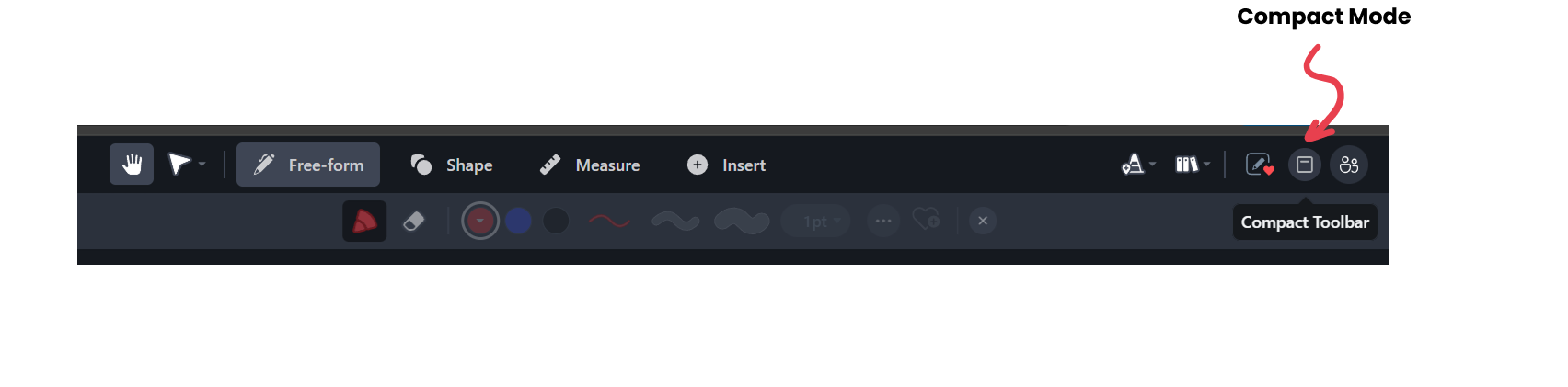
Using Favorites
Users can favorite tools to provide quick access to the tools they use regularly.
Adding a tool to Favorites
There are two ways to add a tool to your Favorites
-
From the Favorites bar
- Tap the plus icon on the Favorites bar
- Navigate to the tool you would like to add and then either drag the tool to Favorites or tap the plus icon on the tool to add it to Favorites
-
From the Markup tools menu
- Navigate to the tool that you would like to add to Favorites
- Tap the Add to Favorites icon
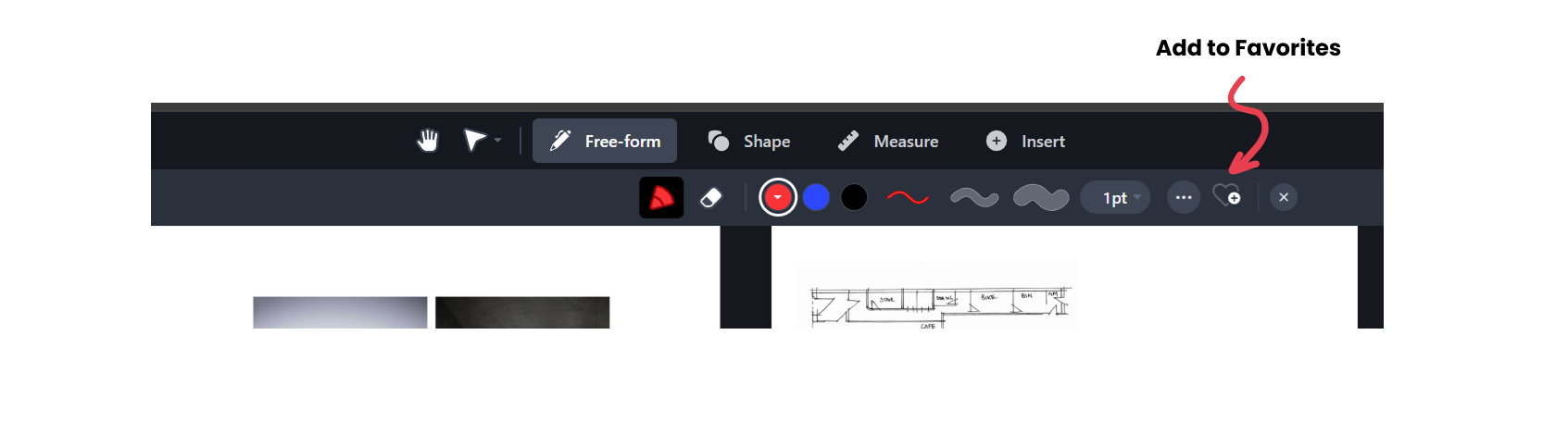
Moving the Favorites bar
To move the bar to a new position, click and drag the Drawboard Projects logo on the Favorites bar.. The Favorites bar can be placed in a floating position on the right, top or left of the canvas, or it can be docked to the right of the canvas.
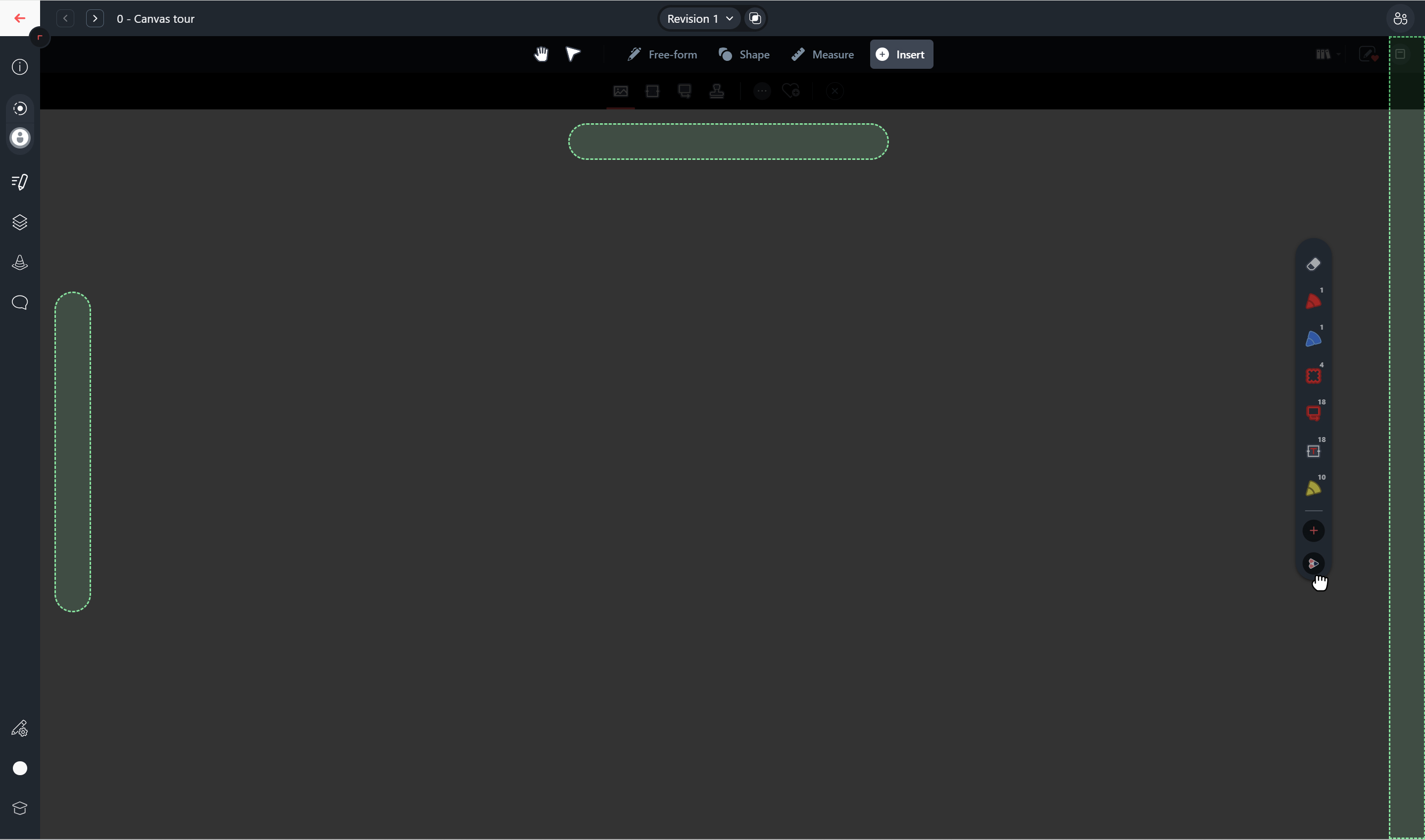
Hiding the Favorites bar and Markup tools
There are two ways to hide the Favorites bar:
- Tap the Favorites icon in the top right of the canvas
- Tap the toolbar settings in the LHS panel and then toggle off Favorites
To hide the Markup tools menu, tap the toolbar settings in the LHS panel and then toggle off Markup tools.
Navigate to other drawings via the canvas
In Single View, you can navigate to the next or previous drawing in your set by tapping the next arrow and previous arrow at the bottom of the canvas, or in our Web app, you can press Shift + Left Arrow or Shift + Right Arrow. In Multi-drawing modes, you can use the navigation controls or simply scroll and pan to move between drawings.
Working in Multi-drawing View
Selecting a Drawing in Multi-drawing View
When viewing multiple drawings in a List or Grid, your toolbars and panels (Comments, Layers, Markup List, etc.) will dynamically update based on the drawing you have selected.
How to select: Simply click or tap anywhere on a drawing’s surface.
Visual indicator: The selected drawing will be highlighted with a subtle border, and the drawing's title will appear at the top of your panels.
Switching context: As you click from one drawing to another, the Comments and Layers panels will instantly refresh to show the information specific to that sheet.
Working with Layers and Comments
Because each drawing in a project can have its own unique set of contributors and feedback, selecting a drawing will change what's displayed in these panels:
Comments: Selecting a drawing will load its specific discussion threads.
Layers: You can toggle visibility for markups on the selected drawing without affecting the other drawings visible on your canvas.
Markup List: Use this to filter or find specific annotations only on the currently selected drawing.