Only Administrators and Project Owners can delete Drawings from a project.
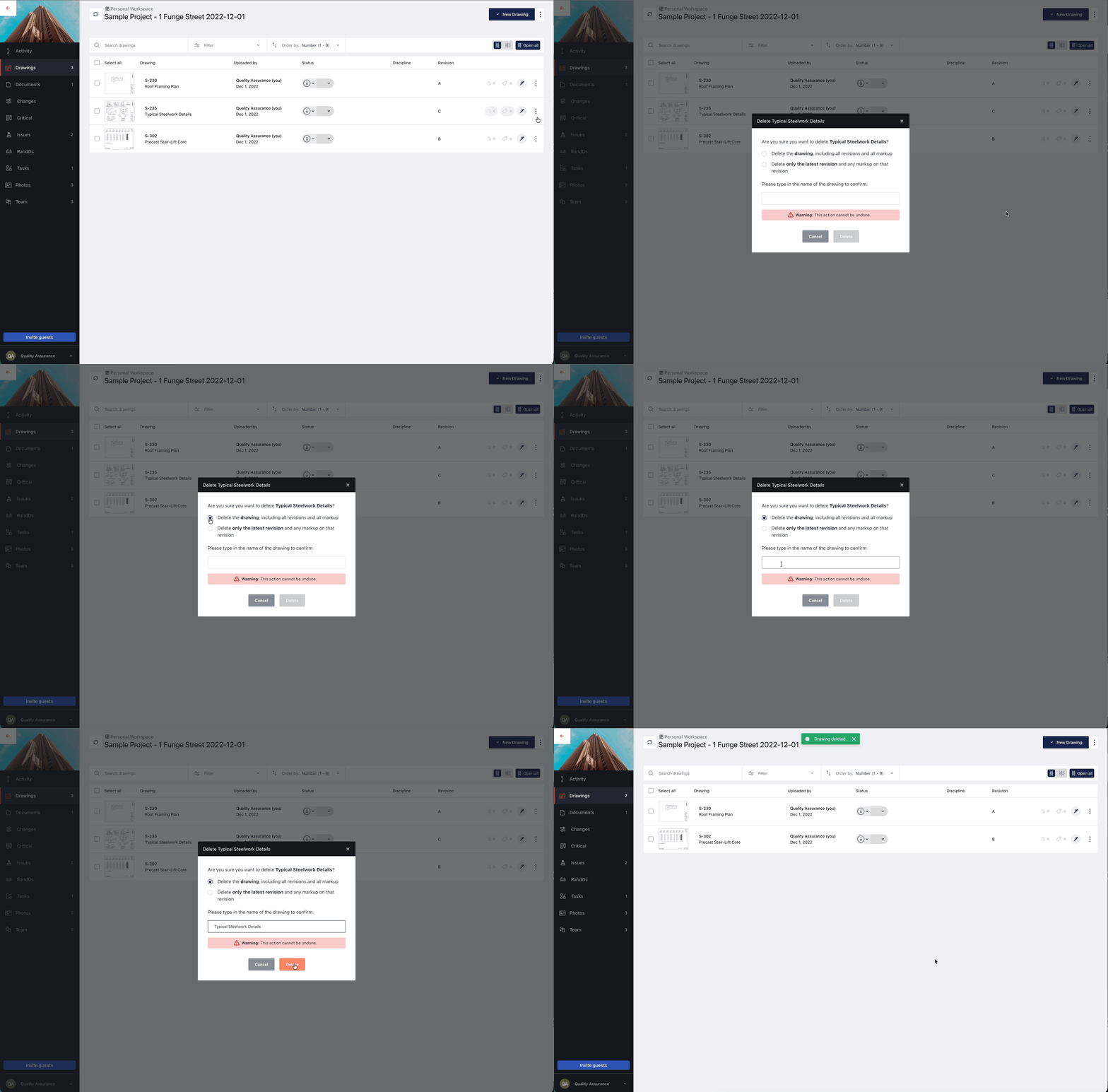
Deleting drawings from your project is simple, and you now have the option to delete only the latest revision if you don’t want to remove the entire drawing. Keep in mind that deleting drawings is permanent. Follow the steps below to safely remove drawings:
- From your project screen, open the Drawings tab to view all drawings associated with your project.
- Select the drawings you want to delete.
- Tap Delete from the ellipse menu on the far right of the drawing row.
- An alert will appear asking you to choose between two options:
- Delete the drawing including all revisions and all markup
- Delete only the latest revision and any markup on that revision
- To confirm, type in the name of the drawing exactly as it appears.
- Then, tap Delete to confirm the deletion
- After confirming, navigate back to the drawing list. The deleted drawing will no longer appear in the list or be searchable.