For architecture, engineering, and construction organizations, Microsoft SharePoint and OneDrive are central to how project documents are stored and managed. Drawing sets, specifications, and reports typically live in these repositories — governed by version control and accessible across your whole team.
The OneDrive and SharePoint integration in Drawboard Projects means you no longer need to download files locally before uploading them into a project. Instead, you can browse your organization's Microsoft cloud storage directly from within Drawboard Projects, select the files you need, and bring them straight into a project for collaborative markup and review.
The integration is available in both the Drawings and Documents sections of Drawboard Projects.
Note: The OneDrive and SharePoint integration is currently read-only. You can import files from OneDrive or SharePoint into Drawboard Projects, but it is not possible to save or sync files back to OneDrive or SharePoint from Drawboard Projects. Marked-up files can be exported from Drawboard Projects using the standard export tools.
Requirements
- A Drawboard Projects account with access to the relevant project
- A Microsoft account with access to the OneDrive or SharePoint location containing the files you wish to import
- Files must be in PDF format for Drawings uploads
- Super Collaborator or Administrator permissions to upload drawings or documents
Uploading drawings from OneDrive or SharePoint
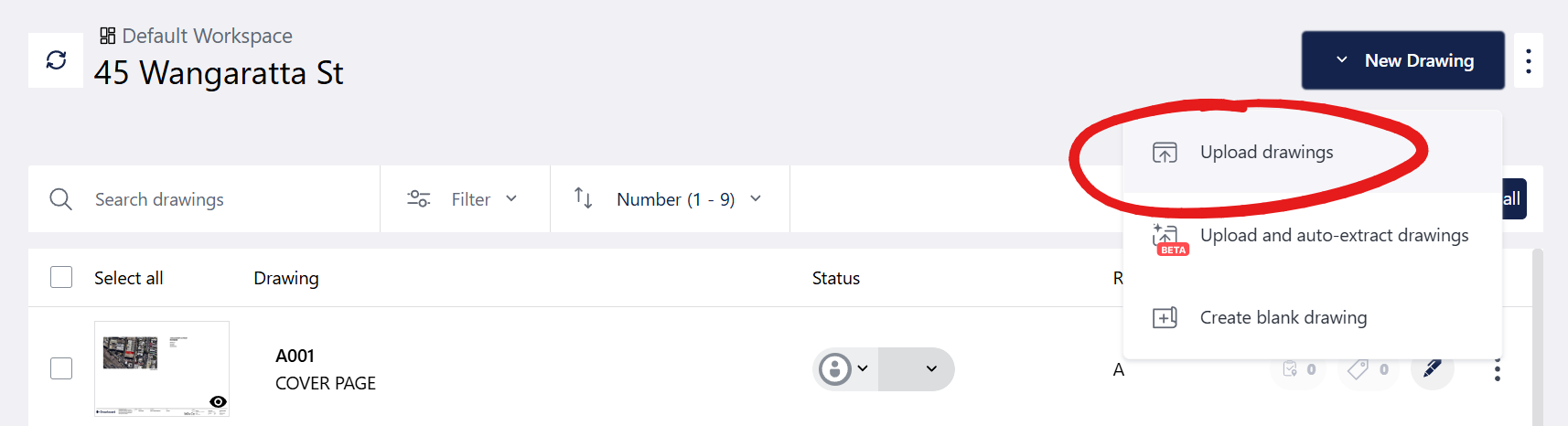
Step 1 — Open the Upload Drawings panel
- Open your project in Drawboard Projects and navigate to the Drawings tab.
- Click the Upload Drawings button in the top right corner of the page.
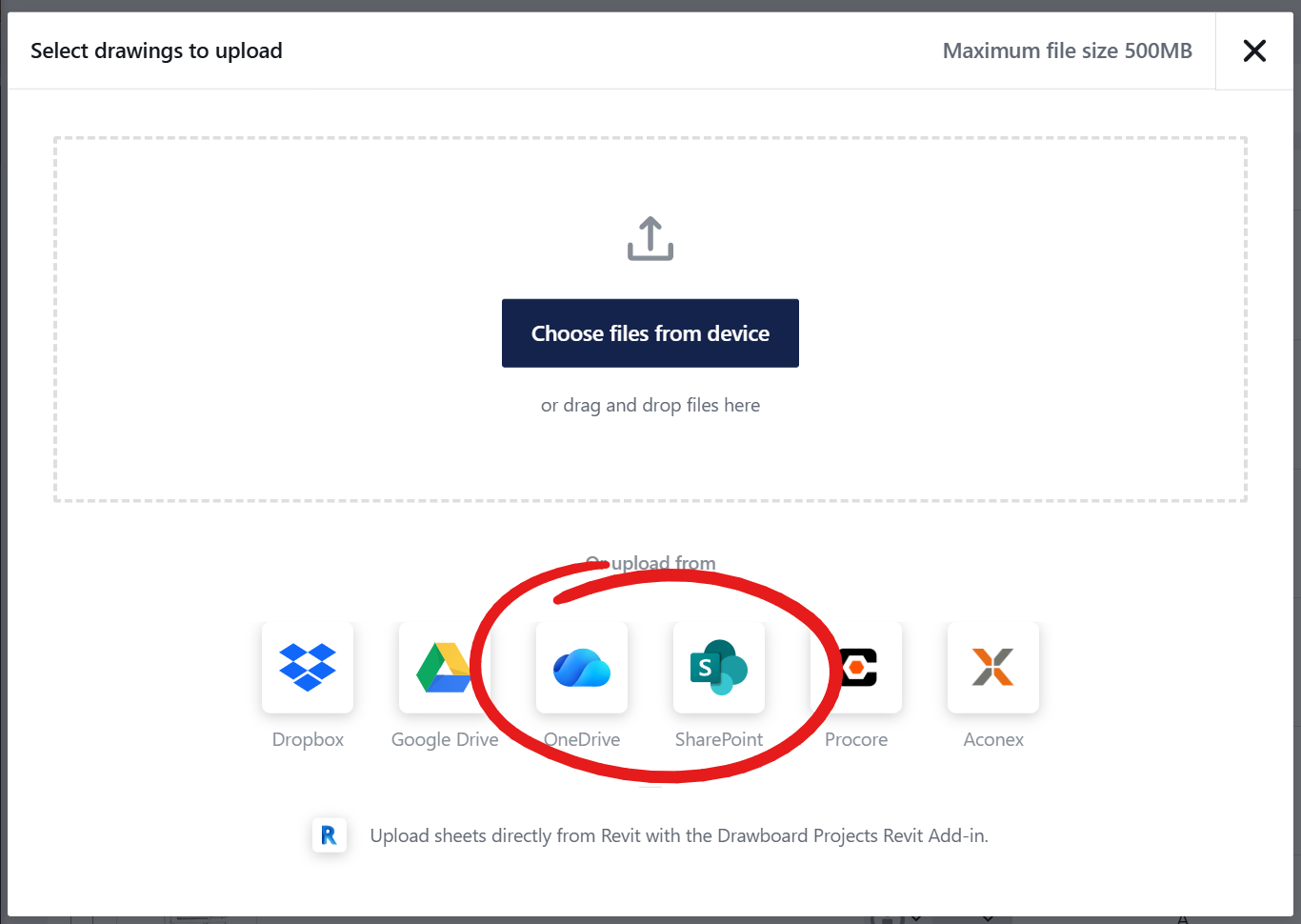
Step 2 — Select the OneDrive or SharePoint integration
- In the upload panel, look for the integration options at the bottom of the screen.
- Click the OneDrive or SharePoint icon to launch the Microsoft file picker.
- If prompted, sign in with your Microsoft account credentials.
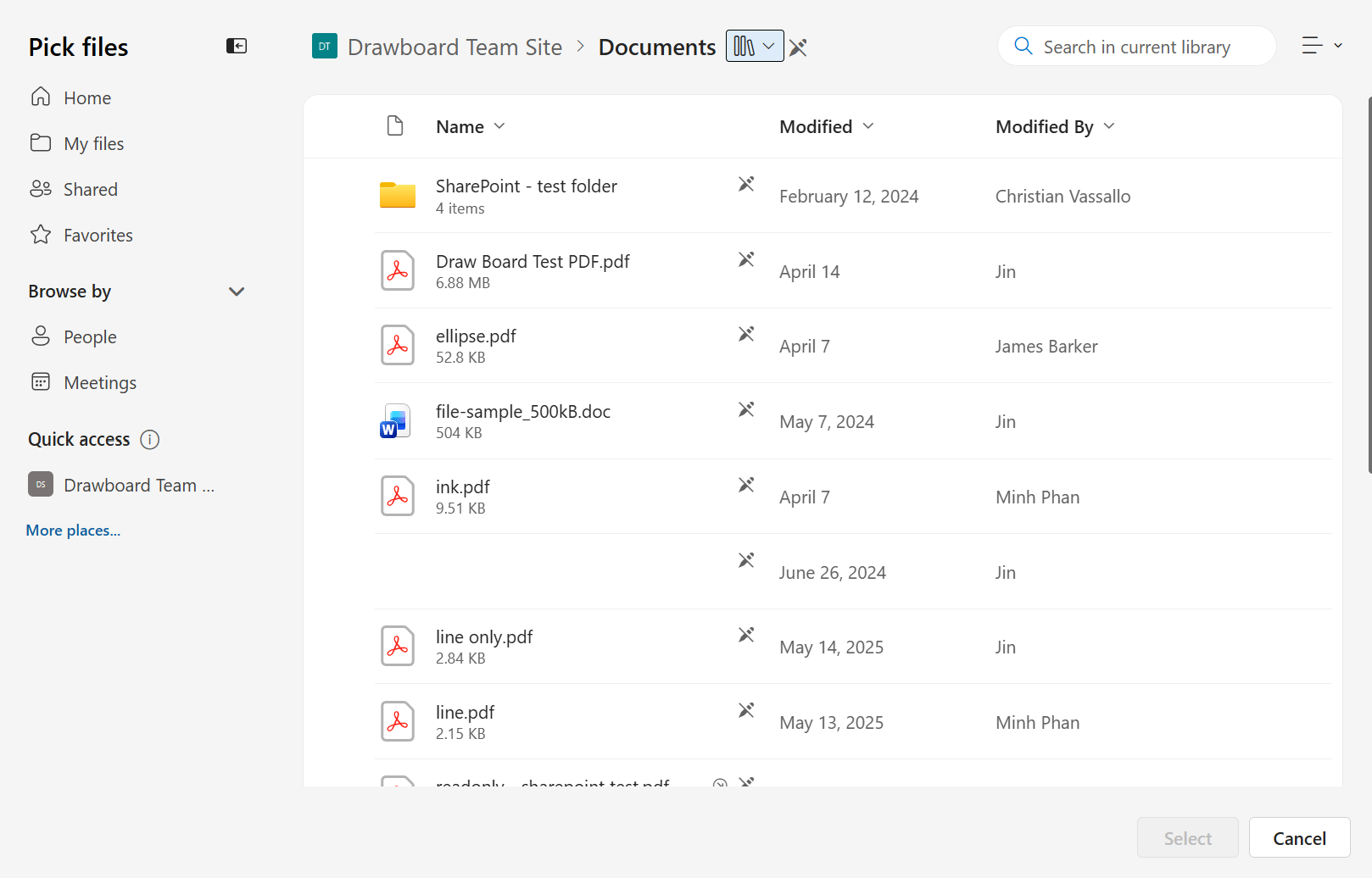
Step 3 — Browse and select your files
- The Microsoft file picker will open. Navigate to the folder containing your drawings.
- Select the PDF file(s) you wish to import. You can select multiple files at once.
- Click Open to confirm your selection. The files will be transferred into the Drawboard Projects upload flow.
Step 4 — Confirm drawing details and publish
Once your files are in the upload flow, the standard Drawboard Projects process continues — the same as uploading from your local device. You will be prompted to choose a template option:
- Skip template — Proceed without automatic title block reading. You can manually review and edit drawing details (number, name, revision, etc.) for each file.
- Create new template or Select existing template — Drawboard Projects will use OCR to automatically read drawing details from the title block of each drawing. You can review and correct the results before publishing.
When you're happy with the drawing details, click Publish all (or Publish selected) to make the drawings available in your project.
Uploading Documents from OneDrive or SharePoint
The OneDrive and SharePoint integration is also available in the Documents section of Drawboard Projects, allowing you to import specifications, reports, correspondence, and other documents directly from your Microsoft cloud storage.
The process is the same as for drawings:
- Navigate to the Documents tab of your project.
- Click Upload Documents and select the OneDrive or SharePoint icon.
- Use the Microsoft file picker to browse and select your files.
- Complete the upload flow as described above.
Frequently asked questions
Which Microsoft account do I sign in with?
Sign in with the Microsoft account that has access to the SharePoint site or OneDrive location containing your files — typically your work or Microsoft 365 account.
Will my sign-in be remembered?
Drawboard Projects uses the standard Microsoft file picker, which may retain your Microsoft session depending on your browser settings and your organization's account policies.
Can I select multiple files at once?
Yes. The Microsoft file picker supports multi-file selection. You can select multiple drawings or documents in a single session.
Can I import from a shared SharePoint site (not just my own OneDrive)?
Yes. As long as your Microsoft account has access to the SharePoint site, you will be able to browse and select files from it.
Can I save marked-up drawings back to SharePoint or OneDrive?
Not currently. The integration is read-only — files can be imported from OneDrive or SharePoint, but cannot be saved or synced back. Export your files from Drawboard Projects and upload manually.