Available on: Web, iOS, and Mac. Coming soon on Windows!
What is the tape tool?
The Tape Tool lets you cover text, images, or answers in your PDF, which can then be revealed with a single tap. It’s perfect for reviewing class notes, practicing questions, or keeping answers hidden until you’re ready to check them.

Using the Tape tool
Find your Tape tool
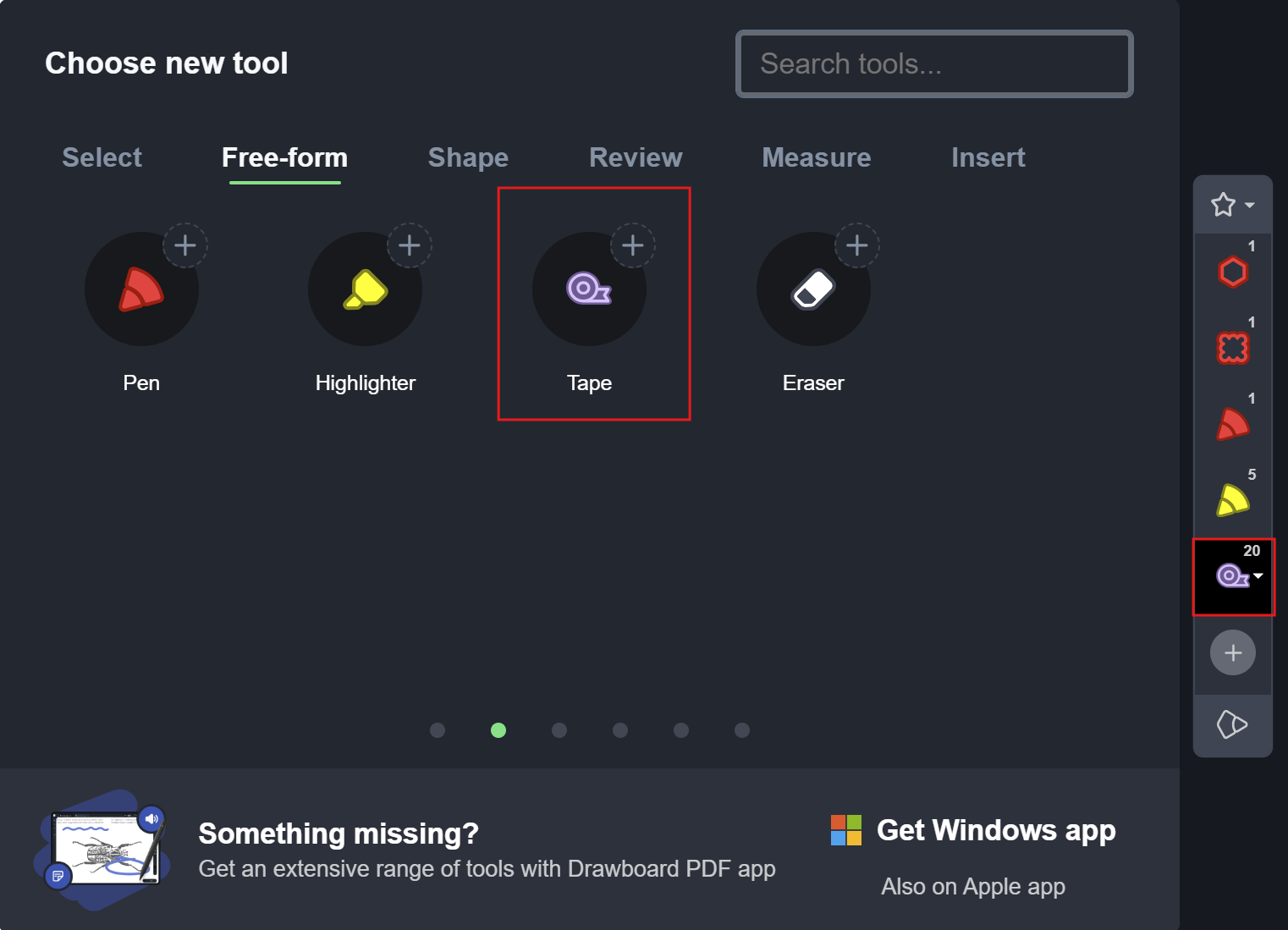
In the markup toolbar, locate the “Free-form” section and select the Tape Tool .
.

Markup toolbar on web
or you can also add the Tape tool to your Favorite Toolbar for quick access.
Hide content
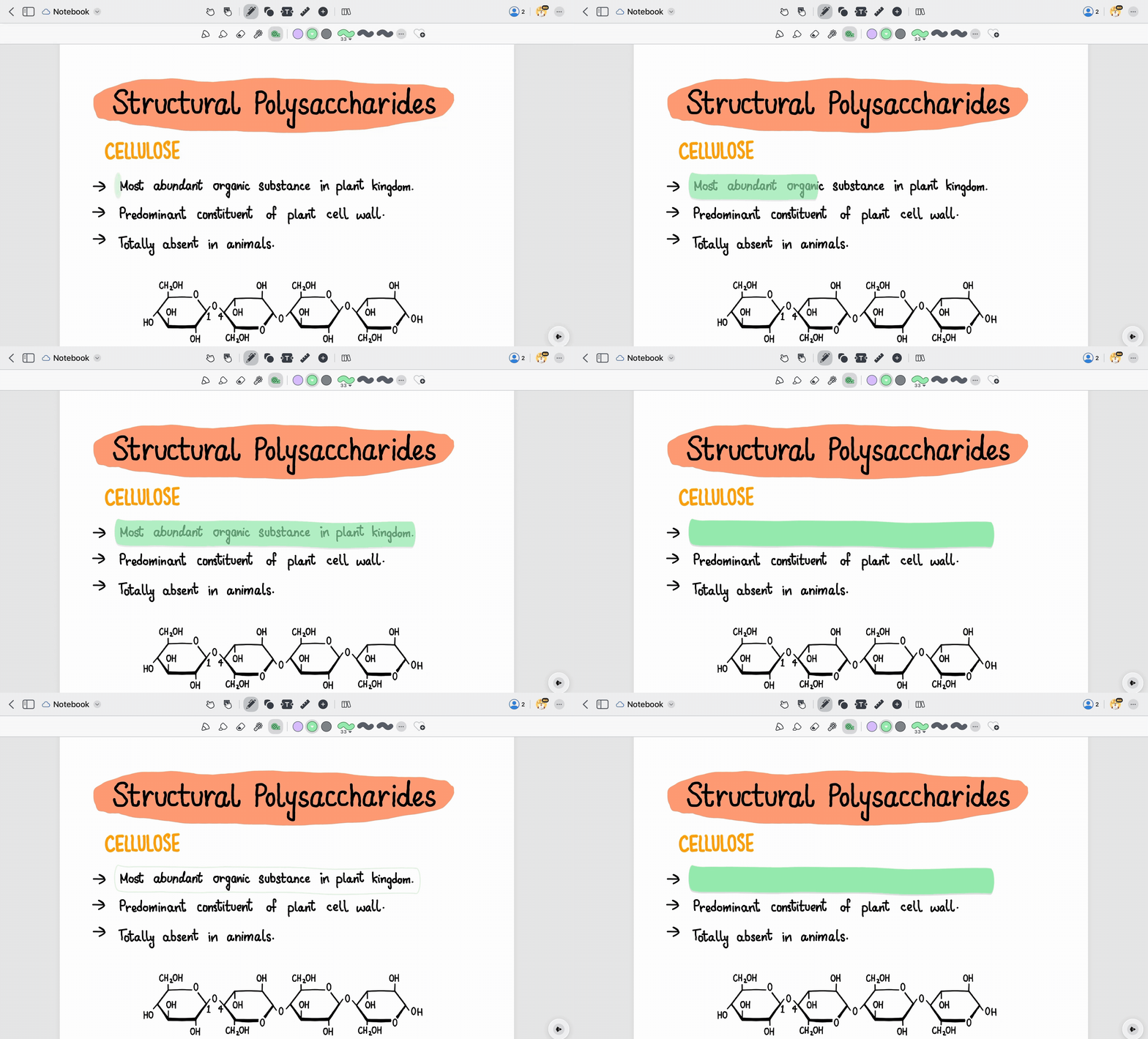
Draw a line over the text or image you want to hide.
Choose a color from our color pallette
The underlying content will be covered by the tape.
Reveal content
Tap or click the tape to reveal the hidden content.
Use this feature to self-test on definitions, answers, or concepts without needing a separate study set.
Resizing Tape annotations (Web Only)
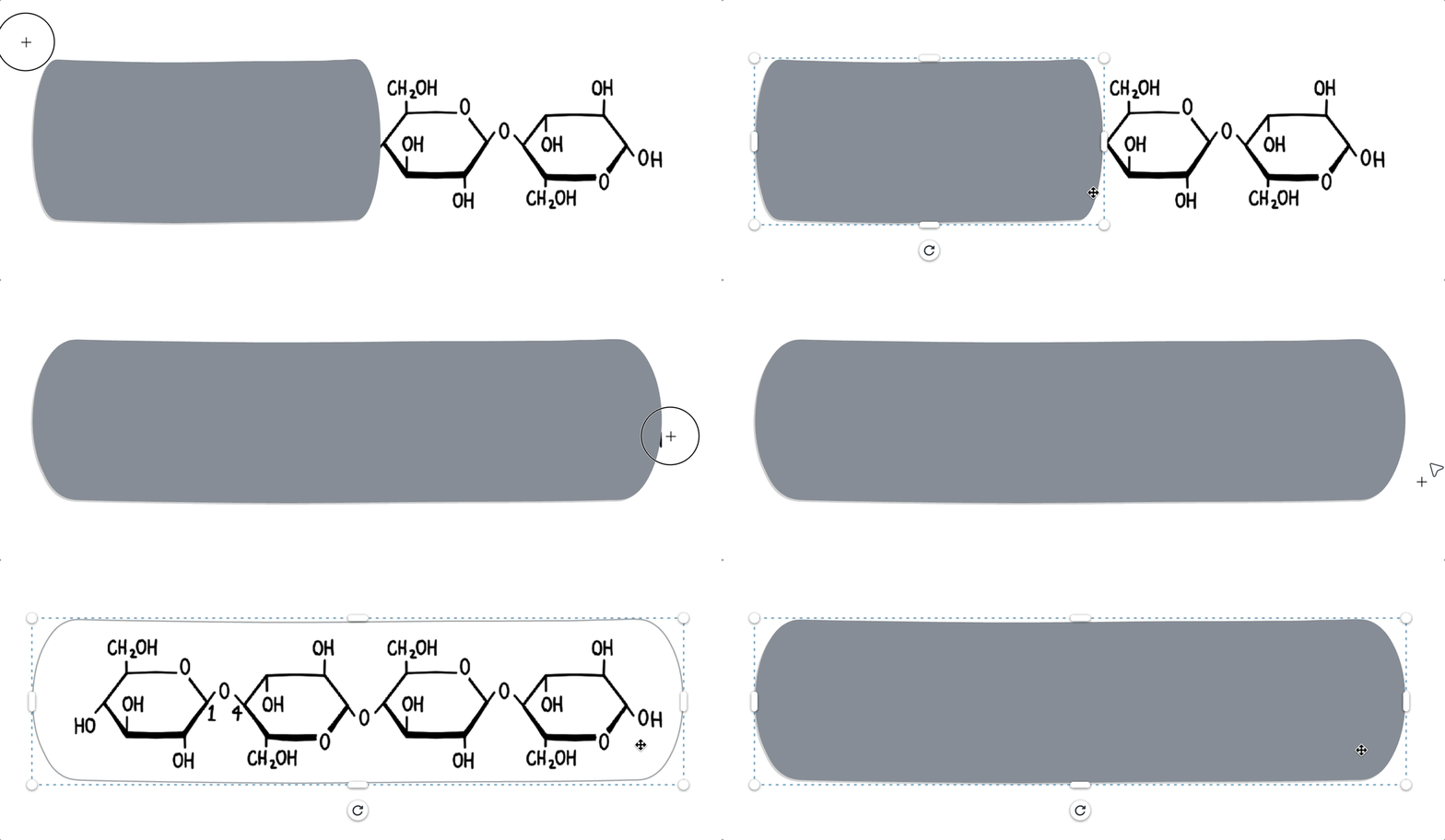
- Select the tape using the Rectangle Select tool
 .
. - Tap and drag over a portion of the tape annotation to select it.
- Move the tape to cover different parts of your notes or to align it precisely with the content.
Share Your Study Notes with the Tape tool
Once you’ve added tape annotations to your PDFs, you can share them with classmates, friends, or teachers while keeping your interactive notes intact.
Your tape annotations stay visible and functional when the PDF is shared, so others can hide and reveal content just like you do. Share via email, cloud storage, or any platform that supports PDFs.
Tip: If your recipients are using Drawboard PDF on iOS, Mac, or Web, the tape annotations will remain fully interactive. Windows support for shared interactive tape is coming soon