This article explains how to upload new documents to your Drawboard Projects, and how to upload new revisions to existing documents.
Uploading a new document
To add a new document to your project:
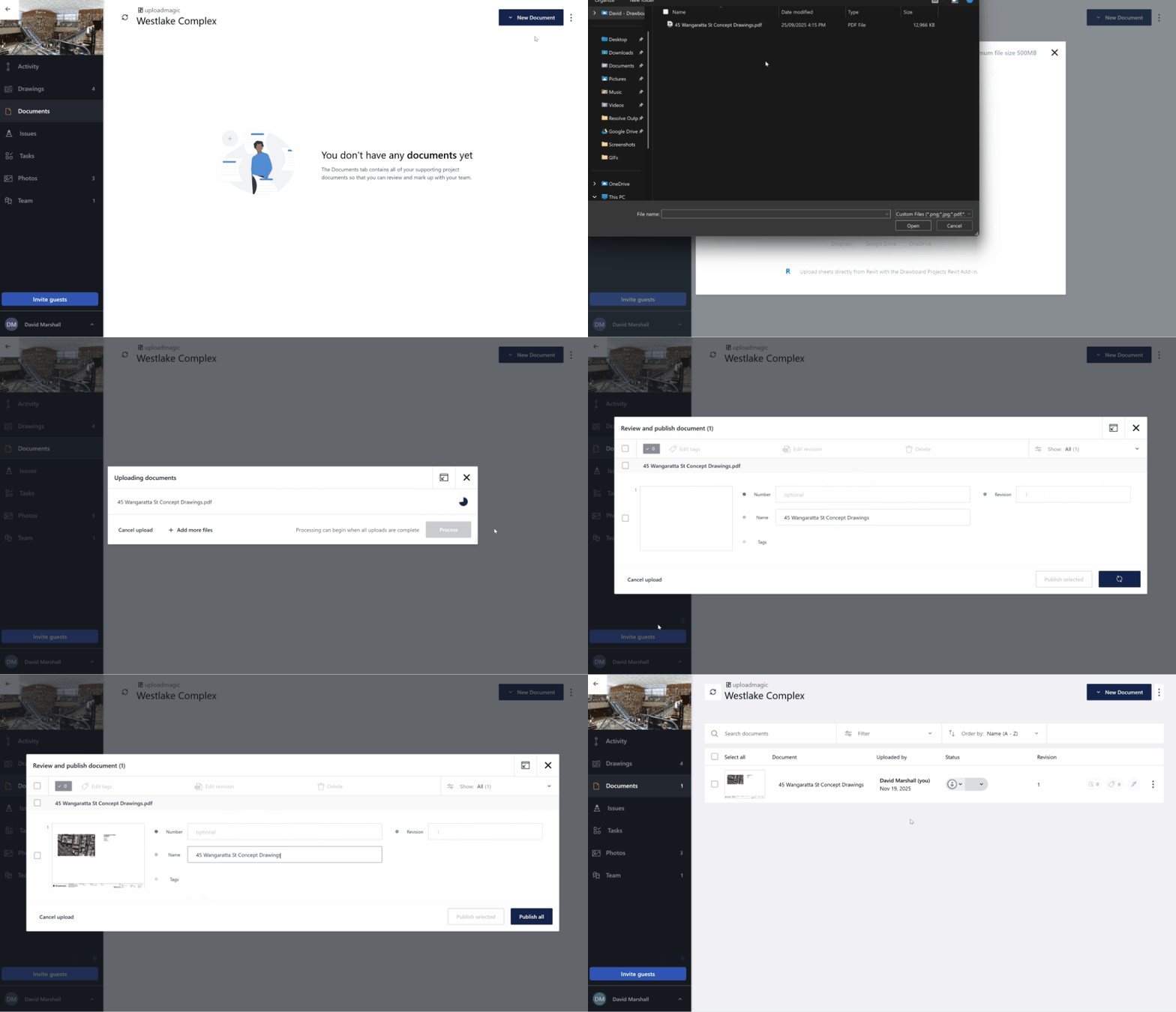
Navigate to the Documents Tab: Open your desired project and go to the Documents tab.
Initiate Upload: Click the New Document button then select Upload documents.
Configure Document Details: The upload dialog will appear. For each document, you can configure the following optional details:
Name: By default, this is populated using the file name. You can edit this name as required.
Number (Optional): If desired, enter a unique identifying document number, or leave this field blank
Revision (Optional): If desired, enter the initial revision identifier (e.g., A, 1.0, P1), or leave this field blank to accept the default initial revision 1.
Complete Upload: Review your details and click Publish all to finalize the upload.
The new document will now appear in your document list.
Uploading a new revision of an existing document
You can also upload a new revision for any existing document. The new revision will be opened by default when clicking the document on the document list. While viewing a document, switching to older revisions and comparing revisions is possible by using the revision/overlay control at the top of the screen.
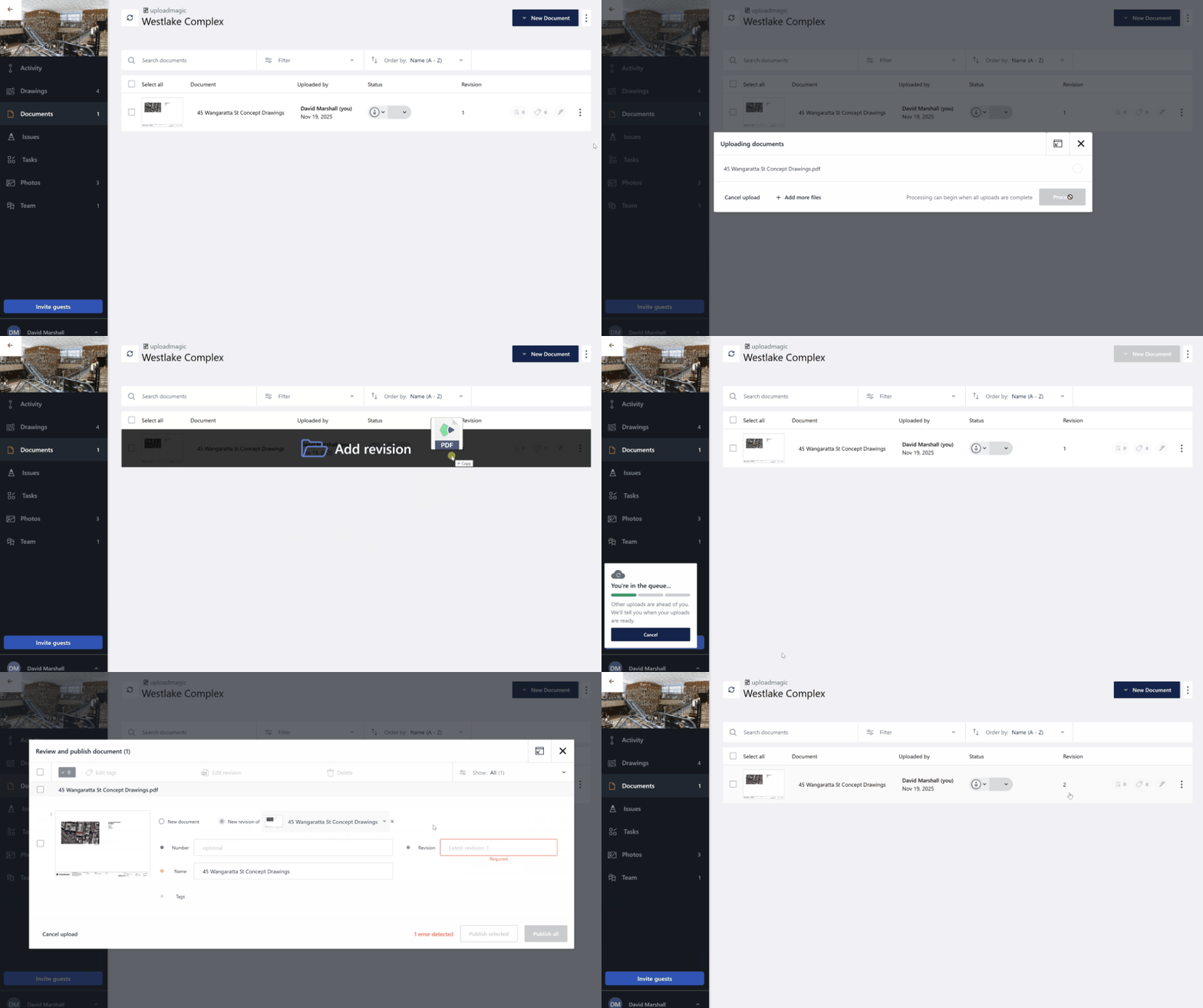
There are two ways to initiate a revision upload:
Using the More (...) menu
Locate Document: In the Documents list, find the document you wish to update.
Access Menu: Click the More menu (three dots: ...) located on the right side of the document row.
Select Action: Choose Add revision from the menu options.
Select File: A dialog will prompt you to select the new file from your computer.
Using drag-and-drop
Prepare File: Locate the new document revision file (from your Windows Explorer or Mac Finder).
Drag onto Document: Drag the new file directly onto the specific document row in your Drawboard Projects document list.
Automatic Identification: Dropping the file directly onto the existing document automatically identifies the new file as a revision of that document and initiates the revision process.
Revision confirmation and details
Regardless of the method used, the revision upload process will continue as follows:
New Revision Details: You will be prompted to confirm the details for the new revision.
The Document Name (and Number, if a number was provided) will be inherited from the original document.
You will be required to input or confirm the new Revision identifier (e.g., incrementing from A to B, or 1.0 to 1.1).
Finalize: Once confirmed by clicking Publish all, the new document will be uploaded, replacing the old version as the current revision. Your existing markups on the old revisions will be retained.